
Appearance
AdminDefinitions, paths & steps
The definition is the structural template behind a cycle. It holds the paths a user can take and the steps they'll complete.
Open the definition
Click Manage Definition on any cycle row. The definition editor opens as a full-screen modal.
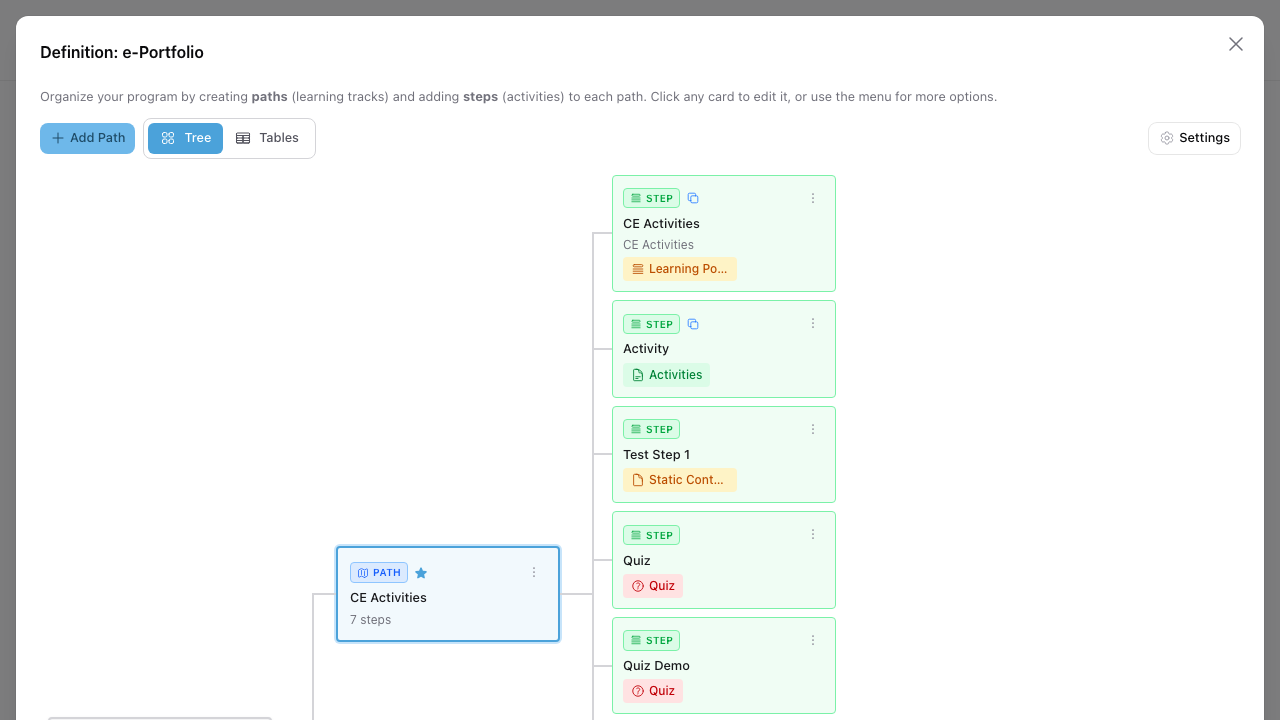 Definition → Tree view. Paths sit in the centre column; steps fan out to the right. Click any card to edit it.
Two views toggle in the toolbar:
- Tree — a visual layout of paths and their steps. Best for understanding flow and adding/reordering items.
- Tables — flat tables of all paths and all steps. Best for bulk edits and seeing details like Required, Prerequisites, and assigned Roles.
Tables view: see everything at a glance
Switch to Tables when you need to scan many paths or steps at once.
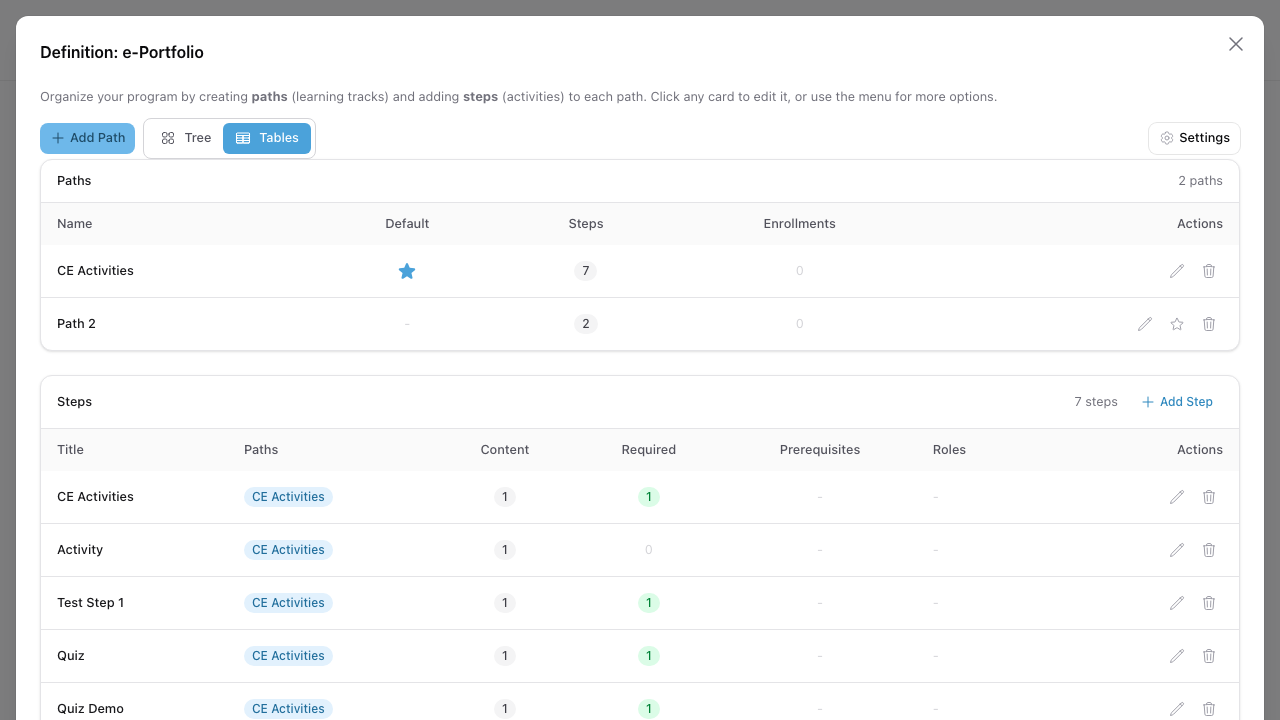 Definition → Tables view. The Paths table shows which path is default; the Steps table shows every step with its membership and gating flags.
- Paths table columns: Name, Default (one path is marked with a star), Steps, Enrollments.
- Steps table columns: Title, Paths (a step can live on more than one path), Content count, Required, Prerequisites, Roles.
Configure a path
Click Edit on a path to open the path editor — two tabs: Path and Path Conditions.
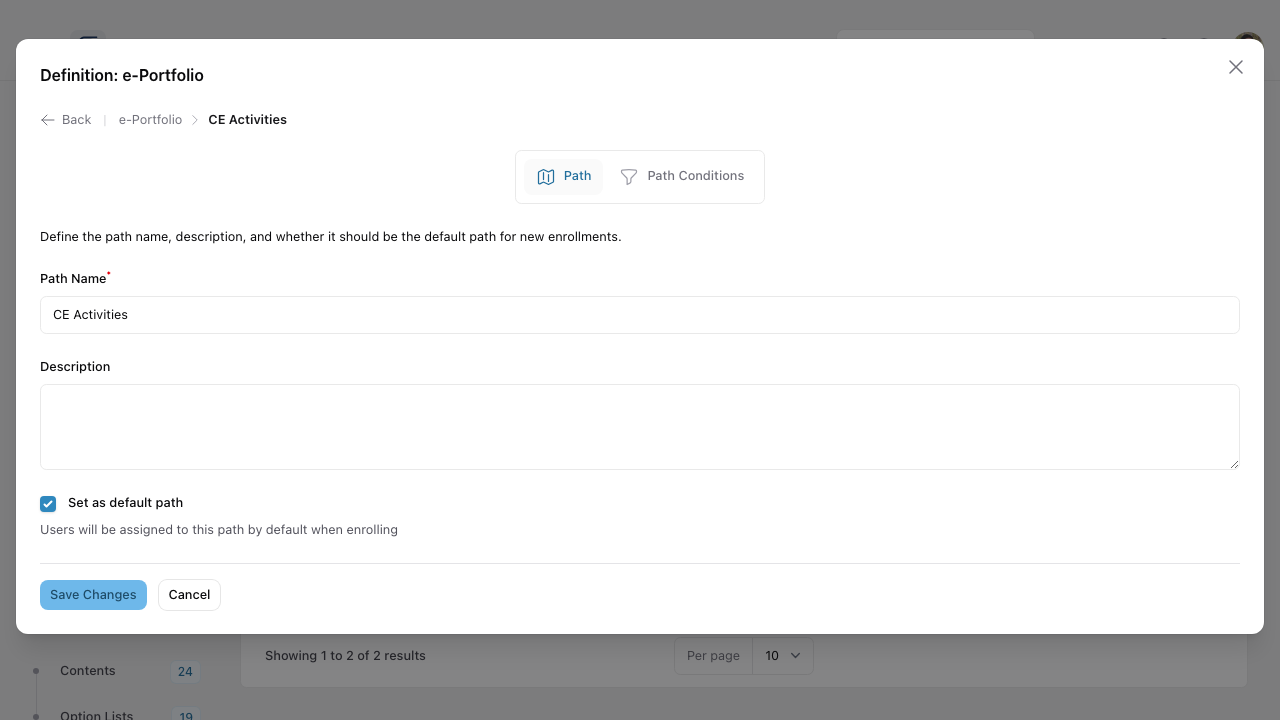 Path tab. Name, description, and a default flag — users are assigned to the default path when they enrol unless conditions override that.
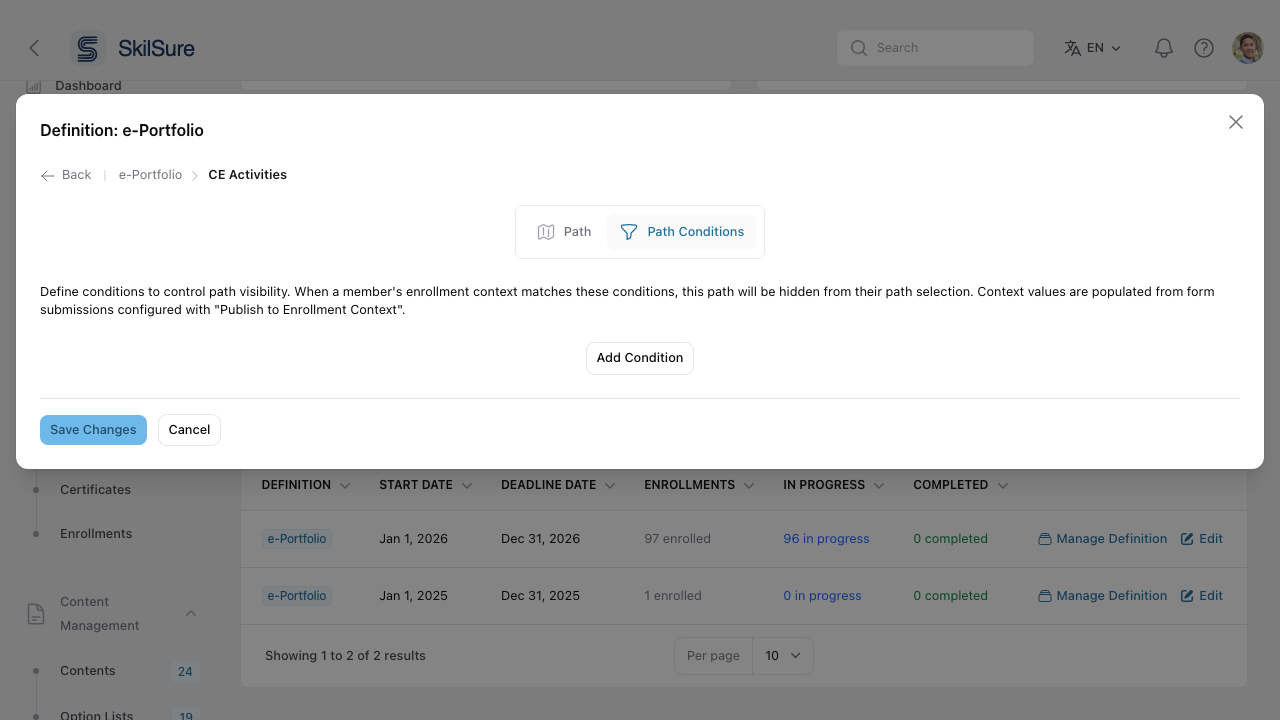 Path Conditions tab. Hide a path from users whose enrollment context doesn't match — useful when different roles or cohorts should see different tracks.
Path Conditions let you control path visibility based on enrollment context — values populated by form submissions earlier in the program. For example: only show an advanced path to users whose form submission set their experience level to Senior.
Configure a step
Click Edit on a step. The editor opens with tabs covering everything from content to sign-off.
Step tab — basics & content
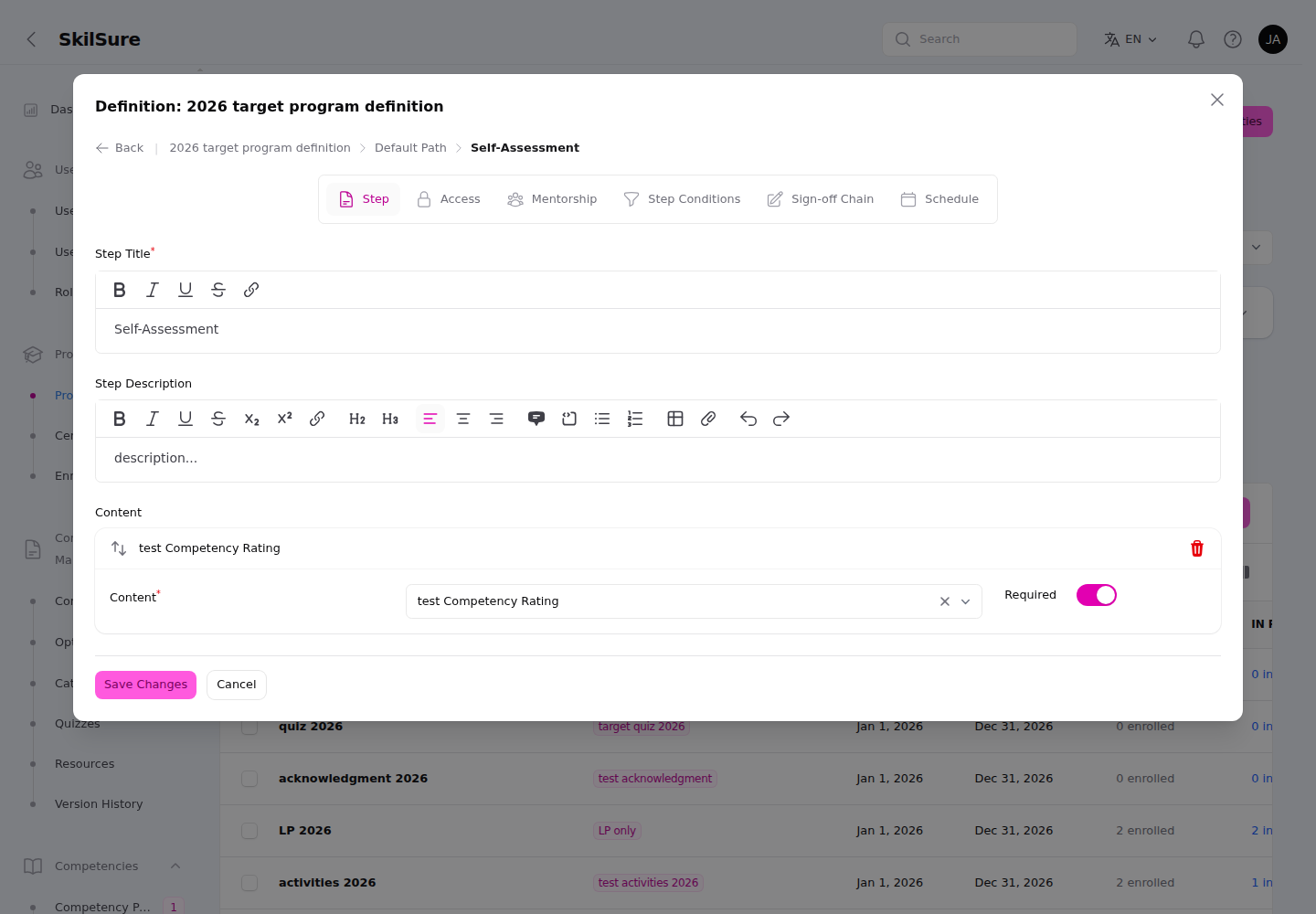 Step tab. Title and description are rich-text editors; below them you pick the content this step delivers and set a Required toggle for completion gating.
- Step Title and Step Description — both are rich-text editors with multi-language support. The title and description you write here become the header at the top of the step in the user view, shown consistently across every content type. The description toolbar also offers collapsible definitions — turn a word into a link that reveals an explanation beneath the sentence.
- Content — pick the content item this step delivers (Static Content, Video, Quiz, Activities, Learning Portfolio, etc.). A step can carry multiple content rows. Each content row has a Required toggle.
One header per step
You no longer set a separate title and description on each content module. The step's title and description render once, as the step header, above whatever content the step delivers.
What makes a step required
A step counts as required when it has at least one required content item. A step with no content (an information-only step) is treated as optional. Required steps drive the program's progress bar and completion — optional steps don't.
Progress Step Dashboard — stats on the member's step card
Still on the Step tab, below Content, decide what the member sees on this step's card on their Program Steps dashboard.
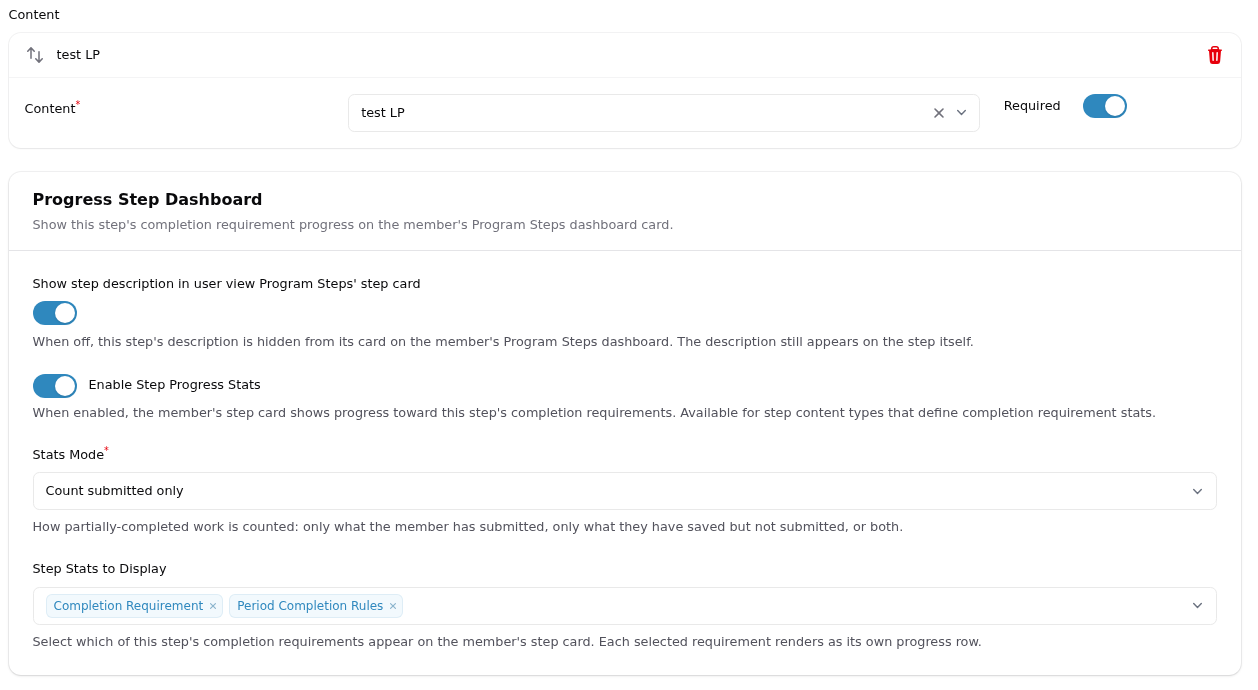 Step tab → Progress Step Dashboard. The description switch applies to every step; the mode and stats selects appear once you enable stats.
Show step description in user view Program Steps' step card — on by default. Turn it off to keep the step's description off the dashboard card. The description still appears on the step itself, so this only declutters the card. This switch works on its own — you don't have to enable stats to use it.
Enable Step Progress Stats — off by default. Turn it on to show progress toward this step's completion requirements on the card.
Stats Mode — how partially-completed work counts. Count submitted only (the default) counts what the member has submitted; Count saved only counts what they've saved but not submitted; Count both saved and submitted counts everything. "Saved" means the member actually entered something — simply opening a Learning Portfolio goal and leaving it blank doesn't count towards progress.
The selector only appears when it can change something. A quiz's score and attempts come from attempt records and read the same either way, so if the requirements you picked are only those, the selector is replaced by a note saying there is no counting mode to choose. Every other requirement — Learning Portfolio rules included — does follow the mode.
Step Stats to Display — pick which of this step's requirements appear. Each one you select becomes its own row on the card.
What you can choose depends on the step's content:
| Content | Available stats |
|---|---|
| Learning Portfolio | Completion Requirement, Form Completion Rules, Period Completion Rules |
| Activities / Category Activities | Submissions Required, Form Completion Rules |
| Competency Rating | Required Competency Groups, All Competency Groups |
| Form | Submissions Required |
| Quiz | Score, Attempts Used |
Content types without a countable requirement (Static Content, HTML, Video, eLearning, Path Selection, Certificate) show a note instead of the selects — there's nothing to count.
Hidden requirements stay hidden
A stat only appears if the member can already see that requirement inside the step. If you've hidden a Learning Portfolio's Completion Requirements card, or a quiz's passing score, that number won't be offered here either.
Inherited steps share the required competency groups
When a step inherits from another program's step, it uses that step's Required Competency Group Sub-Set — so a member sees the same "any 2 of 5" requirement wherever the step appears, and the progress card counts against the same groups. Set the sub-set on the step being inherited from; there's no per-program variation. If one program genuinely needs a different requirement, give it its own step rather than an inherited one.
Only the dashboard card changes
These settings affect the step card on the Program Steps dashboard. They don't change the step itself, and they don't change the horizontal or vertical step strips.
See Open a program for what the member sees.
Access tab — who sees it and when
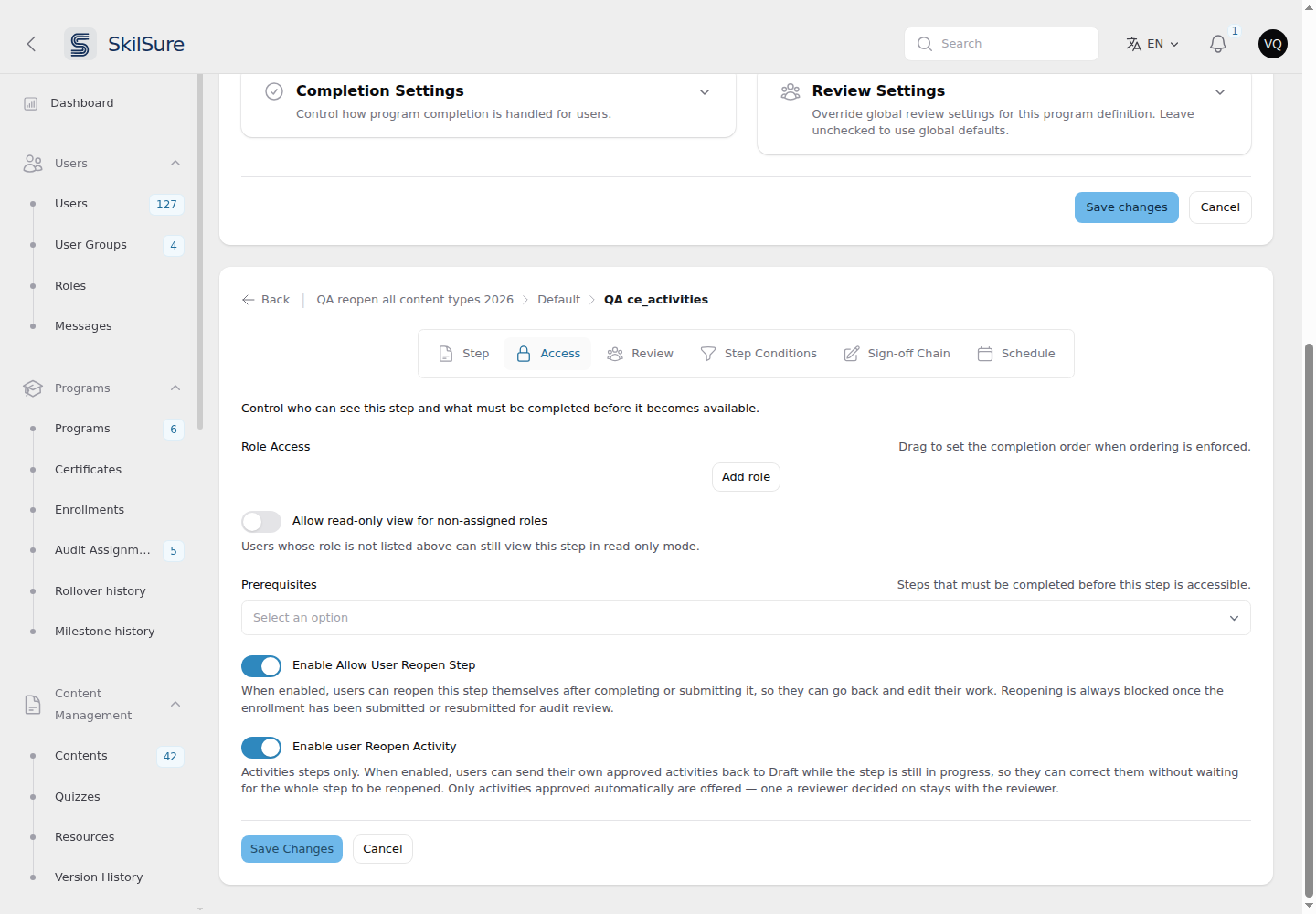 Access tab. Limit a step to specific roles, allow read-only viewing for others, require completion of earlier steps, and let users reopen their own work. The second reopen toggle appears only on Activities steps.
- Role Access — restrict the step to certain roles (Member, Reviewer, etc.). Drag to set the order if ordering is enforced.
- Allow read-only view for non-assigned roles — others can see the step but can't act on it.
- Prerequisites — other steps that must be completed first.
- Enable Allow User Reopen Step — let users reopen this step themselves after they complete or submit it. Off by default. See below.
- Enable user Reopen Goal — on a Learning Portfolio step only, let users un-submit their own submitted goals while the step is still in progress. Off by default, and independent of the toggle above. See Let users reopen a submitted goal.
- Enable user Reopen Activity — on an Activities step only, let users send their own approved activities back to draft while the step is still in progress. Off by default, and independent of the toggle above. See Let users reopen a single activity.
Let users reopen a step themselves
Normally a completed or submitted step is locked, and only an administrator can reopen it from Programs → Program Cycle Enrollments → Step Progress → Mark In Progress. Turn on Enable Allow User Reopen Step and the user gets a Reopen button on that step instead, so they can correct their own work without waiting for you.
Turning it on changes nothing about what a completed step looks like until the user actually reopens it, and it does not affect any other step — the setting is per step.
A user only sees the button when all of the following are true:
- They own the enrollment. A mentor viewing the step never sees it.
- The step is Completed or Submitted.
- They hold one of the roles in Role Access, if the step restricts roles. Someone viewing the step read-only cannot reopen work that a role holder completed.
- The program is still available to them — one you have taken offline is unavailable entirely.
- They are still inside the dates. Reopening closes at the enrollment's deadline, including any grace period or extension you have granted, and separately at the step's own due date. Either one passing hides the button.
Finishing the cycle does not close it
Completing every required step does not take Reopen away, even on a cycle set to read-only after submission. Finishing the work is not the same as the deadline passing, and turning this toggle on is a deliberate decision that outranks the completion freeze — a user who has just finished everything is often exactly the one who spots a mistake. A passed deadline still closes it.
An auditor holding the work wins
While the work is with an auditor, reopening is blocked no matter how this toggle is set. The user still sees the button, but greyed out with a short explanation, so it is clear the work is with the auditor rather than simply missing.
That means blocked once they press Submit for Review or Resubmit for Review, and blocked for good once the review is finalised. But when an auditor sends work back as Resubmission Required, the ball is in the user's court again — so Reopen works from then until they press Resubmit. That is the window in which they are meant to act on the feedback, and it stays open even if they have completed every step.
What reopening does
The step returns to In Progress and its content becomes editable again, exactly as if an administrator had used Mark In Progress. Every reopen is written to the activity log with the user's name and the step, so you can see who reopened what. On a Learning Portfolio step the user first picks which submitted goals to reopen, so correcting one goal leaves their other submitted goals untouched.
Sign-off runs again
If the step uses a sign-off chain, reopening clears the completed sign-off. When the user finishes the step again it returns to Submitted and goes back through the chain from the first signer — the reviewers who approved the original work are asked again, because the work they approved has changed.
Plan for this before switching the toggle on for a step that reviewers sign off: users correcting their own work will generate repeat sign-off requests. Never assume a step that reads Completed was signed off after its latest edit.
Reviewed activities keep their approval
On an activities step, a user's own reopen leaves any Approved activity approved, along with who reviewed it and when — a user cannot undo a reviewer's decision by reopening their step. Everything short of an approval (Submitted, Under Review) returns to draft with the rest of the step.
An administrator reopen still resets Approved activities to draft, which is how you undo an approval that was granted in error. The difference is deliberate.
Let users reopen a single activity
Enable user Reopen Activity is a separate, smaller permission, and it only appears on a step whose content is Activities or Category Activities — it does nothing anywhere else, so it is hidden on every other step type.
An approved activity is locked: the user's row menu offers only View. Turn this on and, while the step is still In Progress, they get a Reopen Activity button beside Log Activity that opens the same Reopen Approved Activities picker you get from an enrollment. They tick the activities to unlock, those return to Draft, and everything they leave unchecked keeps its approval.
The two reopen toggles are independent
They answer different questions, and neither implies the other:
| Enable Allow User Reopen Step | Enable user Reopen Activity | |
|---|---|---|
| When the user sees it | the step is Completed or Submitted | the step is still In Progress |
| What it reverts | the whole step's work | only the activities they tick |
| Step types | every type | Activities steps only |
Turn on the first if you want users to reopen finished steps. Turn on the second if you want them to correct a single approved activity mid-cycle without disturbing the rest. Turn on both if you want both.
Only automatic approvals are offered
The user's picker lists activities that were approved automatically. An activity an actual reviewer approved is theirs to undo, so it appears only on your enrollment-side picker — the same rule as the step-level reopen.
Every reopen is written to the activity log with the user, the step, and exactly which activities they unlocked.
On a self-completing step, the button can be a one-shot
The button is only for a step that is still in progress. Most Activities steps complete themselves as soon as their requirements are met, and reopening an activity re-derives that — so on a step whose requirements are already satisfied, the first reopen can flip it to Completed and take the button away. The user then needs Enable Allow User Reopen Step to carry on.
If you switch this on for a self-completing step, consider switching on Enable Allow User Reopen Step as well; otherwise a user can be left with one reopen and no way to unlock the next activity themselves.
Let users reopen a submitted goal
Enable user Reopen Goal only appears on a step whose content is a Learning Portfolio — it is hidden on every other step type.
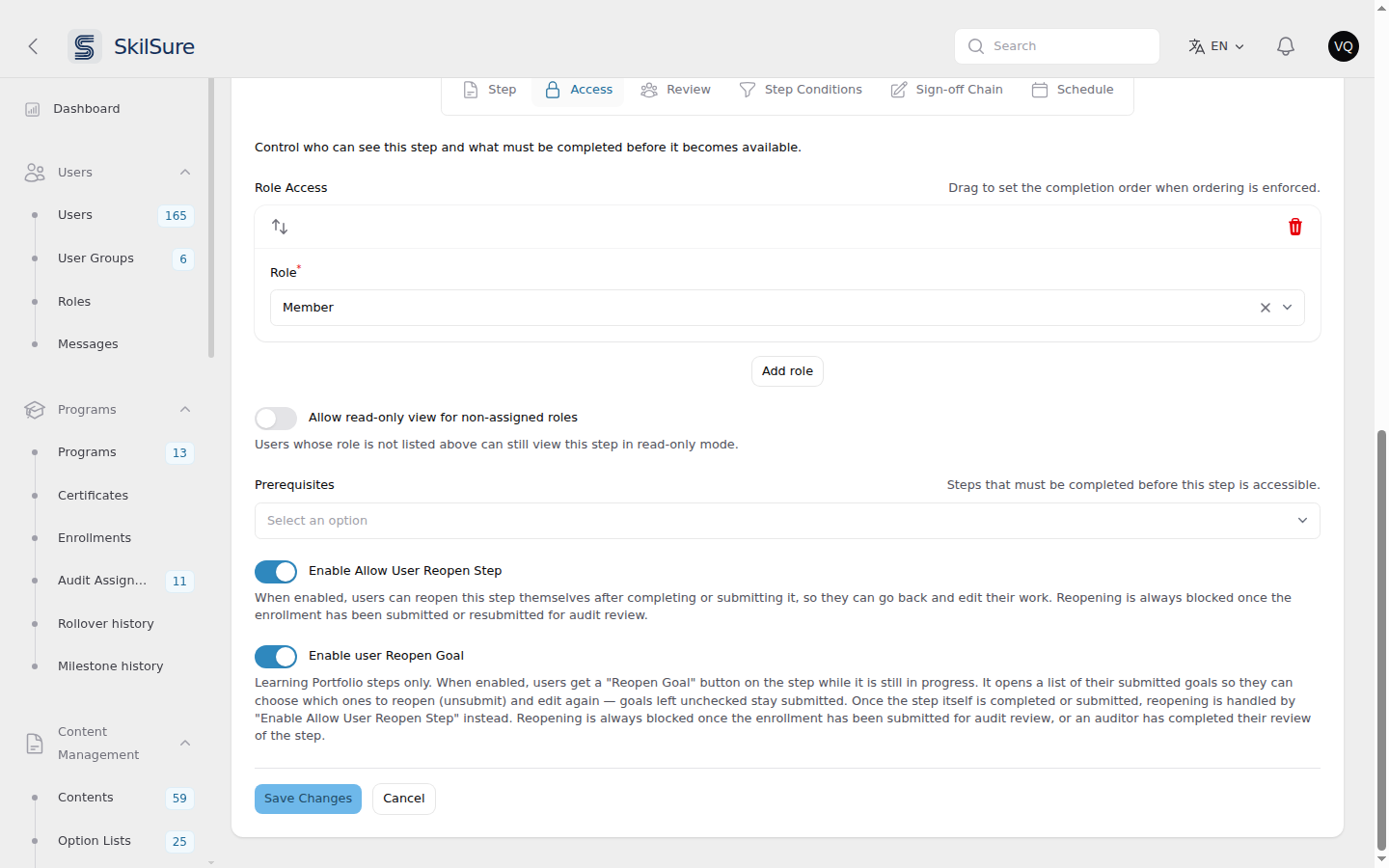 Manage Definition → edit a Learning Portfolio step → Access. Enable user Reopen Goal sits directly below Enable Allow User Reopen Step.
A submitted goal is locked. Turn this on and, while the step is still In Progress, the user gets a Reopen Goal button above their goals table, just after + Add. It opens a Reopen Goals dialog listing their submitted goals — the same columns as your enrollment-side Reopen Goals dialog — and they tick the goals to reopen. Those goals become editable again (their answers are kept); everything left unchecked stays submitted. It does the same thing as Unsubmit Goals on the user's enrollment.
The button only appears when the user owns the enrollment, has at least one submitted goal recorded against this step, holds one of the step's roles (if it restricts roles), and the enrollment is not read-only or unavailable. A mentor or auditor viewing the step never sees it.
Completed steps use Reopen Step instead
Once the step itself is Completed or Submitted, the Reopen Goal button disappears and reopening belongs to Enable Allow User Reopen Step — whose Reopen button already asks which submitted goals to reopen. Turn on both if you want users to be able to reopen goals before and after finishing the step.
An auditor holding the work wins
As with Reopen Step, while the work is with an auditor — after Submit for Review, or once an auditor has completed their review of the step — the button is greyed out with a short explanation.
Every reopen is written to the activity log with the user, the step, and exactly which goals they reopened.
Older goal records
Goals submitted before goal progress was recorded per step aren't tied to a single step. When another step on the same enrollment uses the same portfolio, the user's Reopen Goal and Reopen dialogs leave those goals out — otherwise reopening them from one step could unlock work another step (possibly a completed or audited one) depends on. You can still unsubmit them from the user's enrollment with Unsubmit Goals. On a portfolio no other step uses, they're offered as usual.
Rewording the Reopen button
Every piece of text the user sees on this control — the Reopen button, the confirmation prompt, the audit-review explanation, and the Reopen Goals dialog — can be reworded for your organization from Settings → Custom Text, filed under the Step reopen surface. Search for the wording you want to change; the page lists the text itself, not internal names.
The Reopen Goal button, its dialog's column header and submit button, and its audit-review explanations are filed under Goal reopen; the dialog's heading, instruction and "select at least one goal" warning are shared with the step-level picker, so they appear under both Step reopen and Goal reopen.
The Reopen Activity button and its "select at least one activity" warning are filed under Reopen approved activities. The dialog's heading and instruction are shared with the step-level picker, so they appear under both surfaces — rewording them changes both dialogs.
Rewording changes only the wording — the rules above are unaffected. Each piece of text is separate, and so is each language: renaming the button in English leaves the confirmation prompt and the French wording exactly as shipped. Clear a field to go back to the default.
Don't see Settings → Custom Text?
Custom Text is an optional feature and is off unless it has been switched on for your site. If the page isn't in your Settings menu, ask your SkilSure contact to enable it.
Review steps do not offer this setting — the toggle is hidden on them, since a review step belongs to the reviewer rather than the user.
Mentorship tab — require review
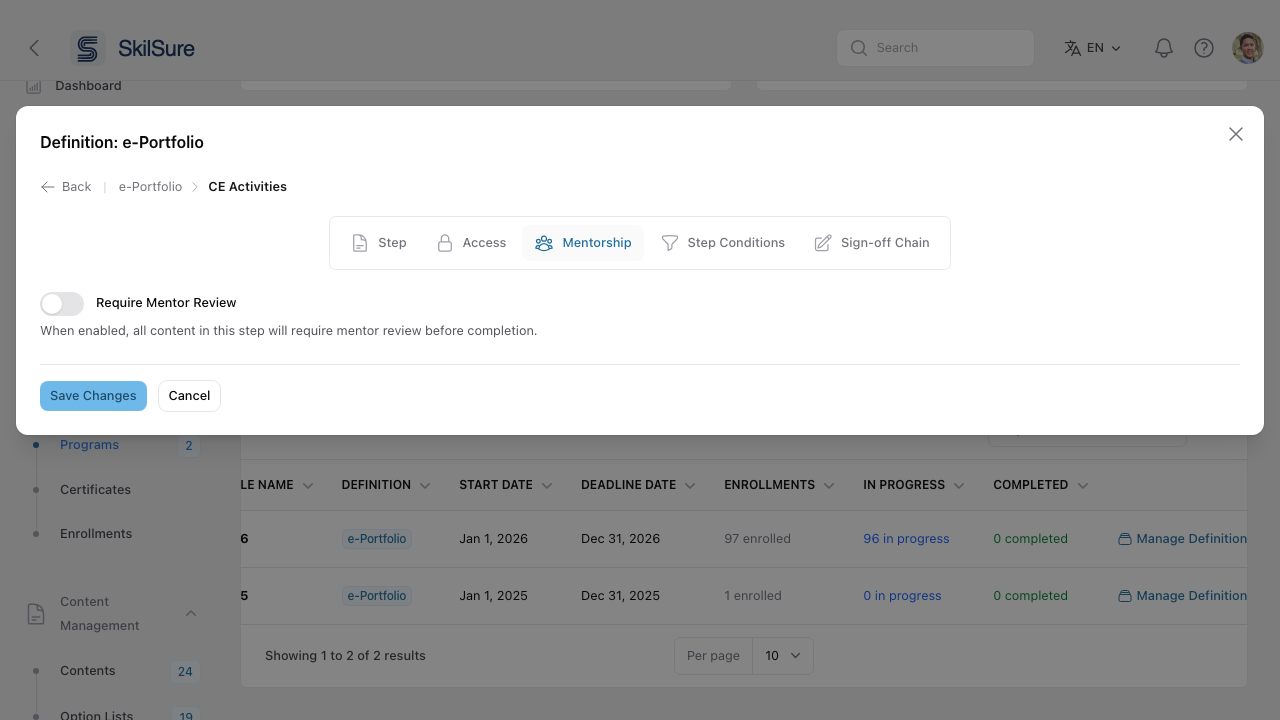 Mentorship tab. When enabled, every content item in this step must be approved by a mentor before completion.
Step Conditions tab — automatic status
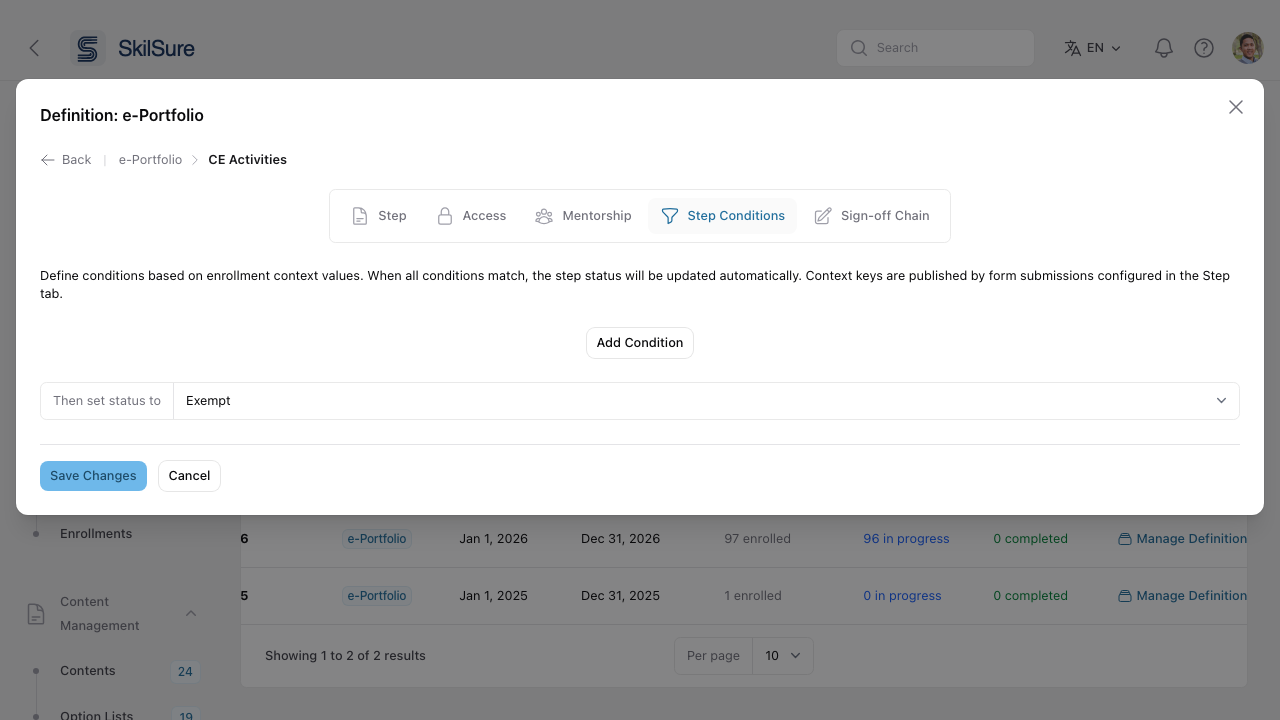 Step Conditions tab. Auto-set a step's status (e.g. Exempt) when enrollment context values match.
Useful for skipping steps that don't apply — e.g. mark the New Hire Orientation step as Exempt for anyone whose context says they've been with the org > 1 year.
Sign-off Chain tab — multi-stage approval
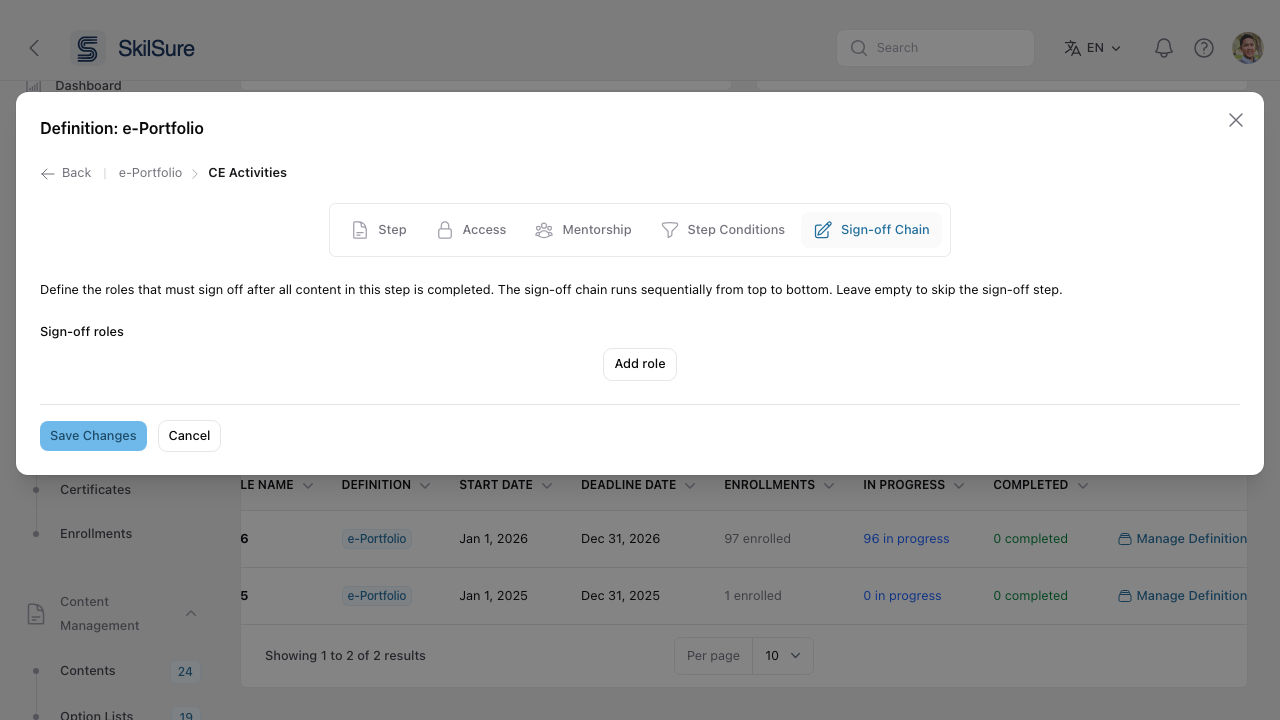 Sign-off Chain tab. Define an ordered list of roles that must each sign off after the user finishes the step.
The chain runs top-to-bottom: the first role signs off, then the second, and so on. Leave it empty to skip sign-off entirely.
Share definitions across cycles
When you create next year's cycle, point it at the same definition. Changes you make to that definition apply to both cycles. Want to evolve the structure without touching the live cohort? Duplicate the definition first, then attach the copy to the new cycle.
Configure a Learning Portfolio step's suggested goals
When a step delivers a Learning Portfolio content that has suggested goals enabled, a Suggested Goals Configuration section appears beneath that content in the Step tab. This is where you decide which competency ratings generate suggested goals for the user — a suggested goal is created automatically when a user rates a competency at or below a threshold on a Competency Rating step.
The Competency Rating step can live in the same program and cycle as this Learning Portfolio step, or in a different program and cycle — for example, a self-assessment program whose results feed a separate development-planning program.
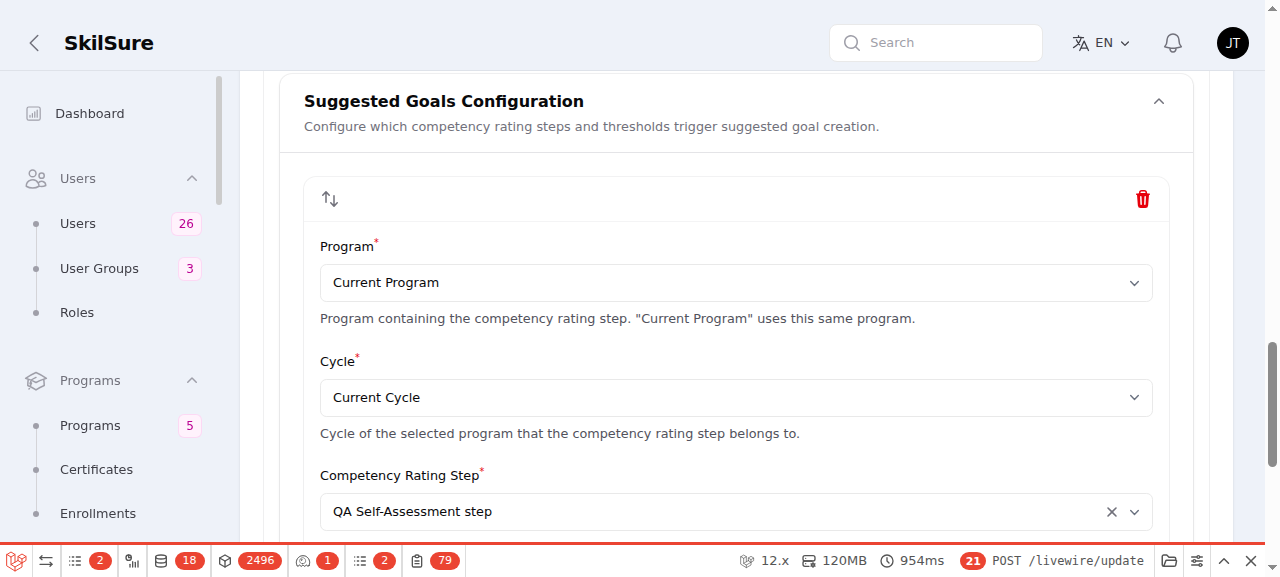 Step tab → Content → Suggested Goals Configuration. Each source row points at the competency-rating step whose low ratings generate goals.
Expand the section and add one or more source rows. Each row defines:
- Program — the program containing the competency-rating step. Choose Current Program to use this same program, or pick another program (the list is limited to programs in the same portal that have competency-rating steps).
- Cycle — the cycle of that program the rating belongs to. Current Cycle is offered only when Program is Current Program; choosing a different program lets you pick either a specific cycle or Any Cycle.
- Competency Rating Step — the step within the chosen program/cycle whose ratings are evaluated. With Any Cycle, the list comes from the program's most recent cycle that has a competency-rating step, and the step you pick only identifies which competency rating content to watch.
- Rating Scale — the scale that step rates against.
- Suggest goals at these rating values — the scale values that count as "at or below threshold". A rating at any of these values creates a suggested goal for the matching competency.
The suggested goal's name and description come from the competency's own suggested-goal title and description, and its competency is the one that was rated low — so these are filled in for the user and shown read-only on their side (see working on a suggested goal). Whether these suggested goals are automatically assigned to the user is set by the Required toggle on the Learning Portfolio content itself.
Use Any Cycle for a program that repeats every year
A source row pinned to a specific cycle stops generating goals the moment that program opens a new cycle — nothing fails, users simply stop getting suggested goals until someone edits the row. Any Cycle watches the chosen competency rating content in every cycle of that program, including cycles created later and cycles built on a duplicated definition, so a long-running portfolio needs no yearly edit.
Two things to know: when a user has ratings in several cycles, opening the portfolio uses their most recent completed rating only; and a competency that already produced a suggested goal in this enrollment reuses that goal rather than creating a second one, so rating it low again in a later cycle does not add a new goal.
Either order works
A suggested goal is created whether the user completes the competency-rating step before or after they open the portfolio step — SkilSure backfills from an already-completed rating when the portfolio is opened, and pushes new goals when a rating is completed later.
Duplicate a definition
Duplicating gives you a working copy of an entire structure — every path, step, step order and schedule, content attachment, role assignment, prerequisite and mentorship setting. Use it when you want to evolve next year's structure without touching the definition your current cohort is enrolled under.
There are two ways in. From a cycle — described below — the copy is also selected for that cycle, which is what you want when you're setting the cycle up. From the Program Definitions tab the copy is simply created and left unattached, which is what you want when you're building a structure ahead of time.
Open Create New Cycle, or Edit on an existing cycle row, and pick the definition you want to copy. A duplicate button sits to the right of the Definition selector.
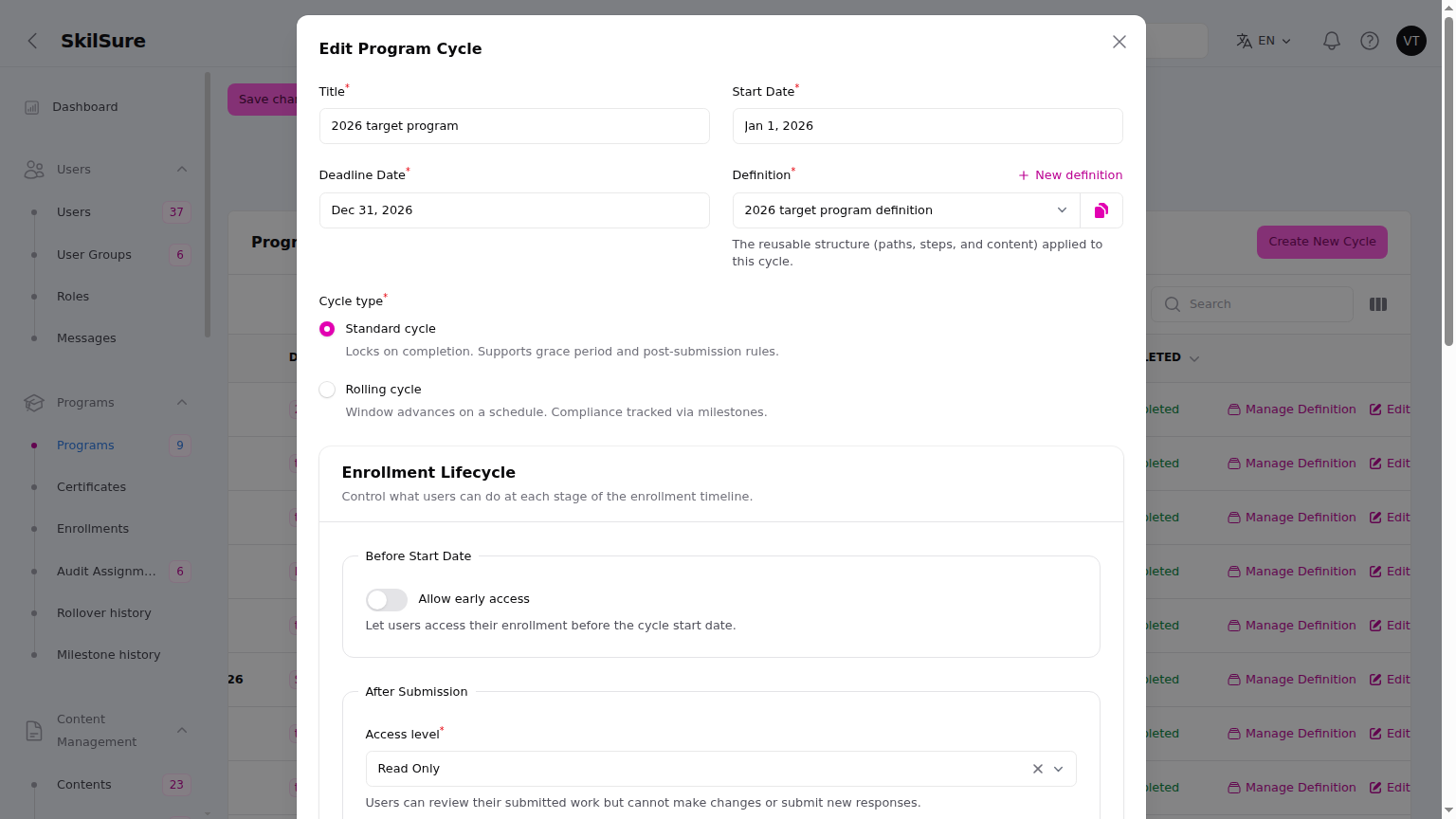 Edit Program Cycle → Definition. New definition starts an empty structure; the button beside the selector copies the one already chosen.
Click it and name the copy. The name is prefilled with Copy of the original — replace it with whatever you'll actually call this structure.
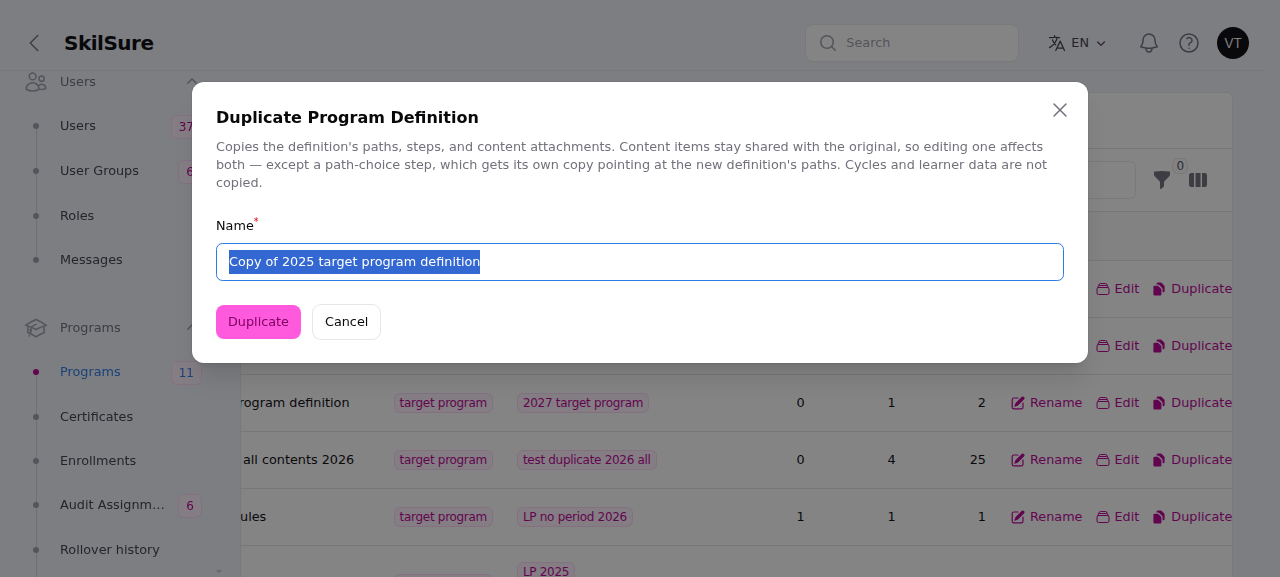 Duplicate Program Definition. The copy is created as soon as you confirm, and is then selected for the cycle you're editing.
Click Duplicate and the new definition is created and selected in the form. Open Manage Definition on the cycle afterwards to edit the copy — the original is untouched.
What the copy does and doesn't include
| Copied | Not copied |
|---|---|
| Paths, and which steps sit on each | Cycles — the copy starts attached to nothing |
| Steps, their order, and release/due scheduling | Enrollments and any user progress or submissions |
| Content attachments on each step | The content items themselves, apart from a path-choice step — see below |
| Step role access, prerequisites, conditions | |
| Mentorship settings and review steps |
Content items are shared, not copied
The copy gets its own attachments to content, but both definitions point at the same content items. Editing a piece of content — including a Learning Portfolio's completion rules and periods — changes it for every definition that uses it, including the live one. To change content for the new structure only, duplicate that content in Content Management → Contents and attach the copy.
One exception: a step that lets users choose a path
The list of paths such a step offers belongs to the definition it was set up for, so sharing it would leave users on the copy with no paths to choose from and no way past that step. The copy gets its own path-choice content, pointing at its own paths. That one piece of content is therefore not shared — editing it on the copy won't affect the original, or the other way round.
Saving re-points a cycle that already has users
Duplicating only selects the copy in the form — the cycle moves onto it when you click Save changes. If that cycle already has enrolled users, their progress was recorded against the original definition's paths and steps, so switching makes their work appear to be missing. The dialog warns you when the cycle has enrolled users. To build next year's structure, attach the copy to a new cycle instead.
See and manage every definition
Programs → open a program → Program Definitions lists every definition in your organisation, not just the ones this program uses. Definitions are shared — one can sit behind cycles in several programs — so the list is the same whichever program you opened. Think of it as the definitions manager that happens to live on the program page.
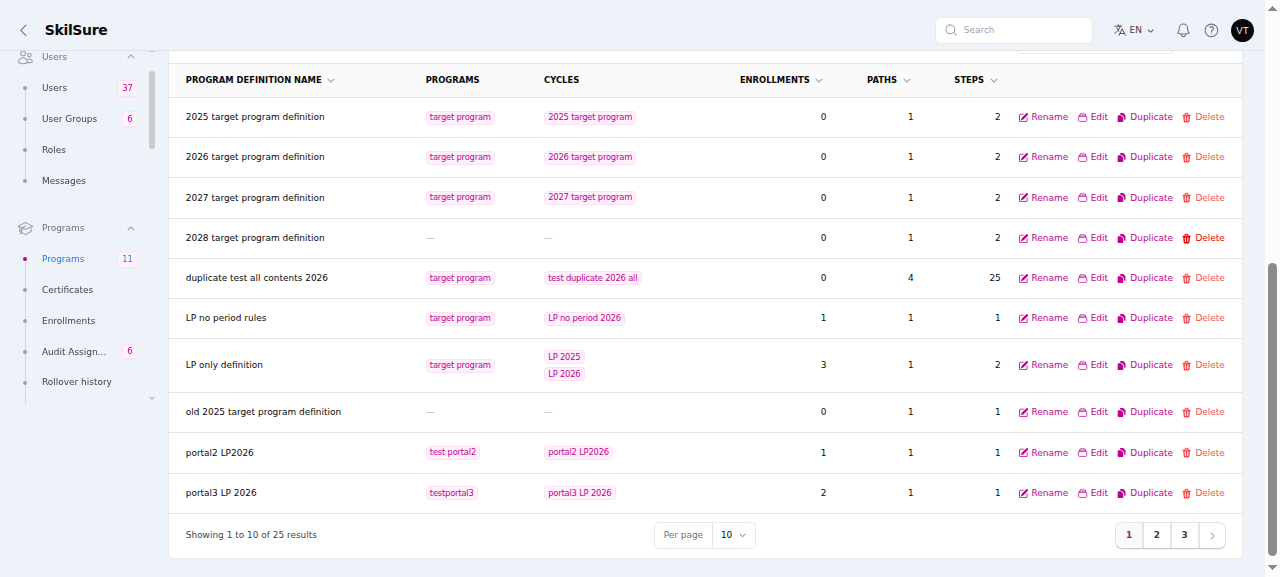 Programs → Edit program → Program Definitions. Search, choose columns and page through the list; each row carries its own actions.
Each row tells you what the definition touches before you change anything:
| Column | What it counts |
|---|---|
| Program Definition Name | The name, in your language |
| Programs | Every program running this definition, listed by name |
| Cycles | Every cycle using it, across all those programs |
| Enrollments | Users enrolled through it |
| Paths | Paths in the structure |
| Steps | Steps placed on a path — a step that sits on no path isn't counted, because no user can reach it |
Deleted cycles are ignored throughout, so the counts match what you can actually see elsewhere.
Row actions
- Rename — change the name without opening the builder. It edits the name in your own language and leaves the other languages alone.
- Edit — opens the same builder as Manage Definition on a cycle row.
- Duplicate — makes a standalone copy, exactly as Duplicate a definition above describes.
- Delete — hides the definition. Only available when nothing is using it.
Deleting is reversible
Deleting a definition hides it rather than destroying it. Its paths, steps and content stay exactly as they were, and anyone already enrolled carries on unaffected — they keep their steps, their layout and their progress.
Delete is only offered when the definition has no cycles and no enrolled users. When it isn't available, hover the greyed-out button and it tells you why — "Attached to 2 cycles.", "In use by 3 enrollments." or "Attached to a deleted cycle." That last one catches a definition whose only cycle was itself deleted: restoring that cycle would otherwise bring back a cycle pointing at a definition no picker offers.
To see what you've hidden, open the filter icon, choose Only deleted records and apply.
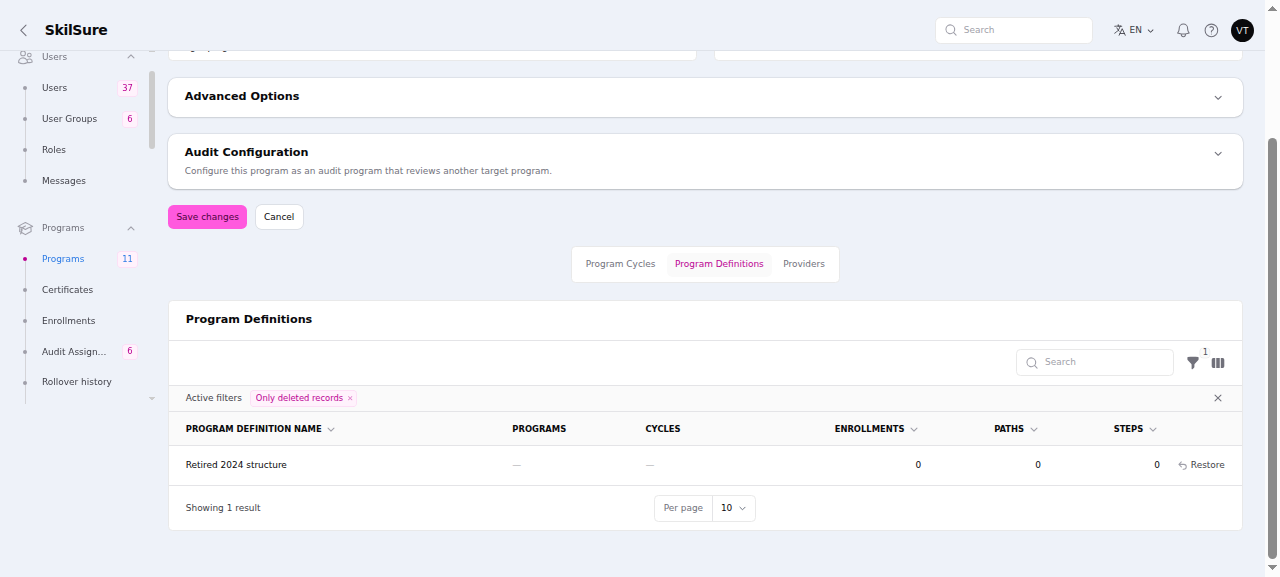 The Deleted filter. A hidden definition offers only Restore — it can't be renamed, edited or duplicated while hidden.
Who can delete
Deleting hides a definition from every picker in the organisation, so it's limited to the Super Admin and Admin roles. Tenant Admin can do everything else here — including restoring a definition someone else hid — but can't delete one. This is per role rather than per person: someone who holds Admin as well as Tenant Admin can still delete.