
Appearance
AdminTranslate forms
Forms are authored once in English and can carry translations for any other languages you enable. Users who work in another language see the translated form; anything you haven't translated yet falls back to English automatically, string by string.
Enable content languages
Open Settings → Site Settings. On the General Settings page, find the Languages section.
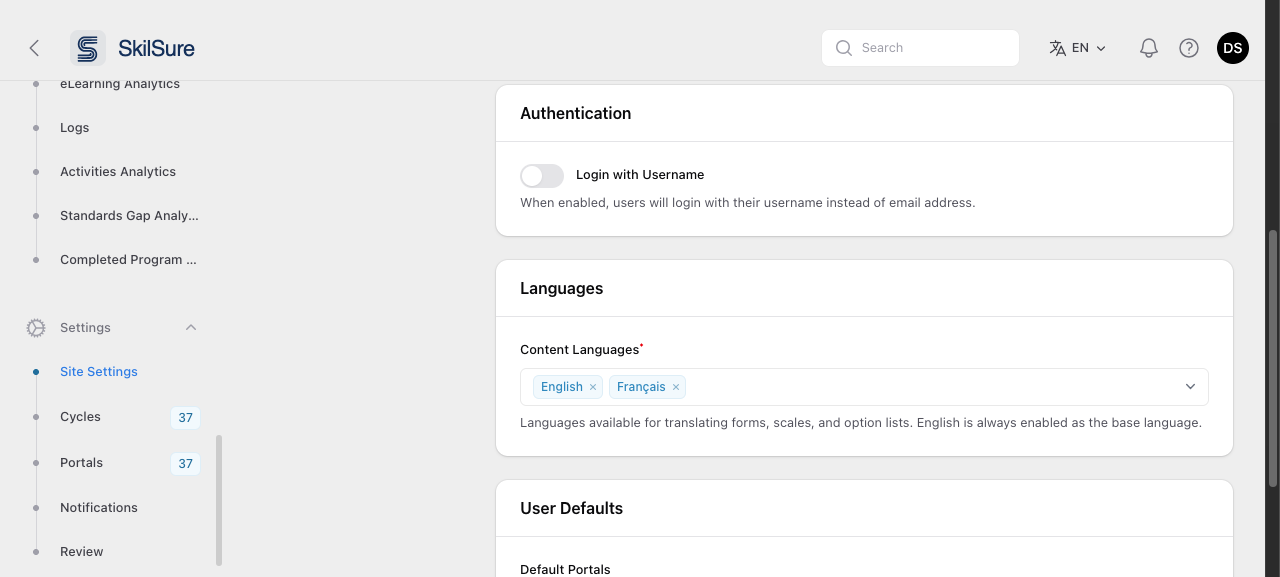 Settings → Site Settings → General Settings. Content Languages controls which languages are available for translation.
Pick every language your users should be able to read forms in. English is always enabled — it is the base language every form is written in, and the fallback for anything untranslated.
INFO
Content Languages applies to translatable content — forms, scales, and option lists. It is separate from the interface language switcher in the top bar.
To reword SkilSure's own interface text rather than your form content, see Reword text with Custom Text.
Open the Translate tool
Open Content Management → Contents and edit a Form. The Translate button appears in the page header.
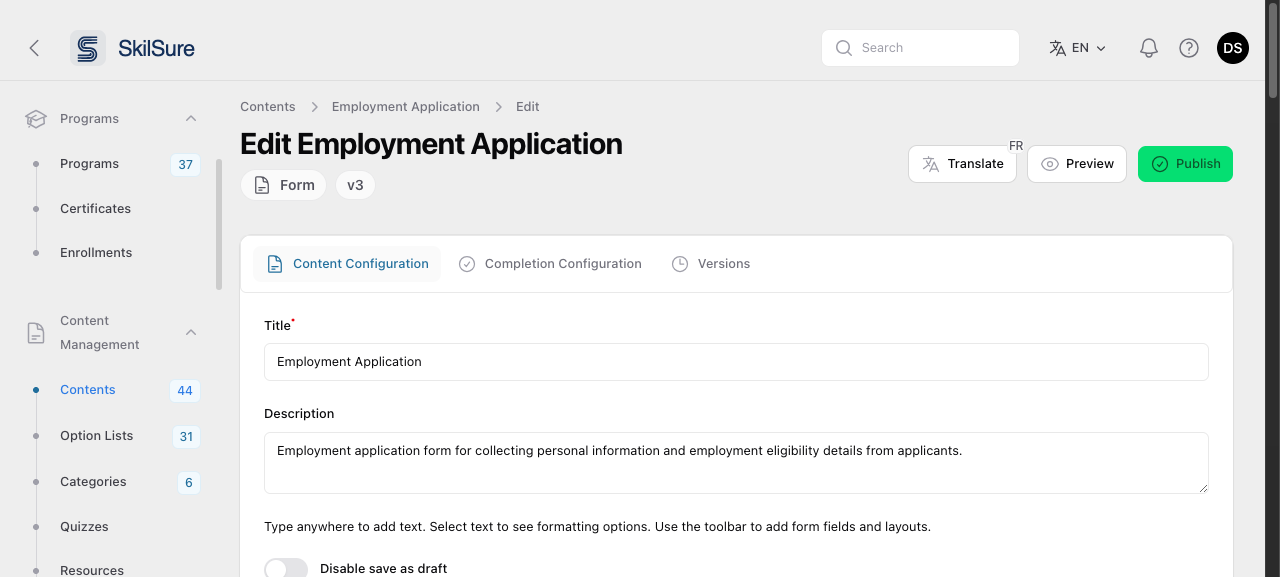 The Translate action on a form. The badge lists languages that already have translations — hover it to see how complete each one is.
TIP
No Translate button? It appears once at least one language besides English is enabled in Content Languages, and only on forms built with the current form editor.
Enter translations
Clicking Translate opens a modal listing every translatable string in the form, grouped by field.
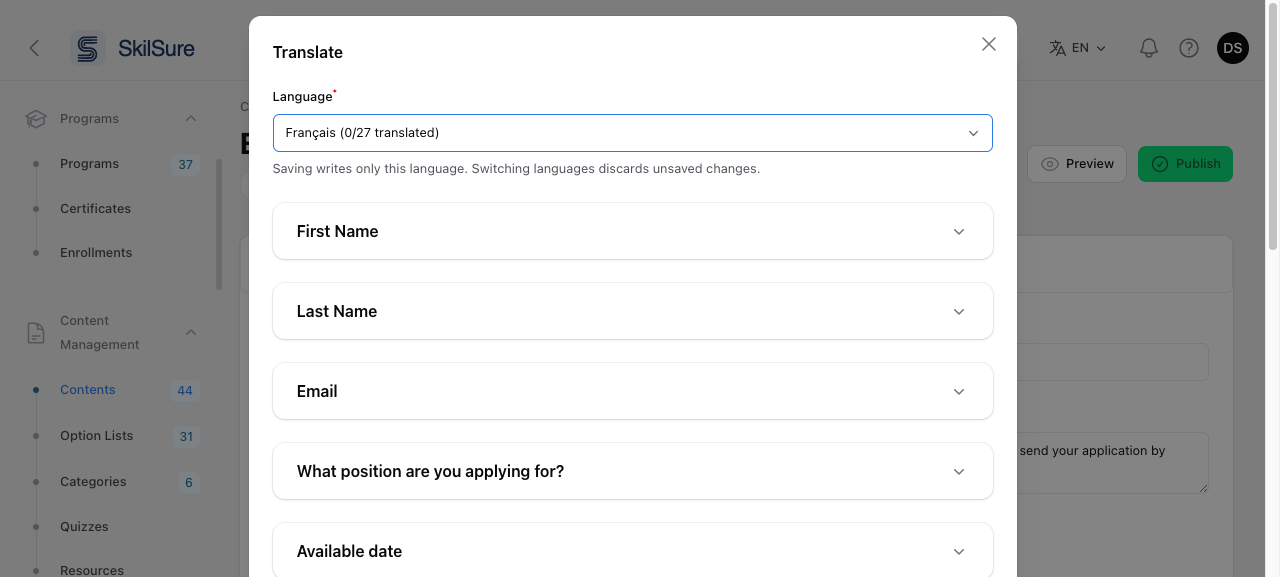 The Translate modal. The Language select shows how many of the form's strings are translated in each language.
- Choose the target language in the Language select. Each option shows its progress — for example Français (12/27 translated).
- Expand a field's section. The English text is shown above each input; type the translation below it.
- Click Submit to save.
Saving writes only the language you have selected — translations in other languages are untouched, so a form can carry several languages at once. Switching the Language select loads that language's saved translations, discarding anything unsaved in the language you were editing.
Leave an input empty to keep the English text for that string. You can translate a form in passes; the progress counts show what's left.
Scale rows
Scale (grid) questions list each row with the same rich text editor used in the form builder, so row translations keep their formatting.
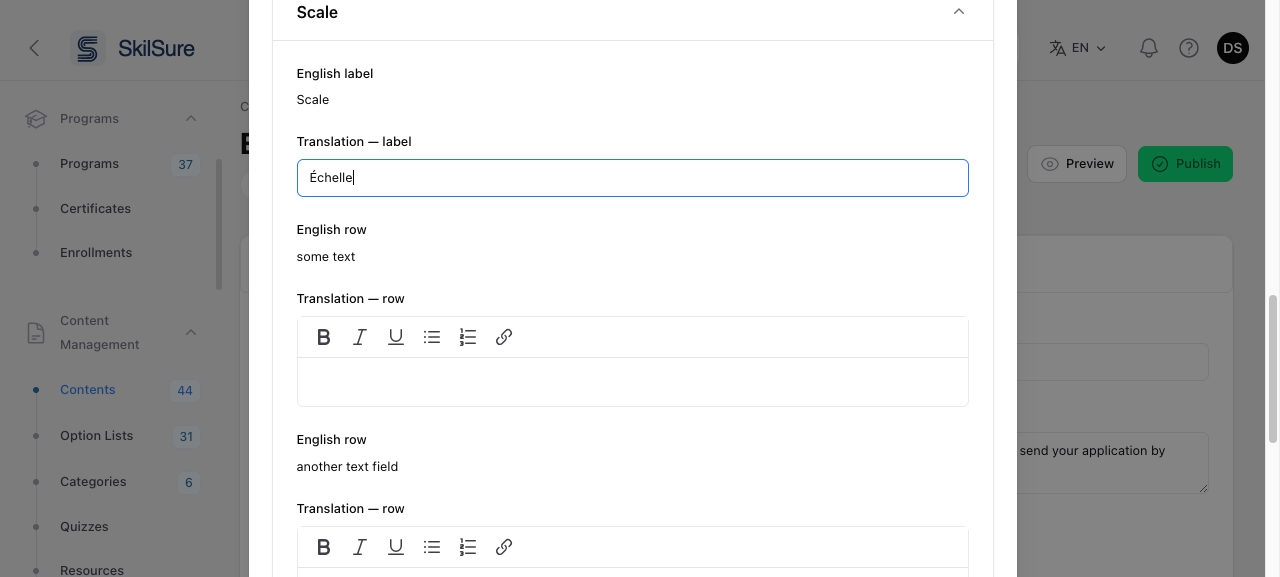 Scale rows are translated with a rich text editor — bold, italics, lists, links and collapsible definitions all carry through to the translated form.
Collapsible definitions
If a piece of text has a collapsible definition, the English shown to you keeps it, and the translation editor has the same definition tool the form builder does — so you can mark the matching word in your translation and write the definition in that language.
Translate both parts: the word that opens the panel, and the panel's own text (it is listed as its own entry). A translated word opening an English explanation is the usual thing to miss.
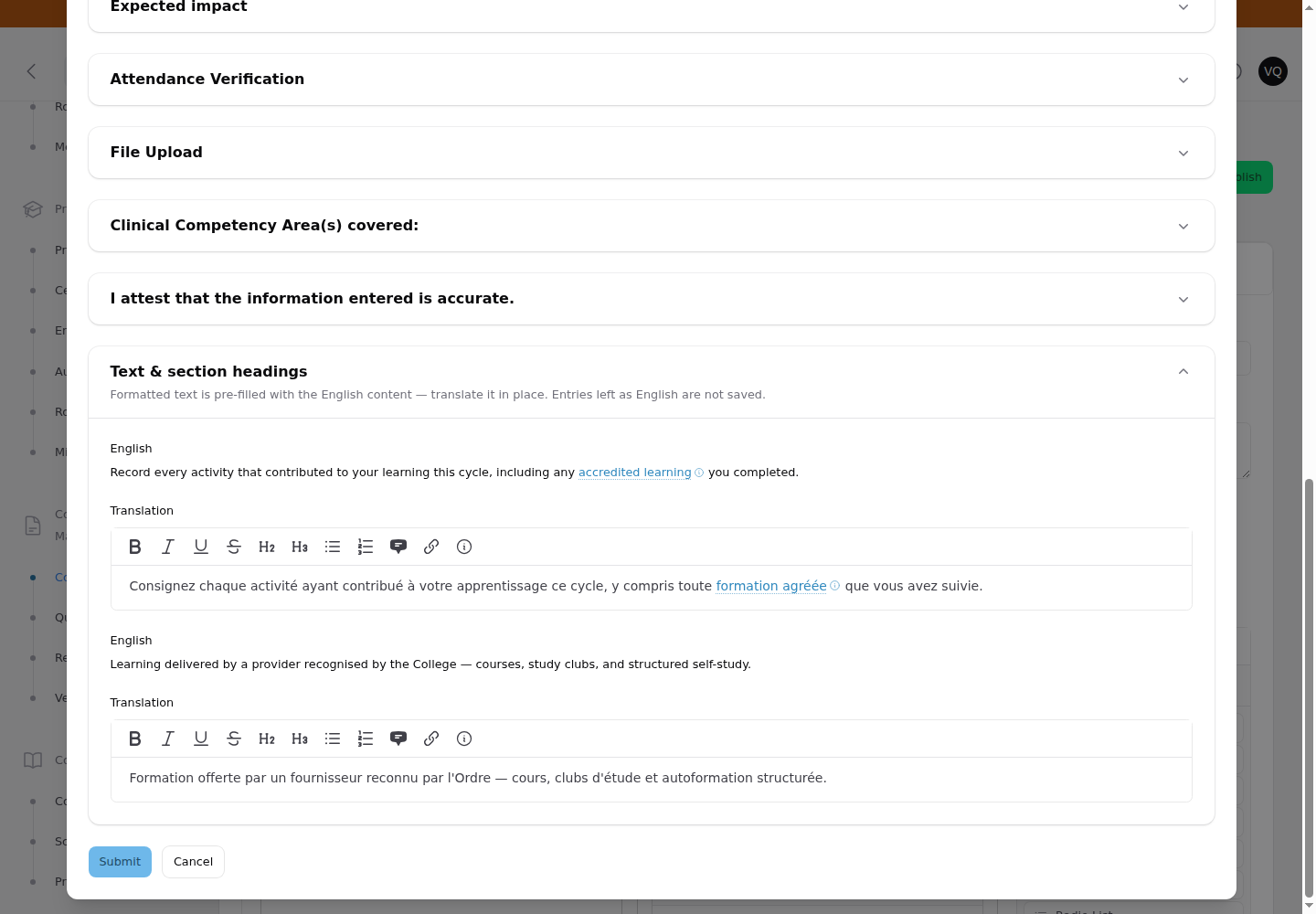 The definition survives translation. The English keeps its underlined word, the editor toolbar carries the definition tool, and the panel's own text is listed as a separate entry to translate.
What users see
Users see the form in the language set on their profile (Users → edit a user → Language). Translated strings appear in their language; everything else falls back to English. The form's structure, fields, and submitted data are identical in every language — only the display text changes.
Editing the English form
Translations are matched to the English text. If you reword a question or a piece of static text in the form editor, its old translation no longer applies — reopen Translate and fill in the new string. The progress count in the Language select reflects this.