
Appearance
AdminGoals
Goals are the objectives users work toward in a learning portfolio. This page is where you browse every user's goals, open one to review it, and reopen submitted goals when a user needs to make changes.
Browse goals
Open Reporting → Goals.
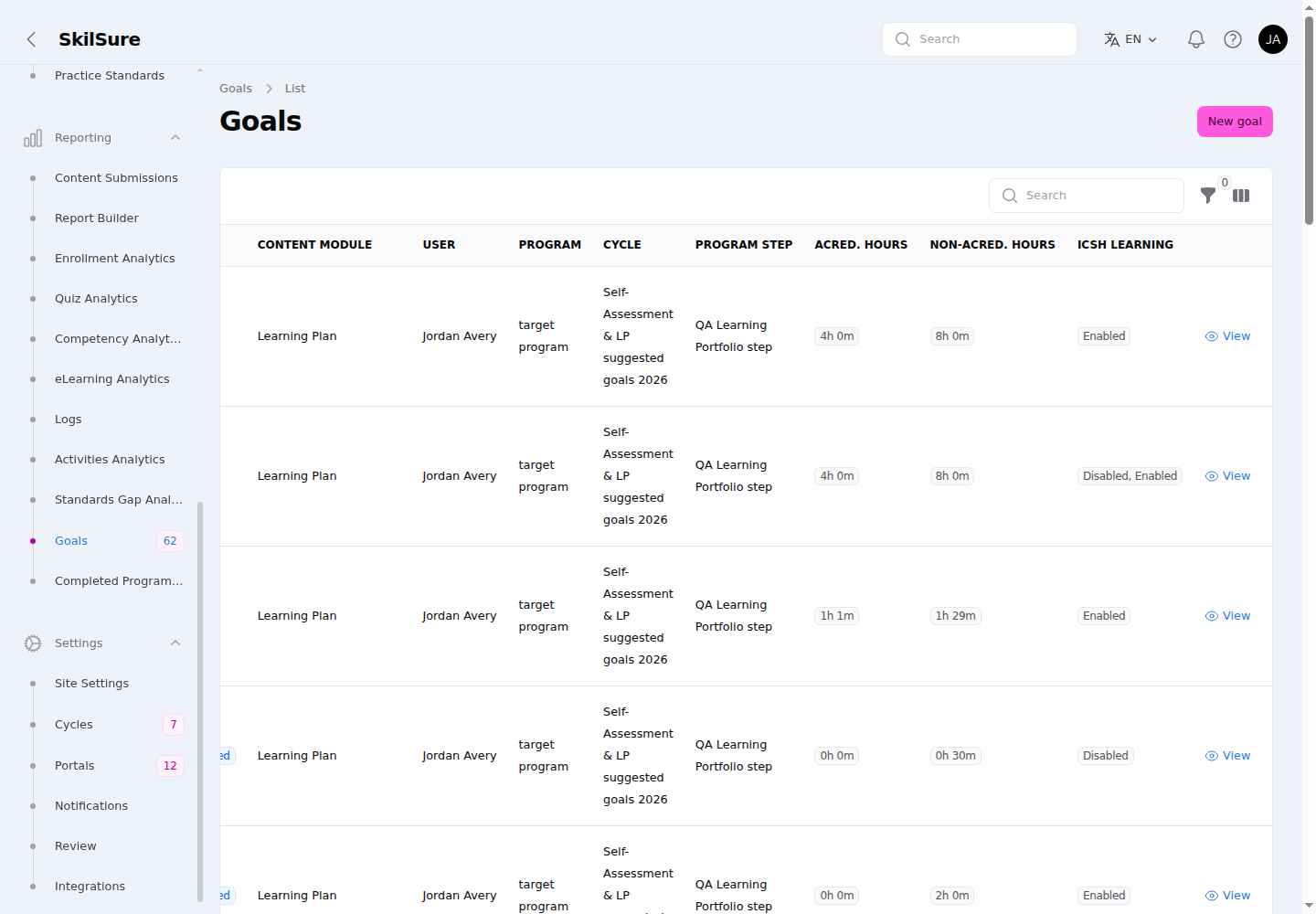 Reporting → Goals. Alongside the built-in columns, any custom columns configured on the portfolio (here Acred. Hours, Non-Acred. Hours, and ICSH Learning) appear here too.
- Each row shows the goal's Name, Type, Goal Status, the content module it belongs to, and the user, program, cycle, and step.
- Custom columns defined on the portfolio's Goal Table Custom Columns appear here as well.
- A # column shows each goal's number in its user's goals table (oldest goal = 1) when the portfolio has Show Goal Number Ordered by Creation Date turned on. Rows from portfolios with it off show —.
- Click View on a row to open the goal in a read-only View modal.
Filters
A Filters card sits above the table (matching the Content Submissions report) and narrows the list live as you change it:
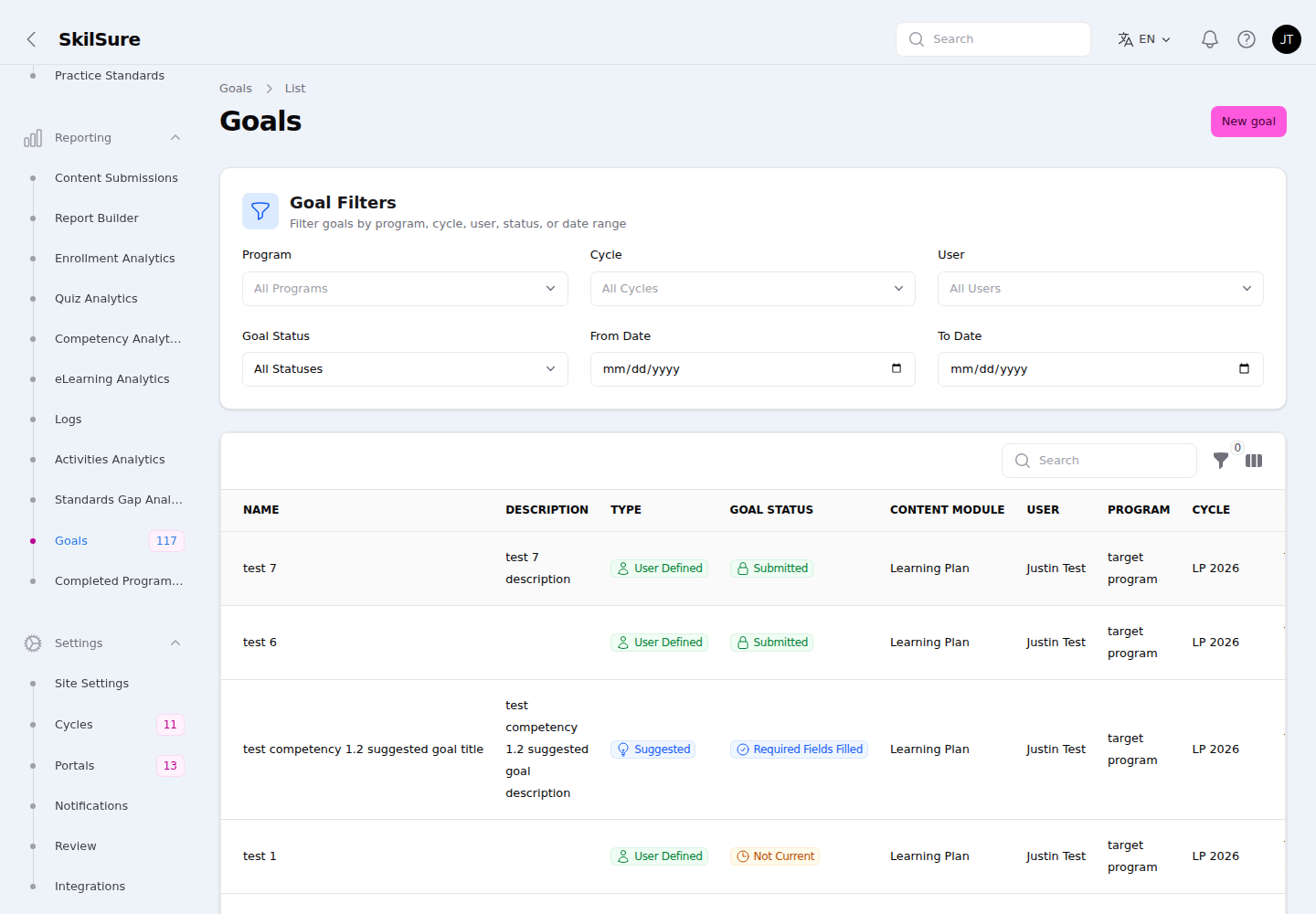 Reporting → Goals. The Goal Filters card narrows the list live; the table below shows each goal's status (including Not Current).
- Program, Cycle, User, and Goal Status dropdowns.
- From Date / To Date — bound the goal's creation date to a range.
The table's own Type and Content Module dropdowns still work alongside these.
View a goal
Clicking View opens the goal in a read-only modal titled "View" — no page navigation. It shows the goal the same way the user sees it, with extra admin context above.
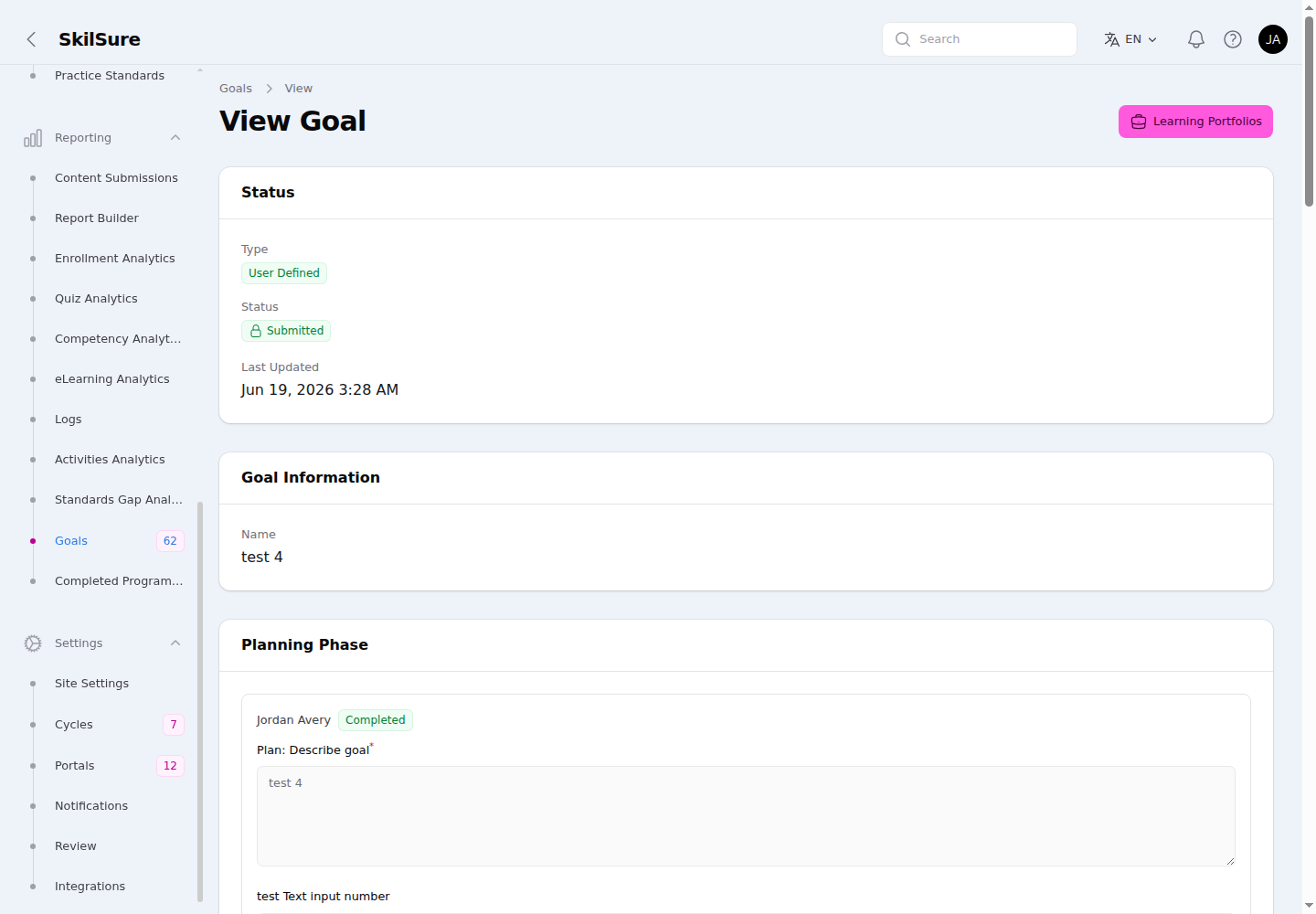 View. The read-only goal detail, with an enrollment context card and a Goal Date summary above it, and a Print button in the title bar.
- An enrollment context card at the top summarises who and where: the user (with member number), content type, program, cycle, program step, the goal status, and the user's cycle progress.
- A Goal Date section shows the goal's created, submitted, and last-updated dates (in your tenant's timezone).
- Goal Information shows the name (and the description / competency when the portfolio's Goal Basic Info toggles allow), followed by each phase's responses. Required questions are marked with a red asterisk here, on the user view, and in the exported goal PDF/CSV.
- Any files the user uploaded are downloadable directly from the modal.
- A Print button in the modal's title bar prints — or saves as a PDF — the whole goal.
Goals and phase entries read oldest-first
Goals are listed by create date, oldest first, and within a goal each phase's saved and submitted entries read oldest first — the same order the user sees. This ordering is shared by every read-only goal view: this modal, the enrollment's View Step Content, Content Submissions View Details, the audit member-submission view, and the CSV export of a submission's detail.
Reopen submitted goals
When a user needs to revise work they've already submitted, reopen the relevant goals from the enrollment's step.
Open Programs → Enrollments, open the user's enrollment, find the Learning Portfolio step under Step Progress, and choose Mark In Progress from its actions. Instead of a simple confirm dialog, an intermediate Reopen Goals dialog opens.
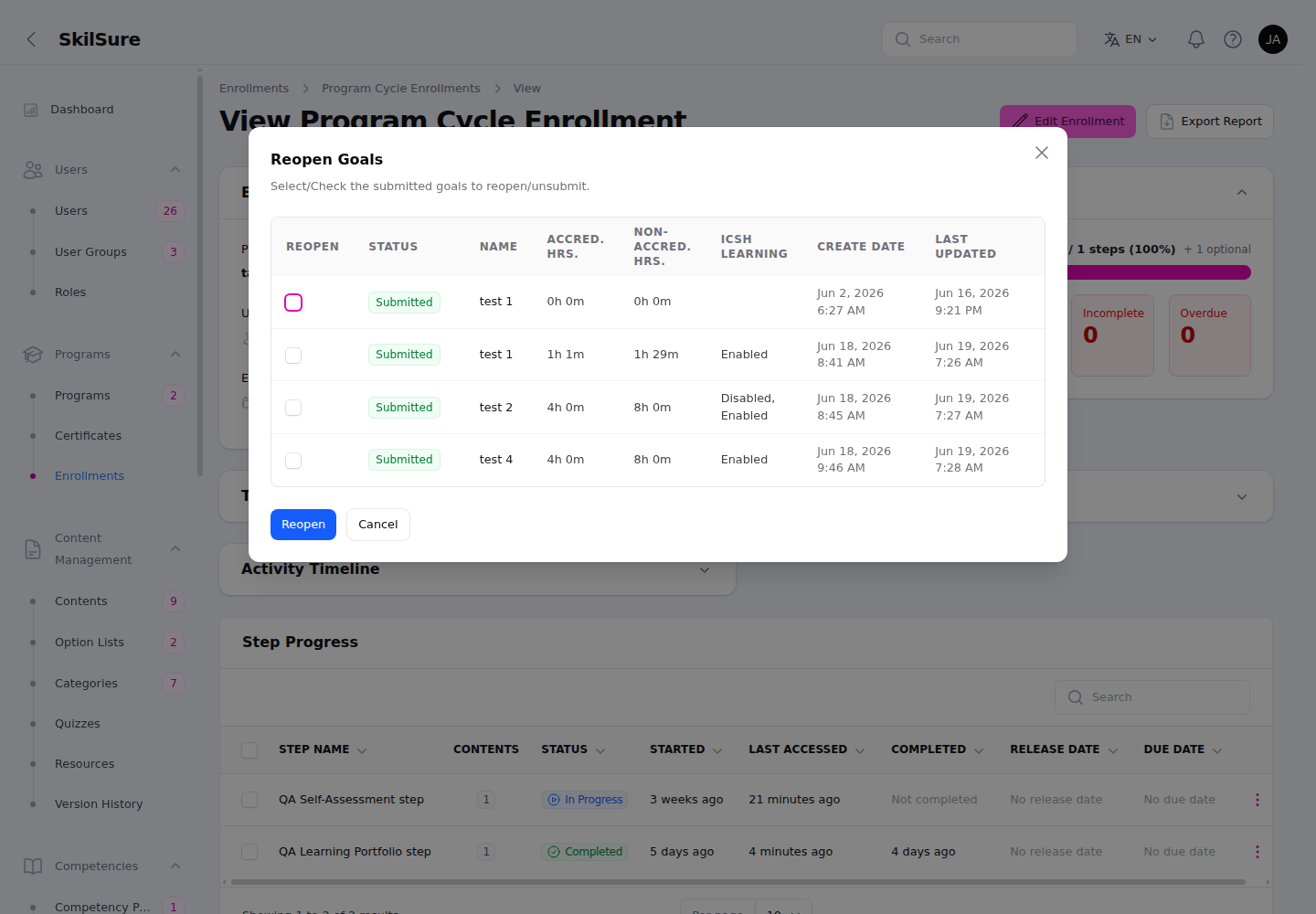 Reopen Goals. Only submitted goals are listed; check the ones to reopen and click Reopen.
- Only the user's submitted goals are listed — those are the only ones that can be reopened.
- The table shows each goal's status, any custom columns, and its Create Date and Last Updated. When the portfolio has Show Goal Number Ordered by Creation Date turned on, a # column also shows each goal's number from the user's goals table.
- Check the goals you want to reopen and click Reopen. Only the checked goals are un-submitted; the rest stay as they are.
Other step types
Activities steps have their own per-item picker — see Reopen approved activities. For every other step type, Mark In Progress shows a standard confirm dialog and reverts every submission on that step, not just selected items.
Unsubmit submitted goals
Unsubmit Goals does the same per-goal revert, but for a step that is still open. Use it when a user submitted a goal early and needs it back without you touching the rest of the step.
Open Programs → Enrollments, open the user's enrollment, find the Learning Portfolio step under Step Progress, and choose Unsubmit Goals from its actions.
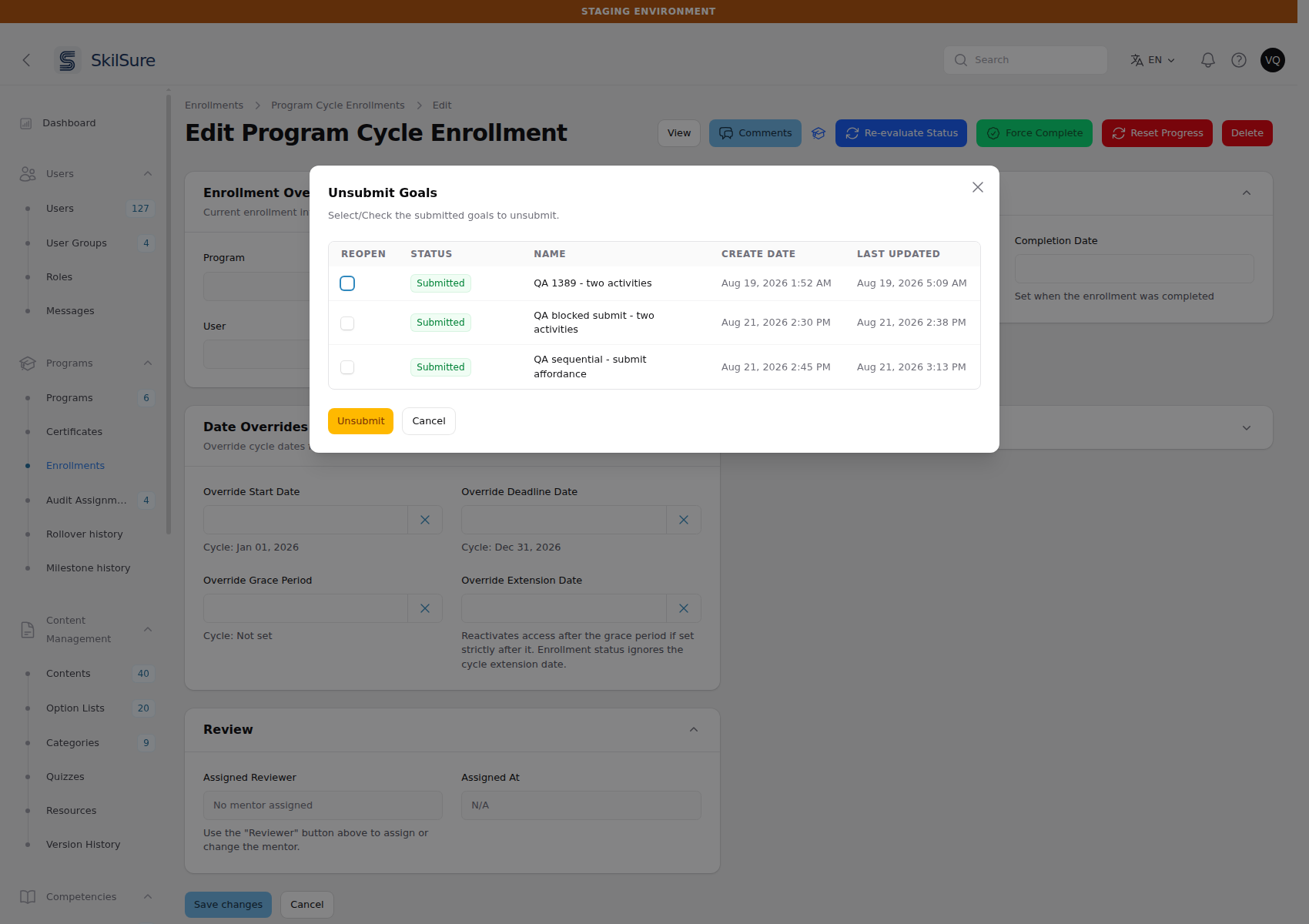 Unsubmit Goals. The same selection table as Reopen Goals, reached from a step that is still in progress.
- The action appears only when the step has at least one submitted goal and Mark In Progress is not offered. The two are mutually exclusive: a Completed, Submitted, or Incomplete step gets Mark In Progress; any other step with submitted goals gets Unsubmit Goals.
- The dialog is the same table as Reopen Goals — only submitted goals are checkable, and you must check at least one.
- Only the checked goals are un-submitted and become editable again for the user. Unchecked goals keep their submissions untouched.
- The step is set back to In Progress and its own step-level submission is reverted too, so a later recompute can't silently re-complete the step without the user submitting again.
- Each unsubmit is recorded in the activity log with the step and the goals you selected.
Goals a sibling step submitted stay put
If two Learning Portfolio steps share the same portfolio content, this dialog lists only the goals submitted under the step you opened it from. A goal the user submitted on the sibling step isn't listed and isn't affected.
Create or edit a goal
- Click New goal, or open an existing one to edit.
- Give the goal a title and details.
- Save.
Goals are used by two content types: Learning Portfolio and Previous Goal Evaluation. A program can require, evaluate, or carry goals forward between cycles, depending on how that content is configured.
Learning portfolios is a feature
Goals are part of the learning-portfolios feature. If you don't see them, the feature isn't enabled for your tenant.