
Appearance
AdminConfigure a learning portfolio
A Learning Portfolio is a content type that lets users build and submit goals through planning, activity, and reflection phases. You create one from Content Management → Contents (choose Learning Portfolio), then attach it to a program step. This page covers the portfolio-specific settings.
The editor has two tabs: Content Configuration (goal types, phase forms, basic info, custom columns) and Completion Configuration (what counts as complete).
Content Configuration tab
Defines the goal types and their phase forms, what basic info shows, and any custom goal-table columns.
Goal Types
The Goal Types section decides which kinds of goals exist in this portfolio. Each type you enable can have its own phase forms.
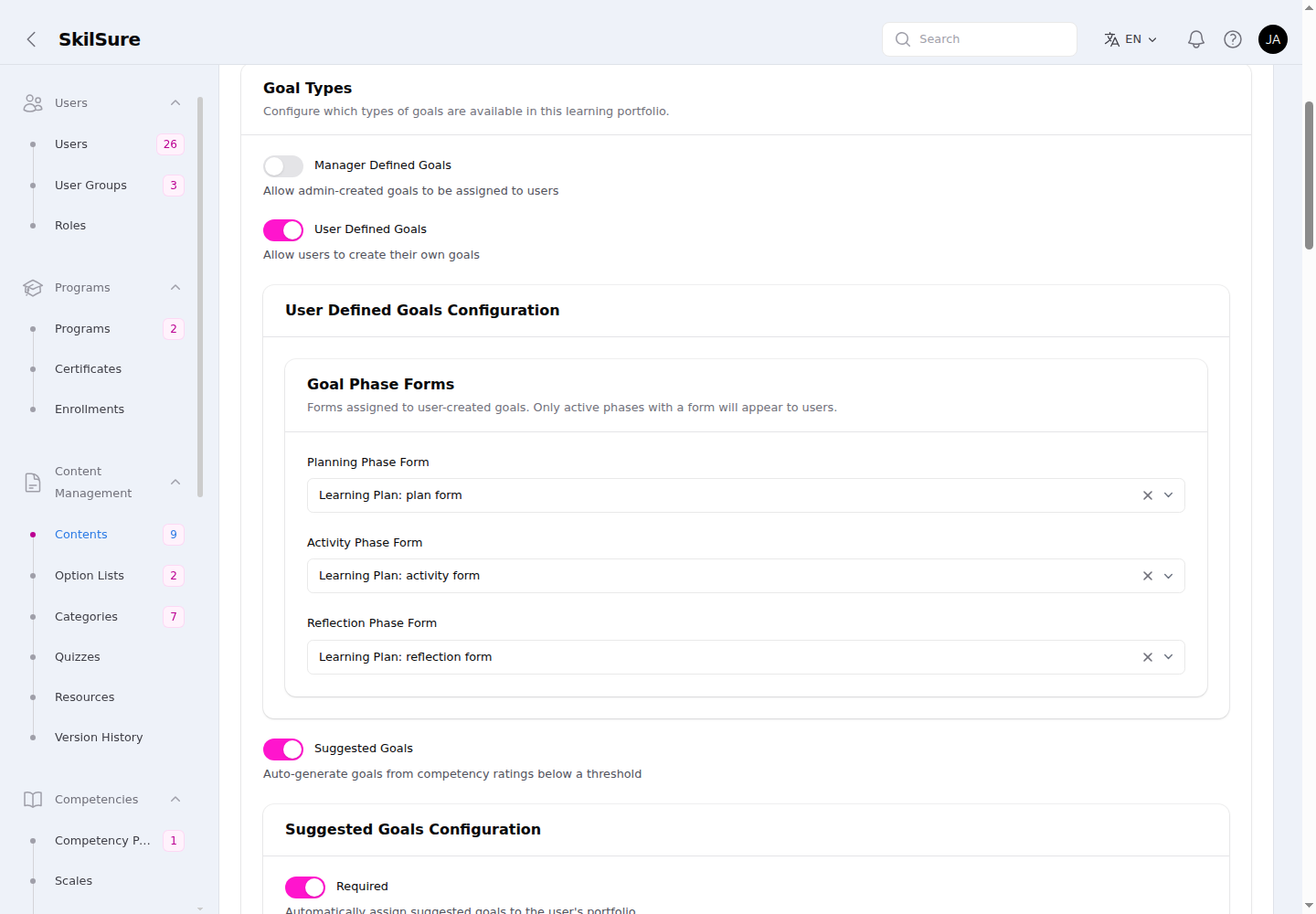 Content Configuration → Goal Types. Enable the goal types you want; each enabled type reveals its own configuration.
- Manager Defined Goals — admins create goals and assign them to users. Users assign/unassign these but don't create them.
- User Defined Goals — users create their own goals (the
+ Addbutton on the user view). - Suggested Goals — goals are auto-generated from competency ratings that fall below a threshold.
When a type is enabled, a Configuration block appears beneath it:
- Goal Phase Forms — pick the Planning, Activity, and Reflection phase forms for goals of that type. Only active phases that have a form assigned appear to users, so leaving a phase blank hides it.
- Suggested Goals Configuration also has a Required toggle — when on, suggested goals are automatically assigned to the user's portfolio.
Phase forms drive the goal modal
The forms you choose here are what users fill in under each phase of the goal modal, and the fields they expose are what completion rules and custom columns can read.
Where suggested goals come from
The Required toggle here only controls auto-assignment. Which competency ratings generate suggested goals is set on the program-definition step, not on this content — see Configure a Learning Portfolio step's suggested goals.
Goal Basic Info
Control whether a goal's description and competency appear anywhere they're shown to a reader.
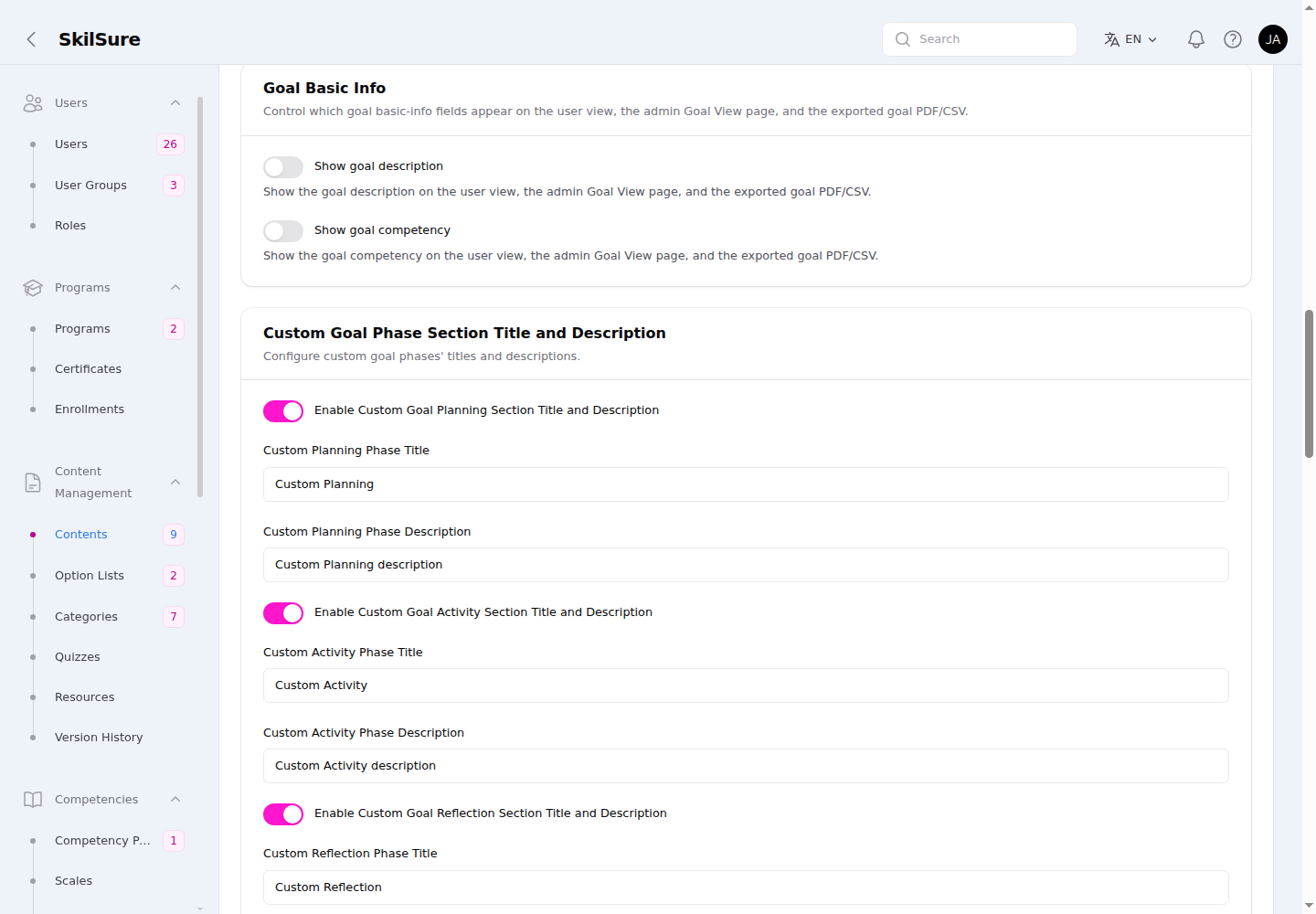 Content Configuration → Goal Basic Info. Each toggle applies to the user view, the admin Goal View page, and the exported goal PDF/CSV.
- Show goal description — show the goal's description on the user view, the admin Goal View page, and exports. Off by default.
- Show goal competency — same, for the goal's competency.
Goal Table Settings
Control the built-in columns of the goal table on the user view and the admin views that mirror it.
 Content Configuration → Goal Table Settings.
- Show Goal Number Ordered by Creation Date — add a # column as the first column of the goals table. Off by default.
- Each goal is numbered by when it was created: the oldest goal is 1, the newest has the highest number.
- A goal keeps its number when the table is sorted, filtered, searched, or paged, so the numbers in view may not run in order (for example 3, 1, 7 after sorting by Name).
- Users can't hide the column with the column manager.
- The same numbers appear in the admin Goals list, the Reopen Goals dialog, and the exported portfolio summary (PDF and CSV). A goal that isn't in the user's goals table any more (for example one they un-assigned) shows — instead of a number.
When the toggle is off, none of these places show the # column, and the export summary numbers its rows 1, 2, 3… as before.
Custom Goal Phase Section Title and Description
By default the three goal phases are simply labelled Planning, Activity, and Reflection. This section lets you give each phase your own heading and a short description that users see at the top of that phase in the goal modal.
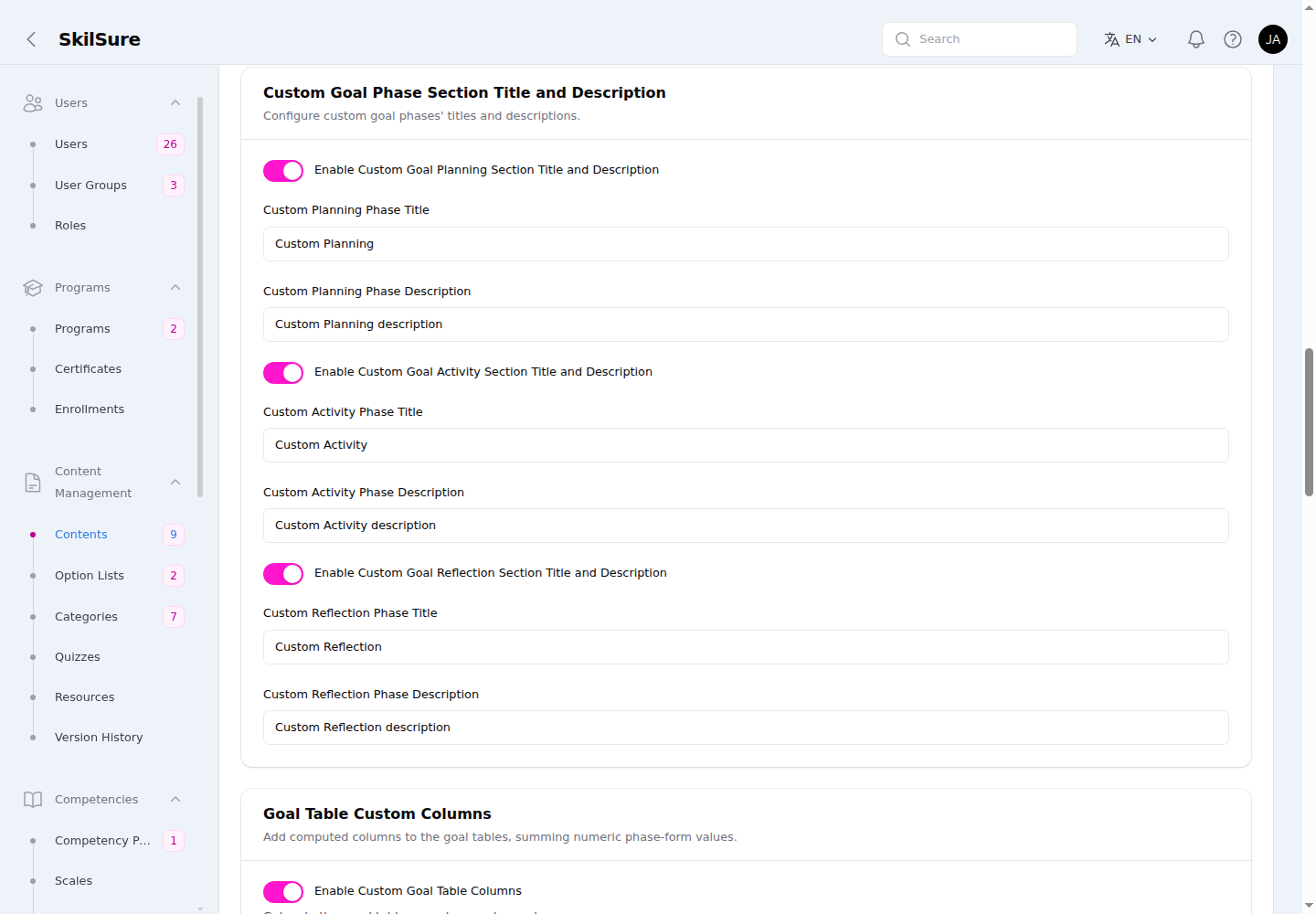 Content Configuration → Custom Goal Phase Section Title and Description. Each phase has its own enable toggle, title, and description.
- Enable Custom Goal Planning / Activity / Reflection Section Title and Description — turn custom text on for that phase.
- Custom Planning / Activity / Reflection Phase Title — the heading shown for that phase (e.g. Custom Planning instead of Planning).
- Custom Planning / Activity / Reflection Phase Description — a short line shown under the heading.
When a phase's toggle is off, that phase keeps its default label and shows no description.
Goal Table Custom Columns
Add your own computed columns to the goal tables — for example a running total of accredited hours, or the options a user selected.
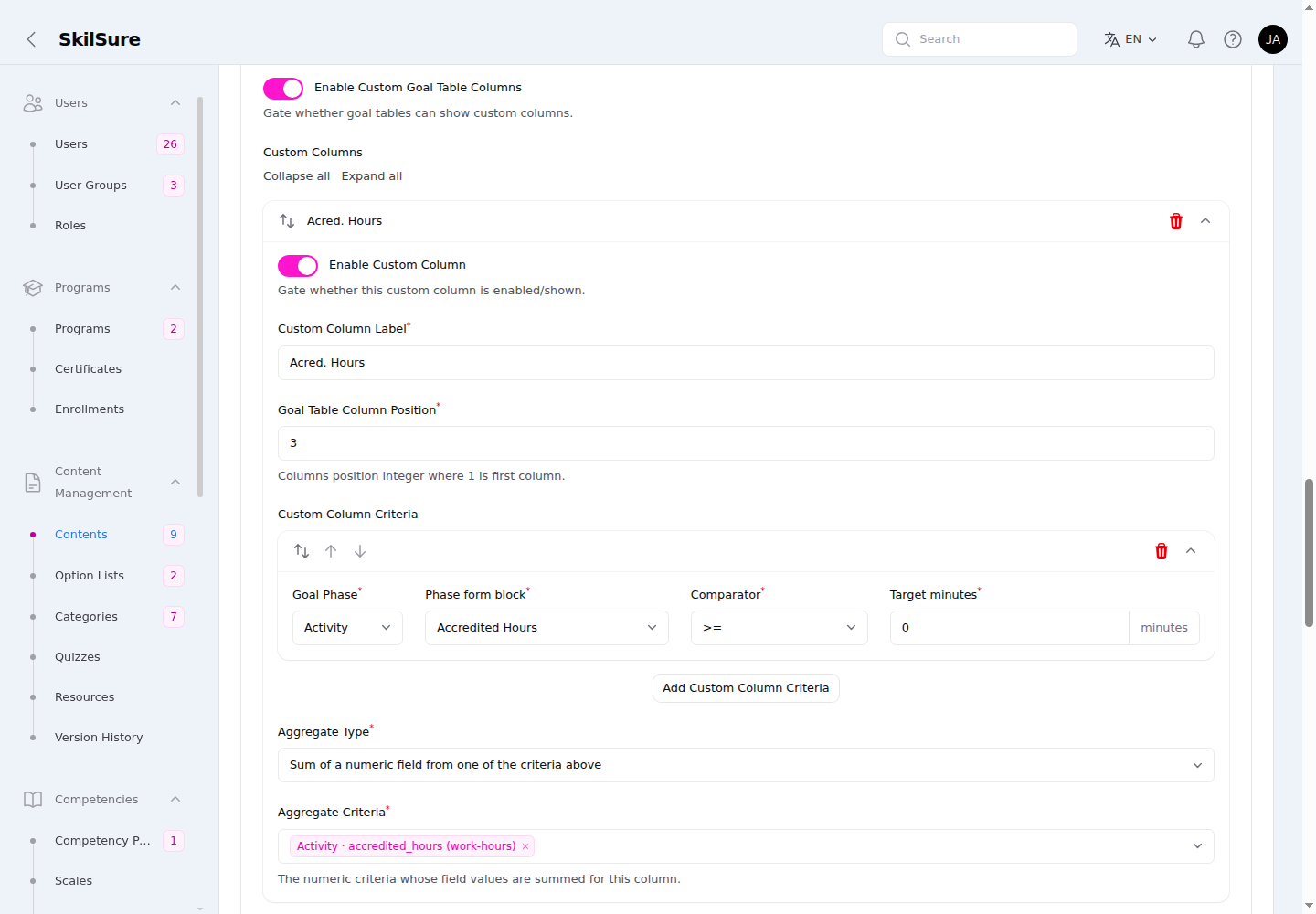 Content Configuration → Goal Table Custom Columns. Each column defines a label, a position, the criteria it reads, and how it aggregates.
- Turn on Enable Custom Goal Table Columns.
- Add a column and set:
- Custom Column Label — the column heading (translatable per language).
- Goal Table Column Position — which visible column it becomes (1 is the first column; the count covers the default-visible columns — Status, Name, Files — plus custom columns, so columns hidden by default like Type or Competency are skipped).
- Custom Column Criteria — which phase-form fields the column reads (by goal phase and form block).
- Aggregate Type — either sum a numeric field (e.g. total minutes across phase forms) or show the selected option list value (lists the chosen options for choice fields).
- Aggregate Criteria — the specific field(s) to aggregate.
The same column appears across the user's goal table, the admin Goals list, the Reopen Goals dialog, and the exported goal PDF and CSV.
Completion Configuration tab
Sets what a user must do for the portfolio step to count as complete.
Portfolio Completion
At the top of the tab, the Portfolio Completion section controls automatic step completion.
- Auto-complete — off by default. When on, the step is submitted automatically as soon as it meets the same conditions that would let the user submit it manually: the Required # of Submitted Goals threshold is reached and any completion rules are satisfied — so the user doesn't have to click Submit. (Goals reach a submitted state, not a separate "completed" one; see the Required # of Submitted Goals field below for what the threshold means, including
0.)
Completion Criteria
The Completion Criteria section sets how many goals a user needs and how goal creation behaves.
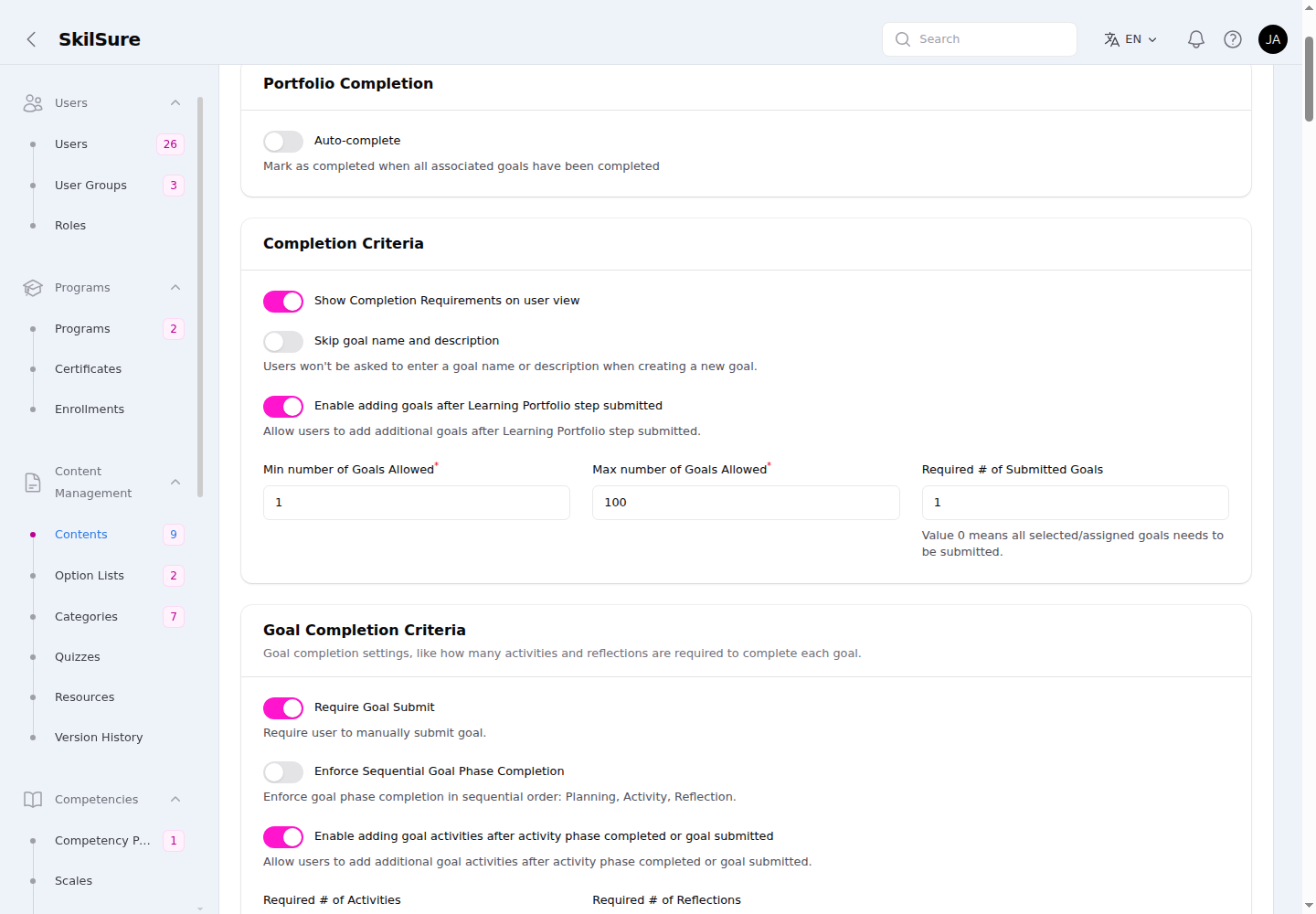 Completion Configuration → Portfolio Completion and Completion Criteria. The Required # of Submitted Goals field shows its 0-means-all helper.
- Show Completion Requirements on user view — show the completion-progress panels on the user's step. On by default.
- Skip goal name and description — when on, users aren't asked for a goal name or description when creating a goal. Off by default.
- Enable adding goals after Learning Portfolio step submitted — lets a user add more goals once the step is submitted.
- Min / Max number of Goals Allowed — bounds on how many goals a user can have.
- Required # of Submitted Goals — how many goals must be submitted to complete the step. The user's Completion Requirements progress bar tracks against this same number.
0 is the strictest setting, not "no minimum"
Setting Required # of Submitted Goals to 0 means every selected or assigned goal must be submitted — not that there's no requirement. If you want a small fixed target, enter that number (e.g. 1); only use 0 when you intend to require all of the user's goals.
Goal Completion Criteria
The Goal Completion Criteria section governs what makes each individual goal complete.
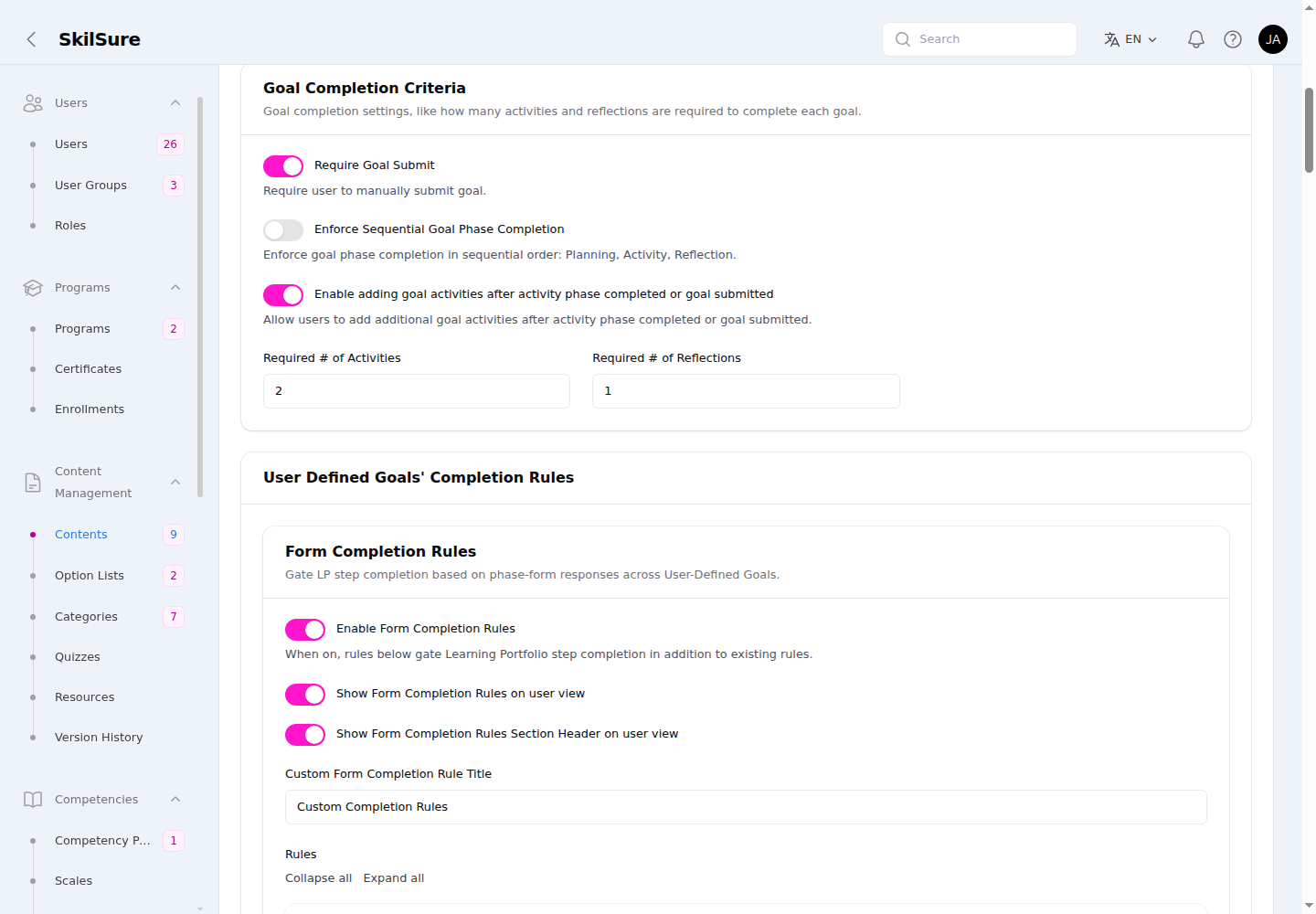 Completion Configuration → Goal Completion Criteria. How many activities and reflections each goal needs, and how goals are submitted.
- Require Goal Submit — on by default; the user must manually submit each goal. When off, users complete goals phase-by-phase (with a Complete Phase button) and the goal auto-submits once every phase is done.
- Enforce Sequential Goal Phase Completion — when on, phases must be completed in order: Planning → Activity → Reflection. Off by default.
- Enable adding goal activities after activity phase completed or goal submitted — lets a user add more activity entries after the activity phase is complete or the goal is submitted.
- Required # of Activities / Required # of Reflections — how many activity and reflection entries each goal must have to count as complete.
Closed steps lock submission
Once a portfolio step is no longer open for work (Completed, Submitted, Incomplete, Locked, or Exempt), goals can't be submitted. Reopen the step to allow submission again — see Reopen goals.
Unfinished entries block submission
A goal can't be submitted while one of its entries is saved but unfinished — for example a second activity with a required question left blank. Only completed entries count towards the completion rules and the reported totals, so submitting with one outstanding would lock the goal and quietly leave those hours out. The user is told which phase is holding it up, and can either finish the entry or delete it — with Require Goal Submit off, Complete Phase does that, and the auto-submit is held back until the entry is resolved. This applies even when Required # of Activities is already satisfied by an earlier entry. See Finish or remove any unfinished entry.
User Defined Goals' Completion Rules
The User Defined Goals' Completion Rules section adds completion requirements that gate the step on the content of a user's goal phase forms — not just on how many goals they submit. It has two independent sub-sections: Form Completion Rules and Period Completion Rules.
Which goals these rules apply to
Despite the name, this section covers both user-defined goals and suggested goals — every goal on the user's side of the portfolio. Manager-defined goals are evaluated separately by a parallel Manager Defined Goals' Completion Rules section, which appears (with the same Form and Period sub-sections) when manager-defined goal phase forms are configured. There is no separate "Suggested Goals" rules section — suggested goals are governed by this one.
Form Completion Rules
Form Completion Rules gate the step on phase-form responses across the user's user-defined and suggested goals — for example "at least 15 hours of accredited learning" or "at least 2 submitted learning records". When enabled, every enabled rule must be met for the step to count as complete, in addition to the goal-count requirement above.
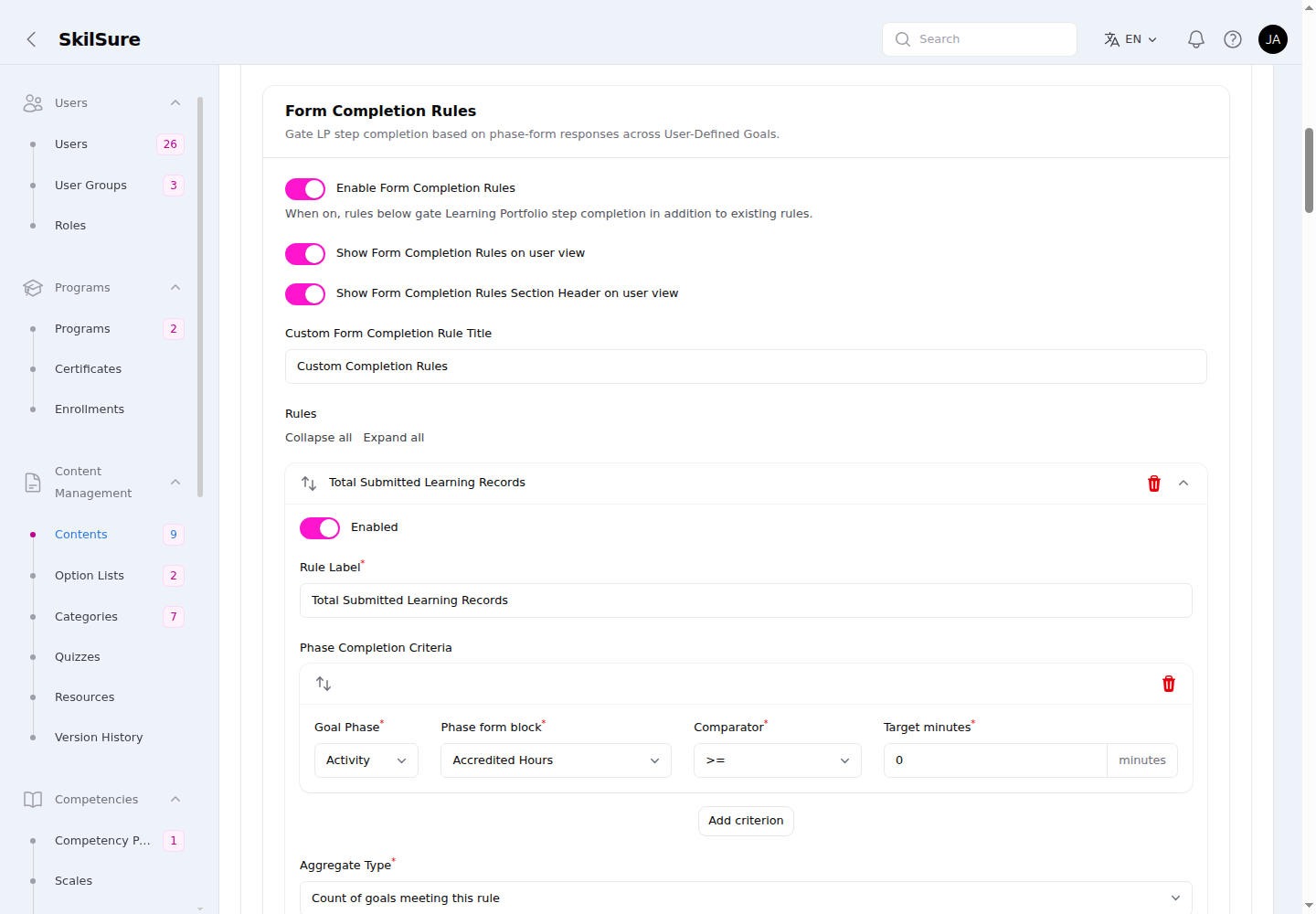 User Defined Goals' Completion Rules → Form Completion Rules. Each rule reads one or more phase-form fields and aggregates them to a target.
- Enable Form Completion Rules — turn the rules on. When on, they gate completion in addition to the existing goal-count rule.
- Show Form Completion Rules on user view / Show Form Completion Rules Section Header on user view — control whether users see the rules and their section heading.
- Custom Form Completion Rule Title — the heading shown above the rules on the user view (translatable per language; falls back to "Completion Rules"). This is what appears as Custom Completion Rules on the user's portfolio step.
- Rules — add one or more rules. Each has:
- a translatable Rule Label,
- Phase Completion Criteria — which phase-form field(s) it reads (Goal Phase, Phase form block, Comparator, Target),
- an Aggregate Type (e.g. count of goals meeting this rule, or sum of a numeric field) and a Minimum Value the user must reach.
Period Completion Rules
Period Completion Rules split the enrollment into repeating time periods (for example, every 6 months) and apply completion rules within the current period — useful for ongoing requirements like "log a minimum number of hours each period".
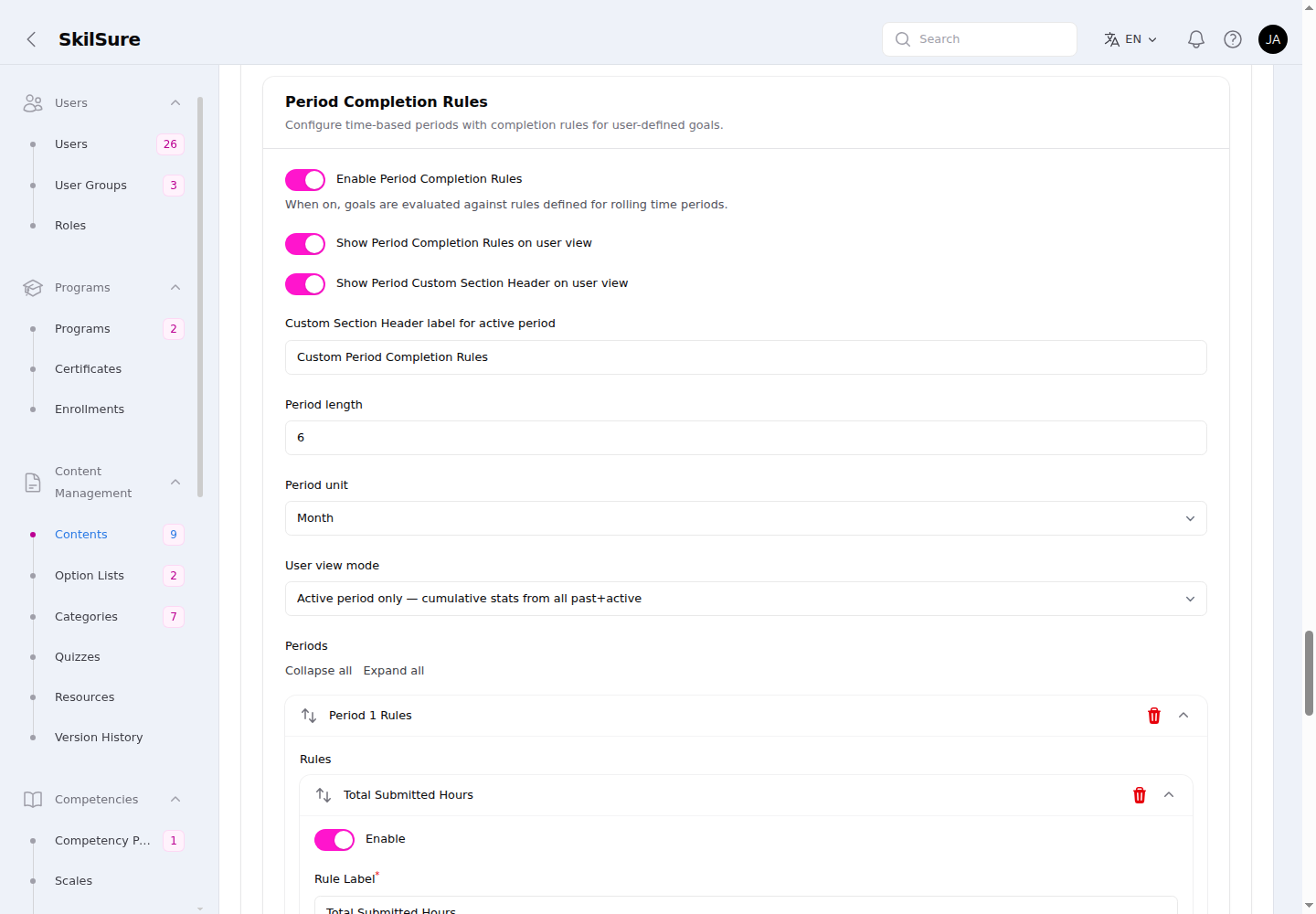 User Defined Goals' Completion Rules → Period Completion Rules. Define the period length and the rules evaluated within each period.
- Enable Period Completion Rules — when on, goals are evaluated against rules defined for rolling time periods.
- Show Period Completion Rules on user view / Show Period Custom Section Header on user view — control user visibility of the rules and their heading.
- Custom Section Header label for active period — the heading users see above the period rules (appears as Custom Period Completion Rules on the user's portfolio step).
- Period length and Period unit — how long each period lasts (e.g. 6 Months).
- User view mode — controls how period progress is calculated and shown. The two modes differ in the numbers, not just the layout:
- Active period only — show a single progress panel whose totals are cumulative across all periods to date (from the start of the enrollment up to now). This is the default.
- Active period + past periods in a collapsed container — show each period separately (past periods in their own collapsible blocks); each period — including the active one — reflects only its own period window, not a running cumulative total.
- Per Period Grace Period — an optional sub-section (enable toggle + duration length + unit). When on, every period's due date is extended by the grace span, and a period stays the current/active period through its grace tail — so the user's active-period panel, the period due date, and any date-picker field bound to the period dates all keep pointing at that period until its graced due date passes.
- Periods — each period (Period 1 Rules, Period 2 Rules, …) holds its own list of rules, each defined the same way as a Form Completion Rule (label, phase completion criteria, aggregate type, minimum value).
When Period Completion Rules are enabled, Period length, Period unit, and each rule's Aggregate Type and Aggregate Criteria become required — a period schedule can't be saved half-defined.
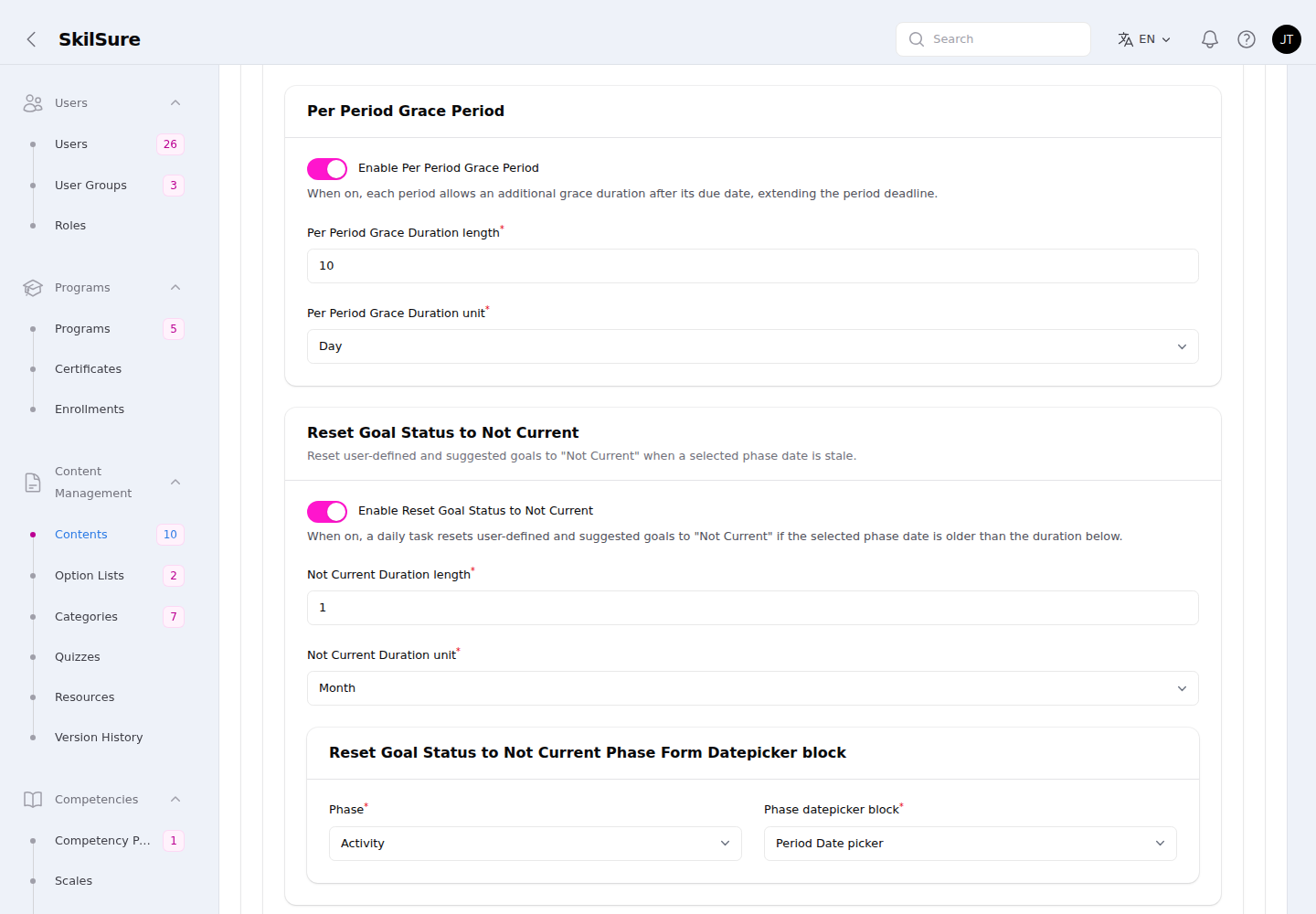 Period Completion Rules → Per Period Grace Period. When enabled, each period's due date is extended by the grace duration.
Submission is gated on the active period only
The step's Submit gate checks Period Completion Rules for the earliest active period only — periods that are already closed don't block submission, so a user isn't held back by an earlier period they can no longer act on. (When the whole schedule has ended, the last period's rules apply, so an expired schedule with unmet final-period rules still blocks.)
A submitted step reopens when a new period raises the requirements
If a user submitted the step and a later period then raises the targets (or their records stop counting), so the step no longer meets the active period's rules, SkilSure reopens the step automatically — and the enrollment too, if needed — so the user can add and submit more records. Records already submitted stay submitted. This is checked once a day and whenever the user opens the step. It never happens once the enrollment's cycle (deadline, grace period and any extension) or the last period (including grace) has ended, while the step is with an auditor, on an Inactive, Exempt or Incomplete enrollment, or on a step an administrator marked complete. It also never happens once the reinstatement is confirmed by an SSO close rule — the member is back on full membership (for example category FULL), or the College's completion date falls inside the enrollment's window — see Lock confirmed reinstatements.
Filter criteria count every matching activity
When a rule mixes a filter criterion (e.g. is Indigenous = true, a criterion that isn't in the aggregate set) with a summed field on a goal that has several activity entries, the total includes every activity that matches the filter — not just the most recent one. The goal qualifies when any of its activities matches, and the sum covers exactly those matching activities (so an Indigenous-only hours rule sums only the Indigenous activities' hours). Rules without a filter criterion still sum every activity.
Reset Goal Status to Not Current
Under Period Completion Rules, the Reset Goal Status to Not Current sub-section automatically flips a user's goals to a new Not Current status when the date they entered on a chosen phase form becomes too old — a way to make users refresh long-stale goals.
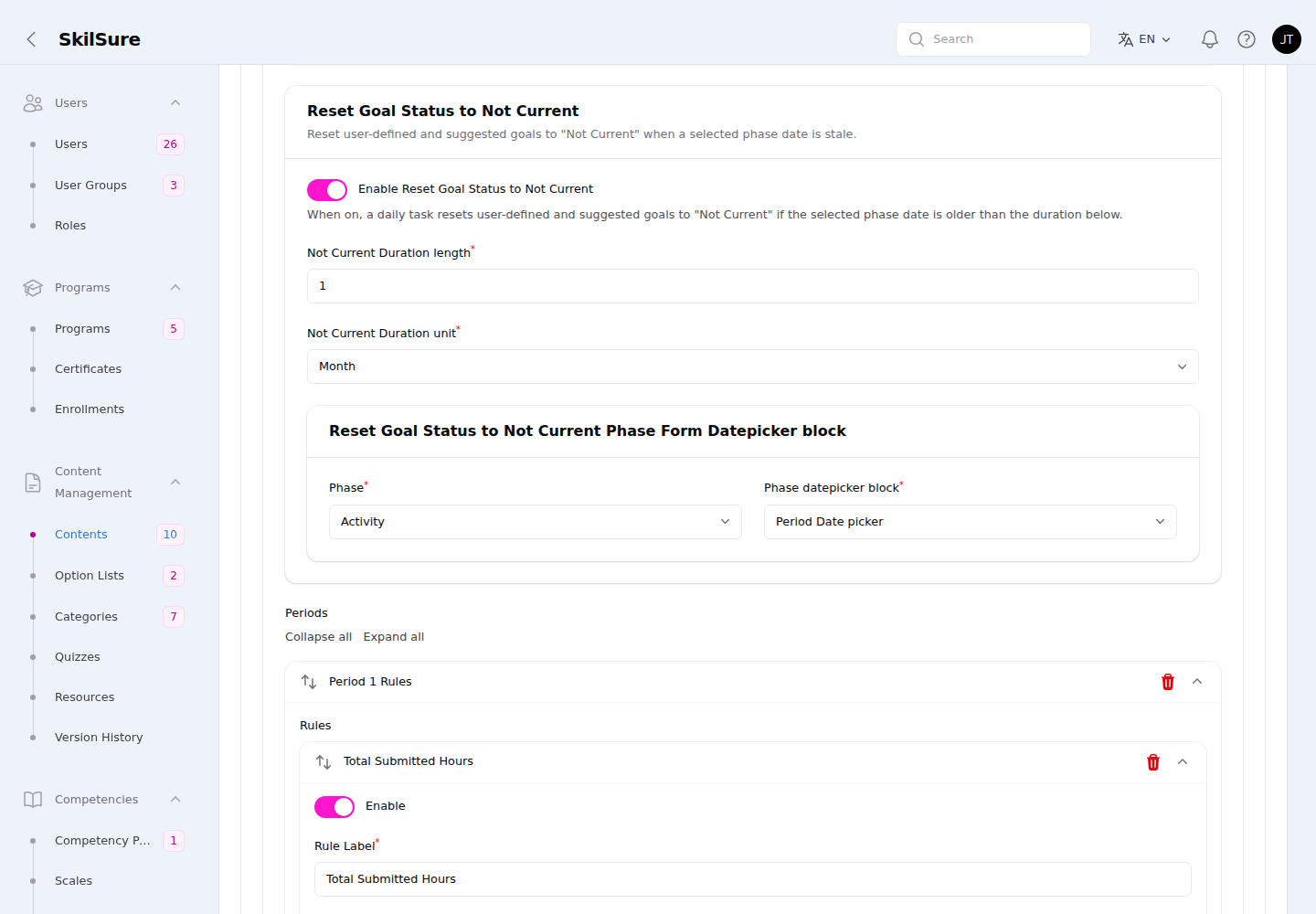 Period Completion Rules → Reset Goal Status to Not Current. Pick the duration and the phase date field the reset measures against.
- Enable Reset Goal Status to Not Current — turn the reset on. It runs only when Period Completion Rules are also enabled.
- Not Current Duration (length + unit) — how old the measured date may be before the goal is reset (e.g. 12 Months).
- Phase and phase date-picker block — which phase form, and which Date Picker field on it, hold the date the reset measures against. Every completed entry on that phase is checked — not just the latest — and in-progress drafts are ignored.
It applies to user-defined and suggested goals (manager-defined goals are left alone). If any completed entry on a goal is older than the duration, the goal is set to Not Current — editable again like an in-progress goal. A goal with several activities goes Not Current as soon as one of them is stale, even if the others are recent.
When a goal is reset:
- Its stale entries go back to draft and are marked No longer current for the user; its current entries stay completed.
- A Not Current goal no longer counts toward any Form or Period Completion Rule — neither its goal count nor its hours.
- The user can't submit the goal again while any stale entry remains. They must delete the stale entry or update its date; a stale entry can be deleted even though it was completed.
- If the reset drops the step below its completion requirements, the step — and, if needed, the enrollment — is reopened so the user can act on it.
The reset runs automatically once a day (early morning in your tenant's timezone) and can also be triggered on demand for a single enrollment with the Check Not Current action on the enrollment's step — both do exactly the same thing. Neither ever touches an enrollment whose cycle or last period (including grace) has already ended. Neither touches a reinstatement confirmed by an SSO close rule either (see Lock confirmed reinstatements): its goals are never set to Not Current and its step is not reopened. (Check Not Current runs only this reset. Reopening a submitted step because a new period raised the requirements happens in the nightly run and when the user opens the step — see the note under Period Completion Rules above.)