
Appearance
UserManage your profile
Open the user menu (your initials, top right) and choose My Profile. The same menu also holds the light/dark theme switcher and Sign out.
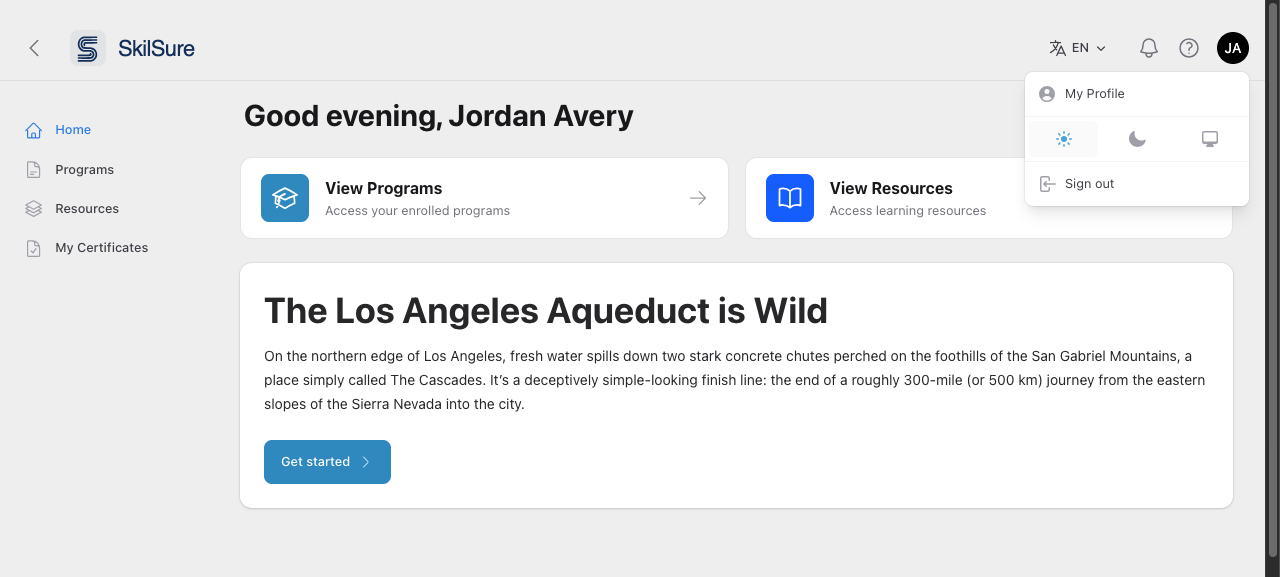 The user menu in the top-right corner. Click your initials, then My Profile*.*
The My Profile page gathers your account settings in one place.
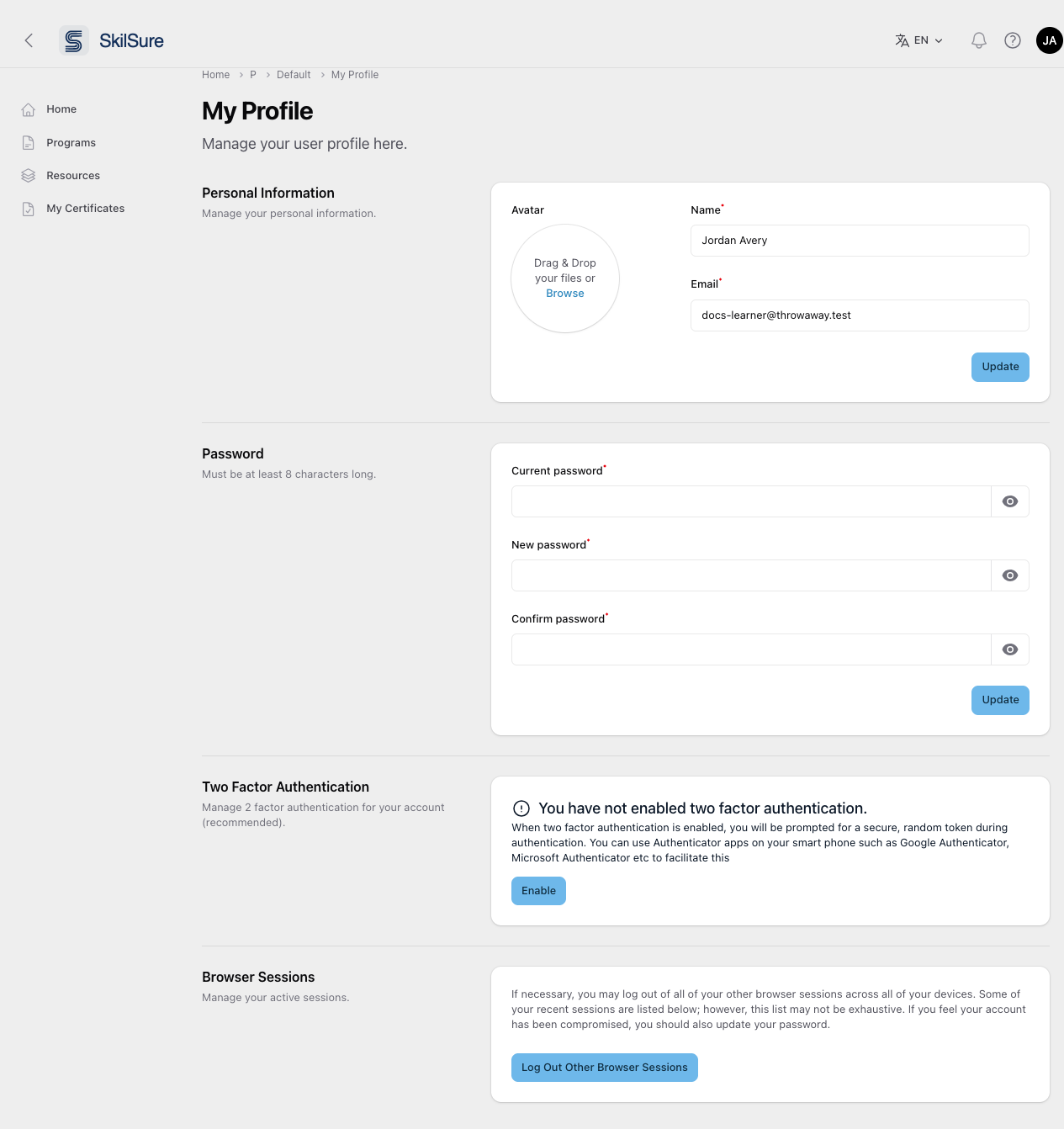 My Profile. Each section saves independently with its own Update button.
- Personal Information. Update your avatar, name, and email address, then click Update.
- Password. Enter your current password, then a new password (at least 8 characters) twice, and click Update.
- Two Factor Authentication. Click Enable to protect your account with a one-time code from an authenticator app such as Google Authenticator or Microsoft Authenticator.
- Browser Sessions. Click Log Out Other Browser Sessions to sign out everywhere else — useful if you've used a shared device.
Change the theme
The light/dark theme switcher lives in the same user menu — the row of three buttons shown in the first screenshot above:
- Sun — light theme.
- Moon — dark theme.
- Monitor — follow your device's system setting.
Your choice is saved to your account, so it applies wherever you sign in.
Sections vary by organization
Your administrator controls which sections appear. Some organizations hide password or two-factor settings (for example, when sign-in is handled by single sign-on) or make personal information read-only. Administrators: see User Profile Settings.