
Appearance
AdminConfigure your portal
A portal is the user-facing experience. Most tenants start with a single Default Portal; create more if you need separate branding or program lineups for different audiences.
Review your portals
Open Settings → Portals.
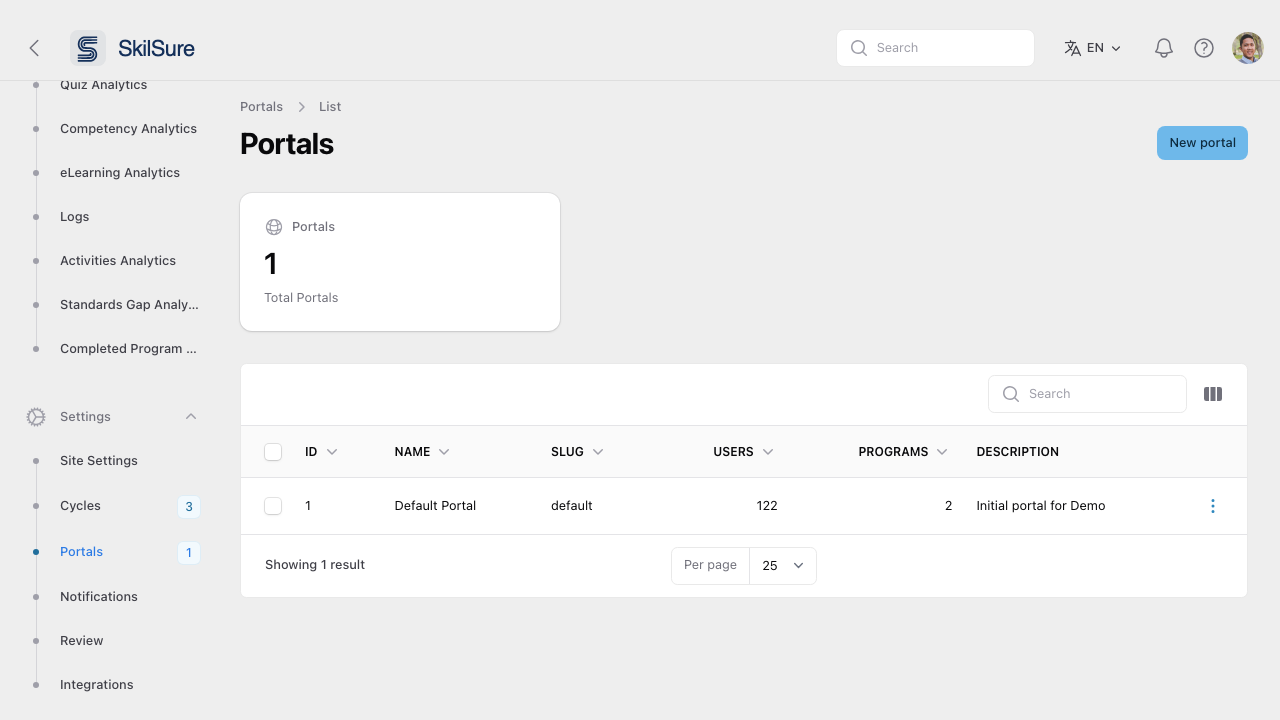 Portals list. Each portal has a slug that appears in its URL — e.g.
 /p/default.
Edit portal branding & content
Click a portal to open its edit view.
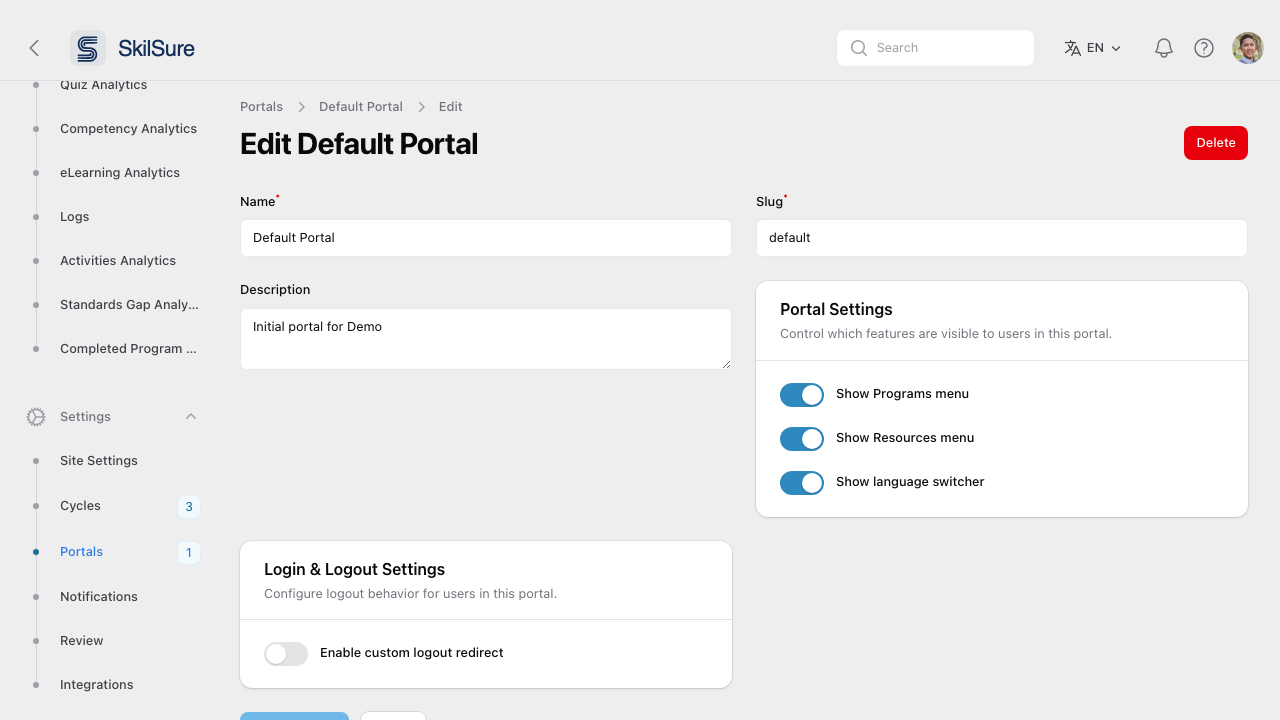 Portal edit page. Configure name, slug, branding, homepage hero, and navigation here.
- Set the portal's name and slug (the slug becomes part of the URL).
- Upload a logo and hero image, and set the welcome copy that appears on the user home page.
- Decide which programs are visible in this portal.
- Save. Changes are visible immediately on the user side.
Custom program display order
By default, a portal lists its programs alphabetically wherever users see more than one — the Programs page cards, the Programs sub-menu, and the program picker. Turn on a custom order when you want a specific program to lead (for example, the flagship program first).
In the portal's edit view, open the Portal Settings section and switch on Enable Custom Program Display Order. A Custom Program Display Order list of the portal's programs appears — drag a row, or use the up/down arrows, to arrange them. The program at the top is shown first.
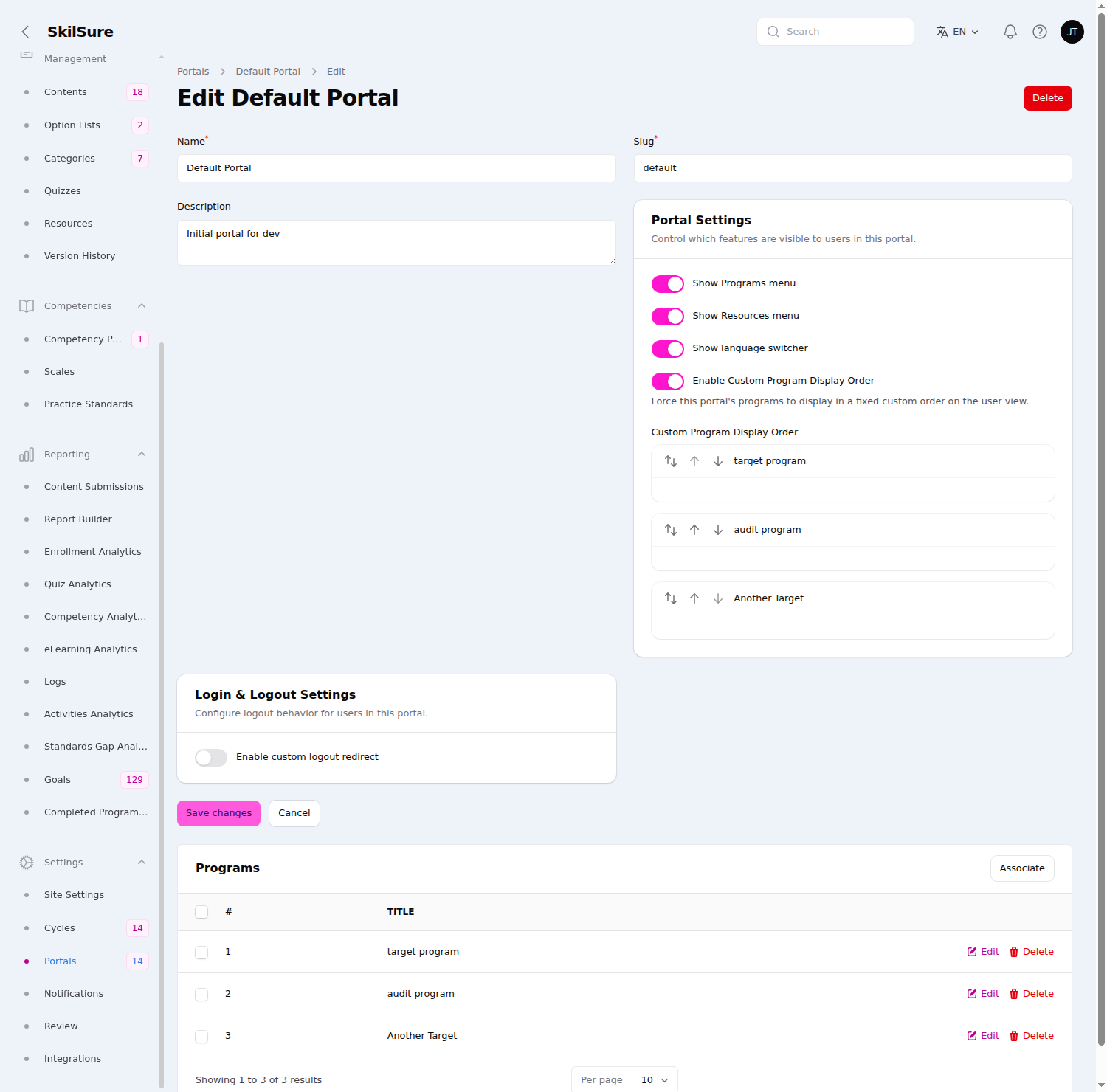 Portal Settings. With the toggle on, arrange the portal's programs in the order users should see them — top is first.
Save the portal to apply the order. It takes effect immediately on the user side.
INFO
- The order is the same in every language — programs are pinned by position, not re-sorted per locale.
- Programs you don't place in the list fall to the end, in alphabetical order.
- Turning the toggle back off restores the default alphabetical order without discarding the arrangement you saved.
TIP
On a brand-new portal the list is empty — save the portal and add its programs first, then return here to set their order.