
Appearance
AdminQuiz attempts
A quiz attempt is one user's submission of a quiz. This page is where you review results, grade any questions that need manual marking, and change how many attempts a user is allowed.
Review attempts
Open Reporting → Quiz Analytics, then choose Quiz Attempts at the top of the page.
The list shows attempts across your programs, with status and score. Open an attempt to see the user's answers.
Grade an attempt
Auto-scored question types are marked automatically. Open-response questions wait for a reviewer — open the attempt, score the outstanding questions, and the attempt's total updates.
Download a member's feedback PDF
If the quiz has feedback PDFs turned on, each submitted or graded attempt offers Download Feedback PDF.
The PDF is written in the member's language, not yours. It is their report, and it is usually forwarded to them — so an English-speaking member's report comes out in English even when you are working in French.
If your tenant has more than one language enabled, the action asks which language you want before it downloads, defaulting to the member's own. Pick your own language when you are reading the report yourself rather than sending it on. On a single-language tenant nothing is asked and the download is one click, as before.
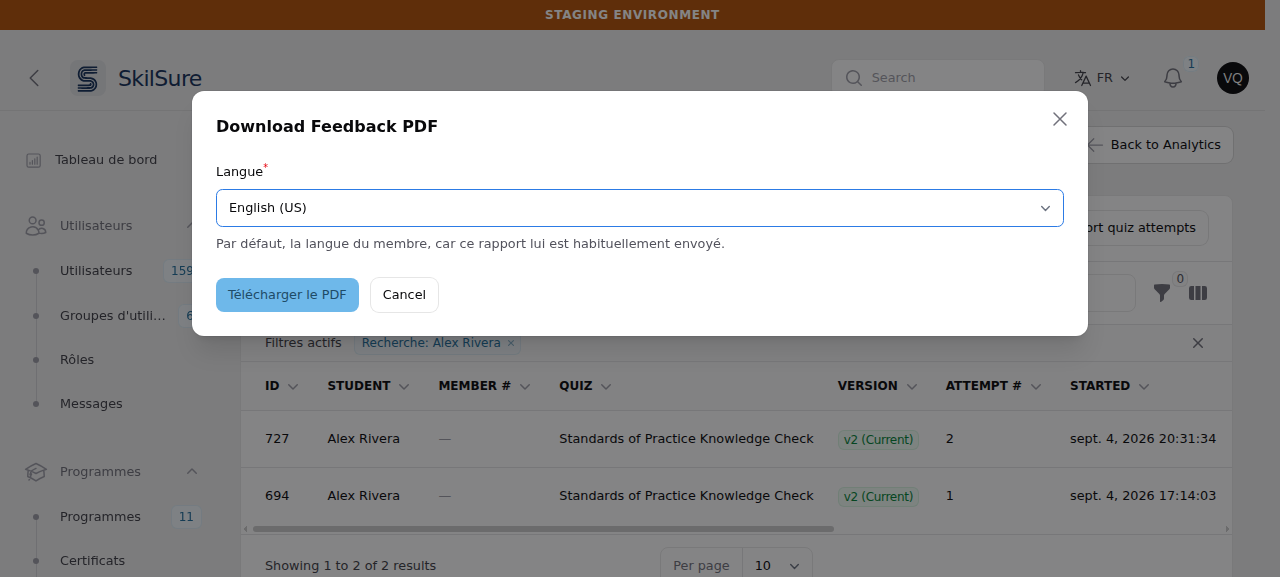 An administrator working in French downloading an English-speaking member's report: the language defaults to English (US), the member's own, not the administrator's.
Set a user's attempt limit
A quiz's Maximum Attempts setting applies to everyone. To give one user a different number, set their attempt limit from any of their attempts. You can raise it (an approved retake, a technical problem during an attempt) or lower it (for example, an attempt they already used in another system).
- Open Reporting → Quiz Analytics → Quiz Attempts and find an attempt by the user on that quiz.
- Open the row's actions menu and choose Set Attempt Limit. The action is available whether or not the user has attempts left.
- The dialog shows the quiz default, the user's current limit and the attempts used. Enter the Total attempts allowed: the number of attempts the user may make in total, including the ones they have already made.
- Optionally add a Reason. It is kept with the change in the Activity Log.
- Choose Submit.
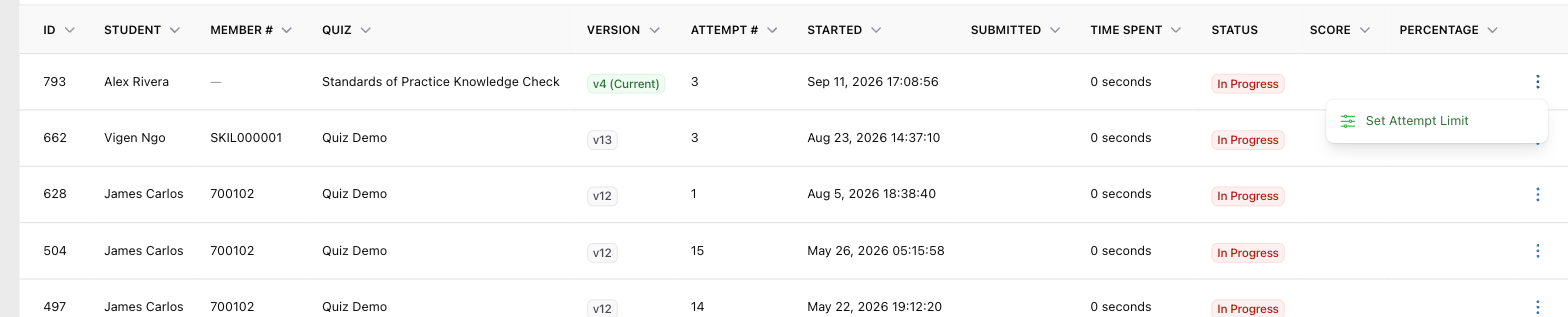 Reporting → Quiz Analytics → Quiz Attempts. Set Attempt Limit is in each attempt's actions menu, including attempts by users who still have attempts left.
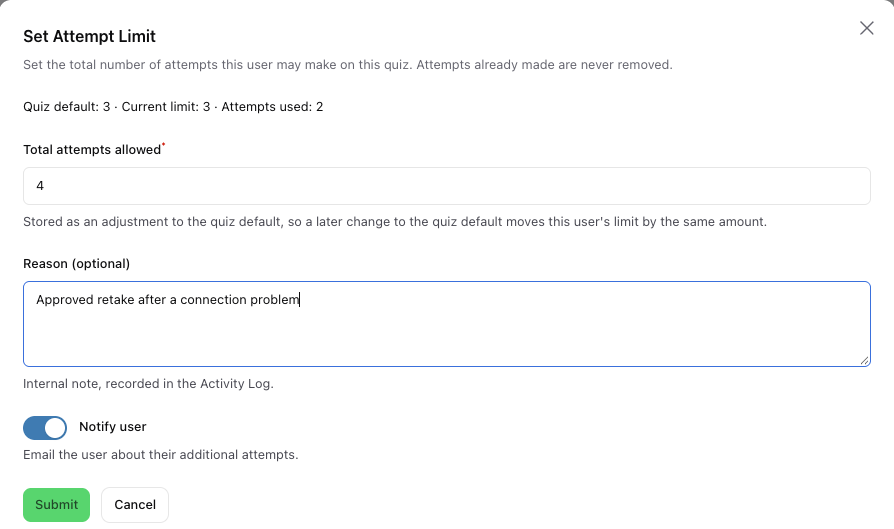 Raising a user from 3 to 4 attempts. Notify user appears because the new total is higher than the current limit.
The total you enter is the user's whole allowance, not an extra amount. To give a user who has used all 3 of 3 attempts one more try, enter 4. To leave them 2 instead of 3, enter 2. If you enter the limit they already have, nothing changes.
Notify user appears only when you raise the limit. Leave it on to email the user that they have more attempts. Lowering a limit never sends an email.
Lowering a limit never removes attempts. Every attempt the user already made stays visible and scored. If the new total is at or below the attempts already used, the user cannot start another attempt. An attempt already in progress can still be continued and submitted.
The limit is for this program enrollment
The limit applies to the user's attempts on that quiz in the program enrollment the attempt belongs to. A user enrolled in more than one cycle has a separate allowance in each.
A later change to the quiz moves the limit too
The limit is stored as an adjustment to the quiz's Maximum Attempts. If you set a user to 5 on a 3-attempt quiz and later change the quiz to 4, that user can make 6.
Each change is recorded in the Activity Log with the previous and new limit, who made it, and the reason. You need permission to update quiz attempts to see this action.
Quizzes is a feature
If you don't see the Quizzes section, the quizzes feature isn't enabled for your tenant.