
Appearance
AdminCompetency Rating steps
A Competency Rating step asks a member to rate themselves against each competency in a competency path, one group at a time. This page covers the settings that shape how that rating form behaves.
Create the content under Content Management → Contents → New Content, choose Competency Rating, then open its Content Configuration tab.
Choose the competency path
Competency Path picks which path the step rates against. The path's competency groups become the sections of the form, in the path's own order.
Attach a rating scale
Under Rating Scales, add a row for each role that rates on this step. A row carries the scale to rate on, which roles it applies to, and whether notes and file uploads are collected.
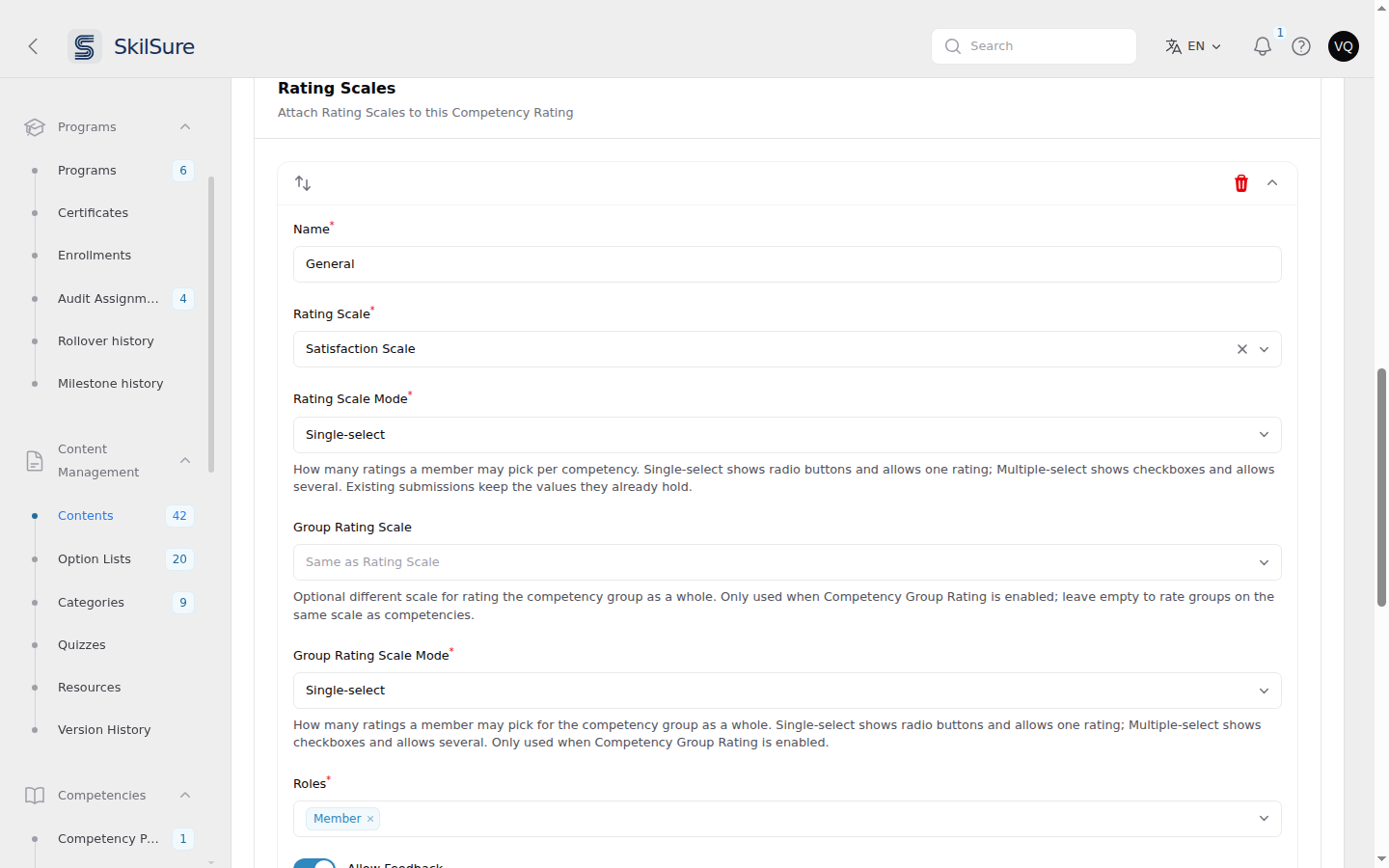 Content Configuration → Rating Scales. Each row is one rating scale, with its own mode and roles.
How many ratings a member may pick
Two settings control this, and both default to Single-select:
| Setting | Applies to | Single-select | Multiple-select |
|---|---|---|---|
| Rating Scale Mode | each competency | radio buttons — one rating | checkboxes — several ratings |
| Group Rating Scale Mode | the competency group as a whole | radio buttons — one rating | checkboxes — several ratings |
Group Rating Scale Mode only matters when Competency Group Rating is enabled under Rating Sections; otherwise groups are not rated at all.
Existing submissions are safe
Changing a mode does not disturb work already in progress. A member who picked several ratings and then sees the step switched to Single-select keeps their answers — the form shows the first one, and if the step is switched back to Multiple-select the rest reappear. Nothing is deleted by a mode change.
Which to choose
Single-select suits a scale whose points are a ladder — Not satisfied through Very satisfied — where picking two is meaningless. Multiple-select suits a scale whose points are independent labels, such as a list of evidence types or standards a member can claim more than one of.
Give a group its own guidance
Each competency group can carry Additional Information — a block of rich text shown to members as an expandable panel beneath the group's heading. Use it for the standard's full wording, links to source material, or worked examples that would clutter the group description.
Edit it on Competencies → Competency Paths → open a path → Competency Groups and Competencies, in the group's own row.
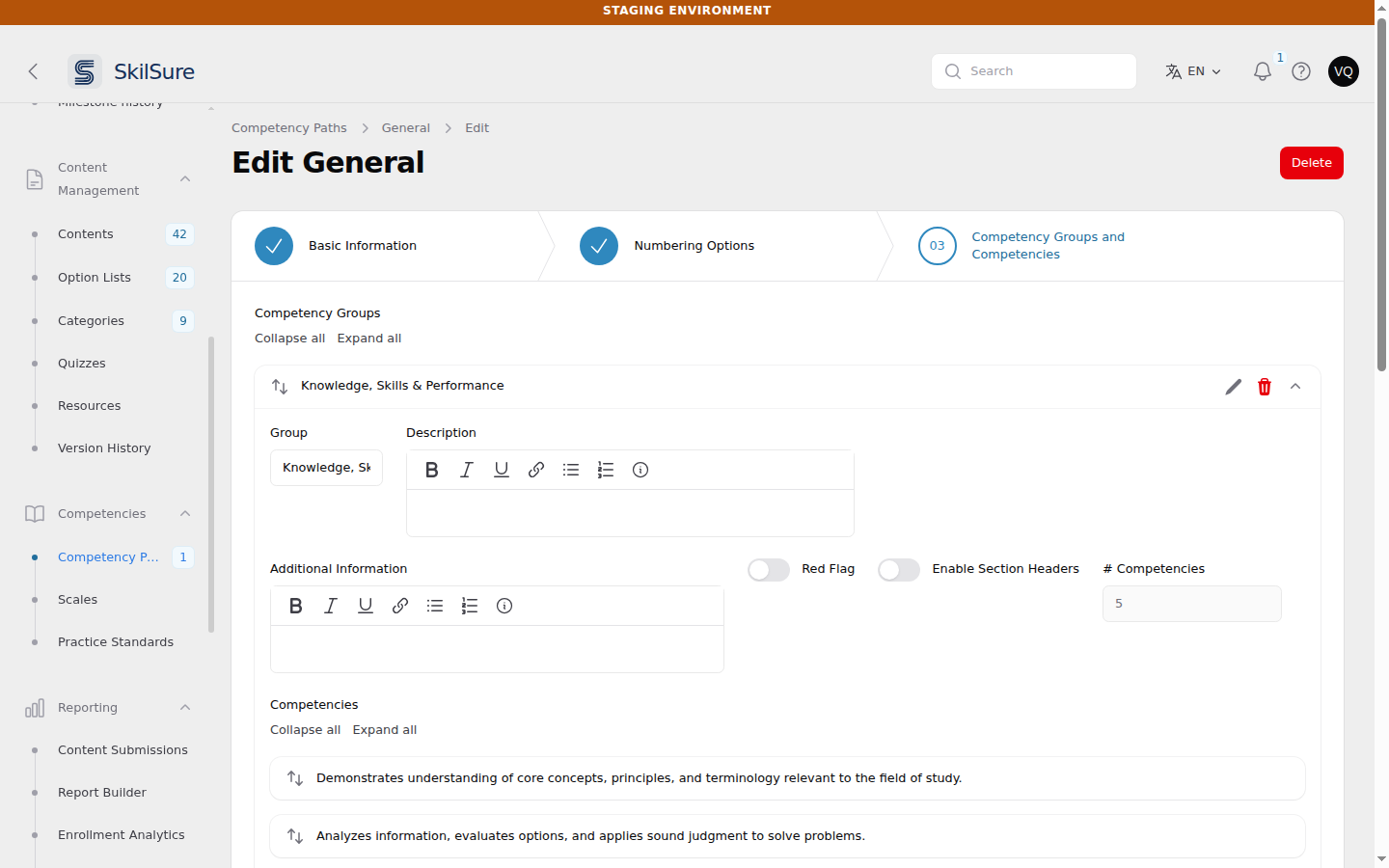 Both the group Description and Additional Information are rich text, and both offer the Collapsible definition tool (the ⓘ button).
The panel appears for members whether or not Competency Group Rating is enabled, so guidance is never hidden just because the group itself is not rated.
Individual competencies carry their own Description too. On a narrow screen it appears in a labelled panel above the competency's rating buttons; on a wide screen it appears under the competency name with no label. The panel is shown only when the competency actually has a description, and its heading can be reworded — or removed entirely, by blanking it — under Settings → Custom Text, by choosing the Competency Rating content type and searching for Description.
What members see
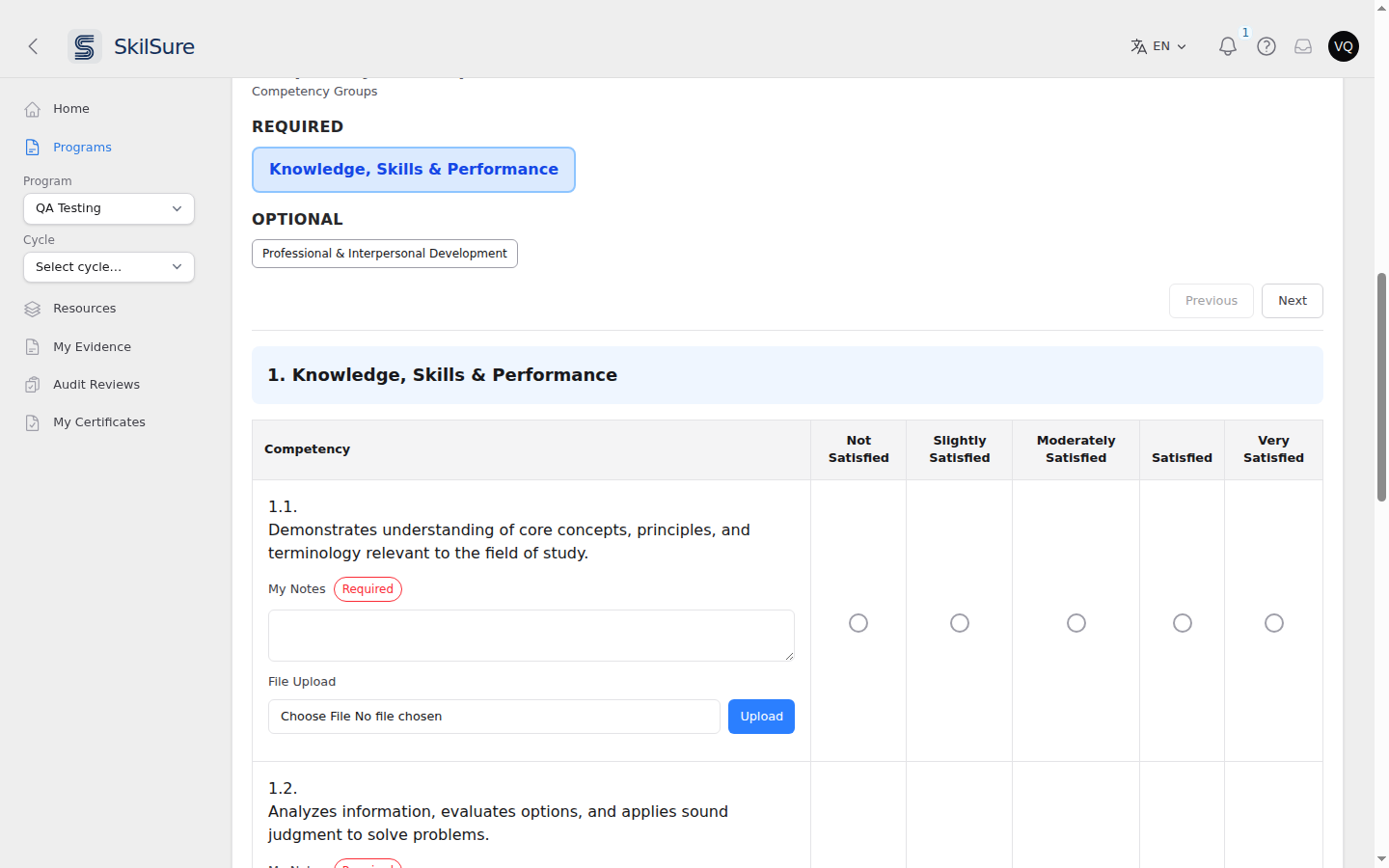
- Group buttons run across the top. When the step defines a required competency group sub-set, they are split under REQUIRED and OPTIONAL headings — only the required groups gate submission.
- A green check appears on a group's button once every competency in it is rated (and any required notes are filled in), so members can see at a glance what is left.
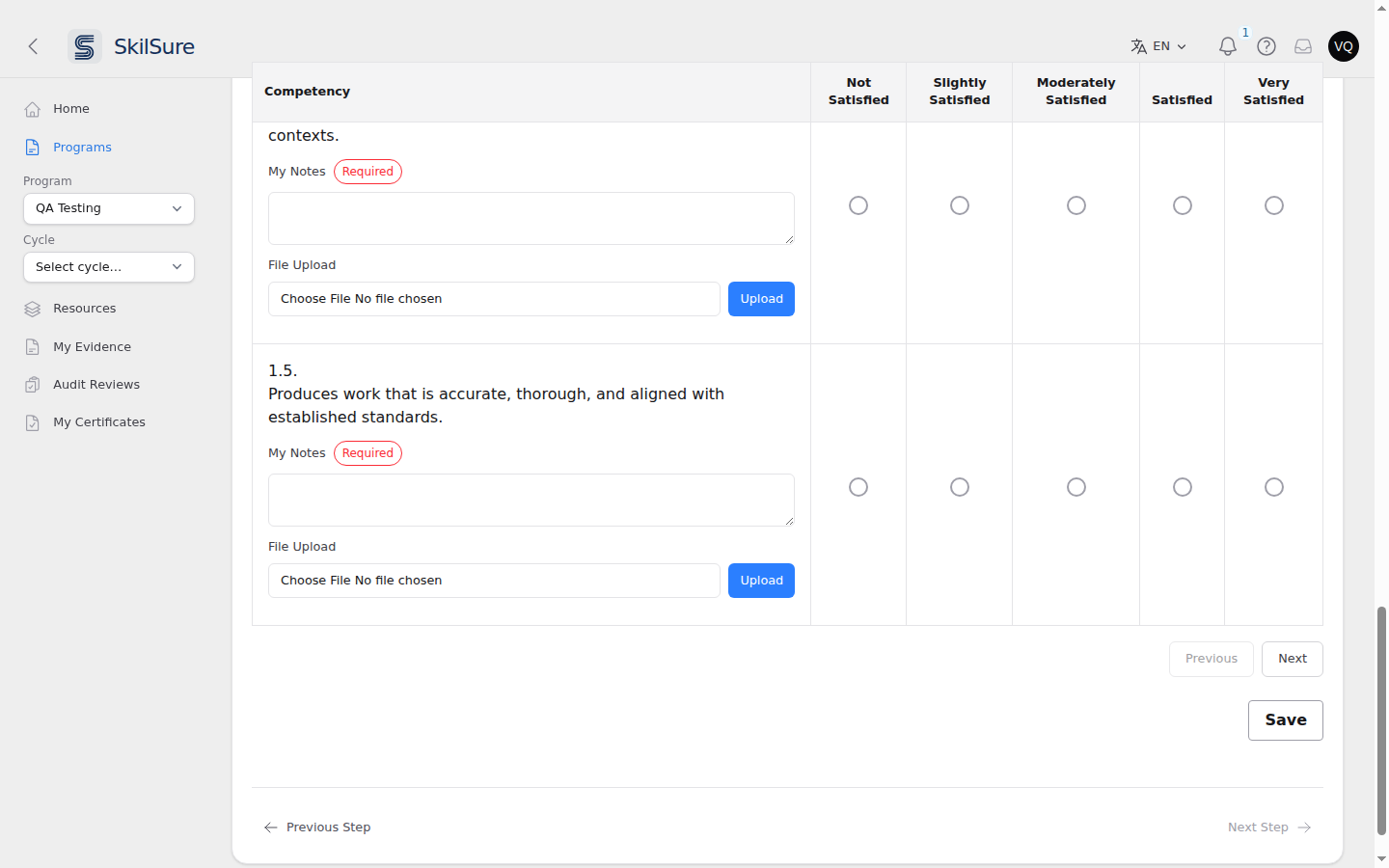
- Ratings save as they go. There is also a Save button at the foot of the form for members who want to save deliberately before leaving.
See Complete a step for the member's guide.
Wording
The headings, button labels and saved-confirmation messages on this step can be reworded per language under Settings → Custom Text → Competency Rating. See Custom text.