
Appearance
AdminReword text with Custom Text
Custom Text lets you change the wording members see in the app without waiting on a release. Rename a button, soften a warning, or match your organisation's own vocabulary — per language, in one place.
Only text that SkilSure has made customizable appears here. Everything you don't change keeps the platform default, so you can reword a handful of strings and leave the rest alone.
Open Custom Text
Open Settings → Site Settings, then choose Custom Text from the settings list.
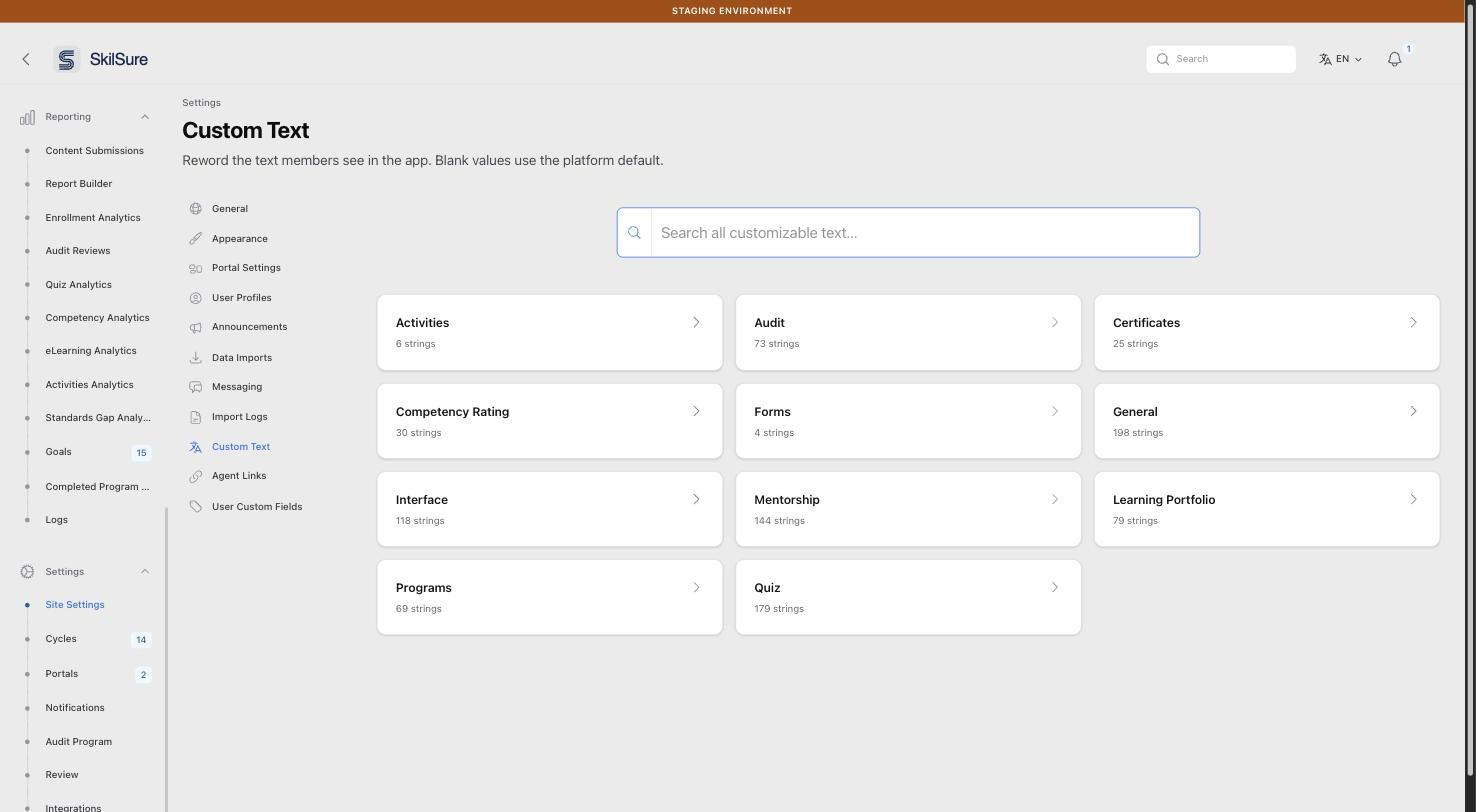 Settings → Site Settings → Custom Text. Each card is a content type, with the number of strings you can reword.
Pick a card to see that area's text, or use Search all customizable text to look across every card at once — handy when you know the wording you want to change but not which area it belongs to.
INFO
Don't see Custom Text in the settings list? It is enabled per organisation. Contact SkilSure if you'd like it turned on.
Find the text you want to change
Opening a card lists every customizable string in that area.
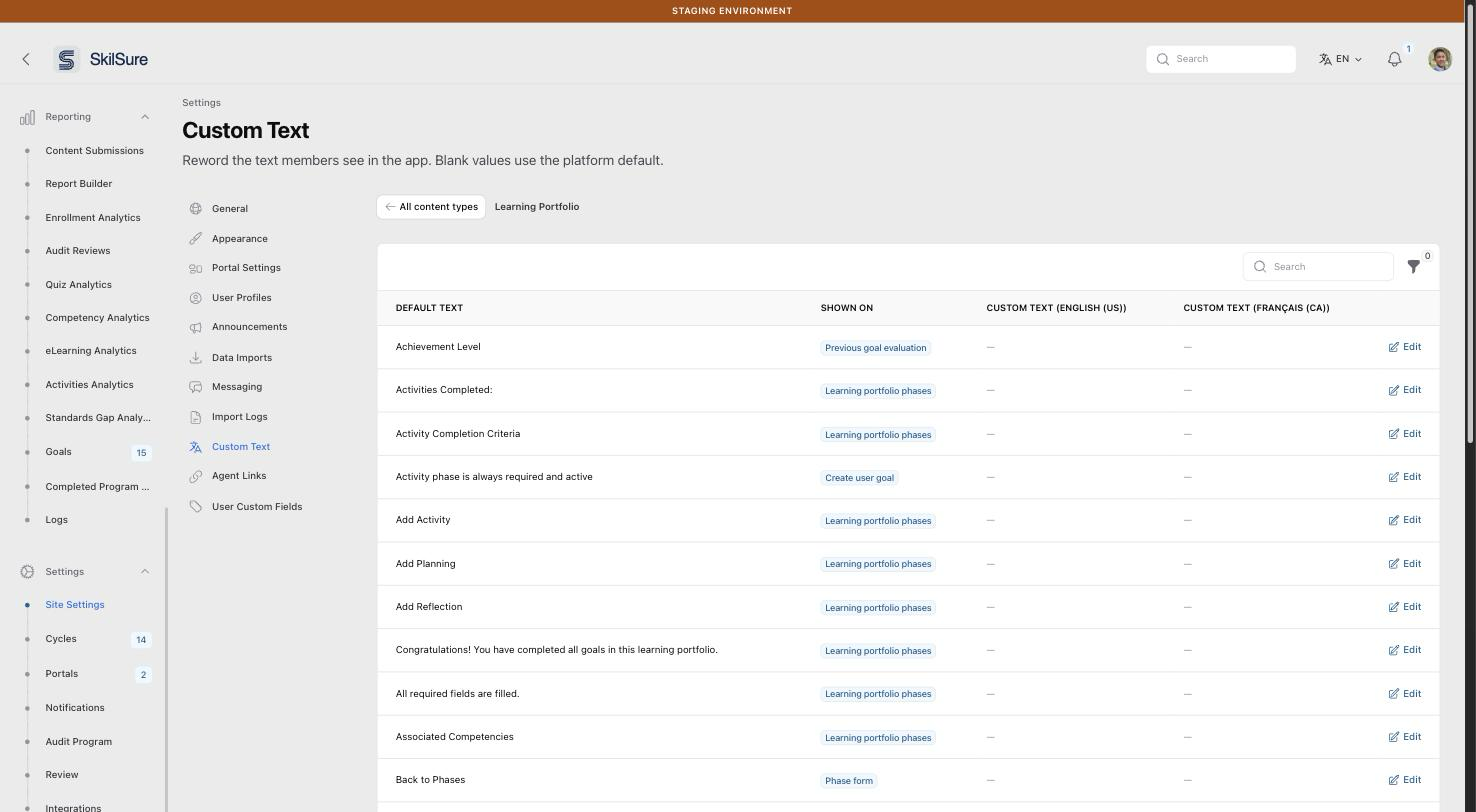 The Learning Portfolio card. "Shown on" tells you where each string appears, and the Custom Text columns show a dash wherever the default is still in use.
- Default Text — the wording SkilSure ships. This is what members see until you override it.
- Shown on — the screens the string appears on. Use the filter to narrow the list to one screen.
- Custom Text (…) — your wording, one column per language you have enabled. A dash means the default is in use, and Hidden means you have chosen to show nothing at all (see Hide text you don't want shown).
Because rows are listed by their default wording, the quickest way to find something is to search for the words you can see in the app.
Error messages
The messages members see when an action fails (Could not reach the server, You no longer have access to this, This page is out of date, Something went wrong), the Session expired box and the Page out of date box are on the Interface card. See If you see an error message for where each one appears.
Change the wording
Click Edit on a row.
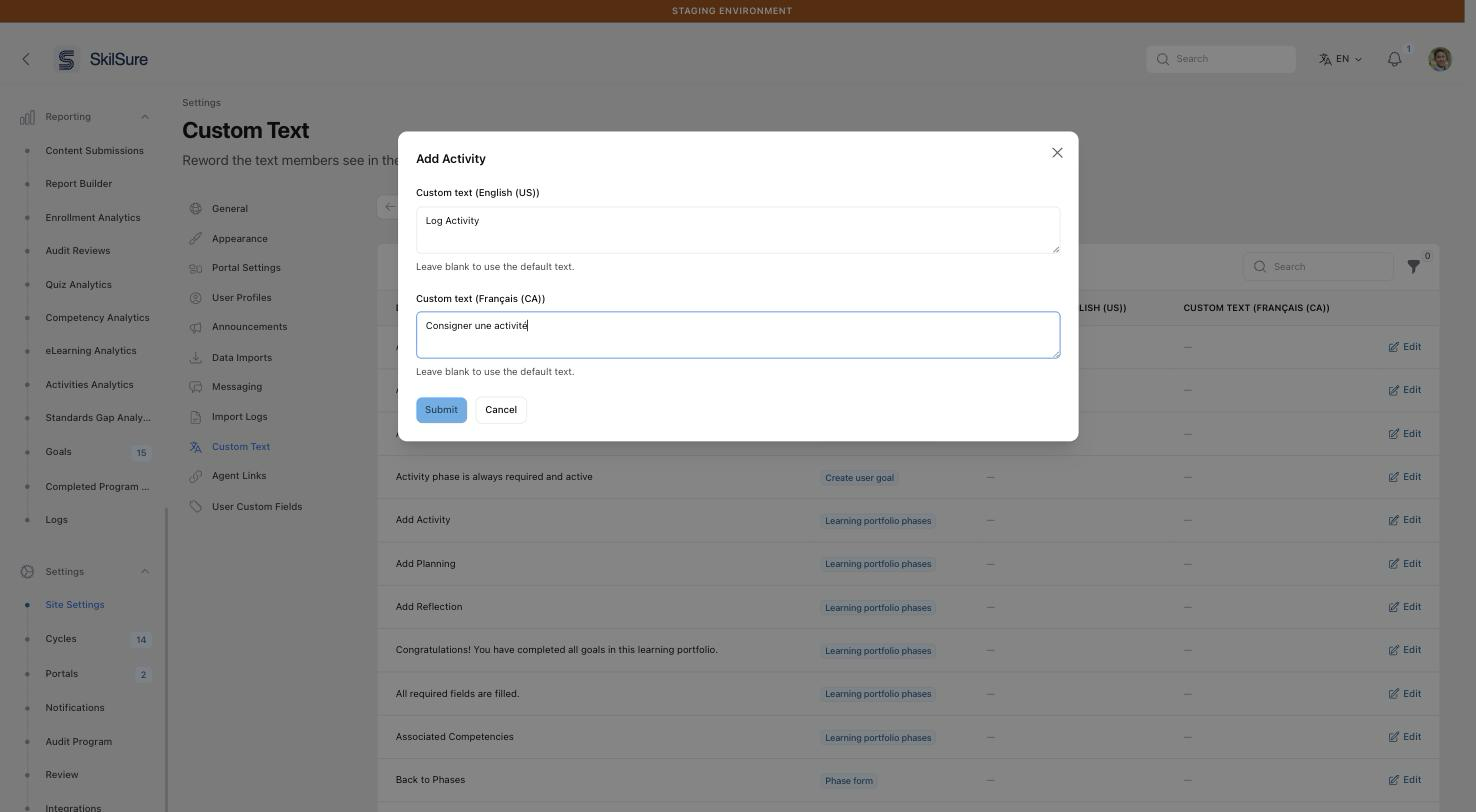 The edit dialog. Each enabled language gets its own field, and the placeholder shows the default you are replacing.
- Type your wording into the language you want to change. The greyed-out text in each field is the current default, so you can see what you're replacing.
- Leave any language blank to keep its default. Changing English does not oblige you to change French.
- Click Submit. The new wording appears everywhere that string is used, straight away.
To go back to the platform wording, clear the field and submit — the row returns to a dash.
Hide text you don't want shown
Some wording is guidance you may simply not want: a hint under a form, a reminder your members don't need, a note that duplicates something you say elsewhere. Rather than replacing it with a space, tick Hide this text in the edit dialog and submit. Members then see nothing in that spot.
Each language has its own toggle, so you can hide a note in English while leaving the French in place.
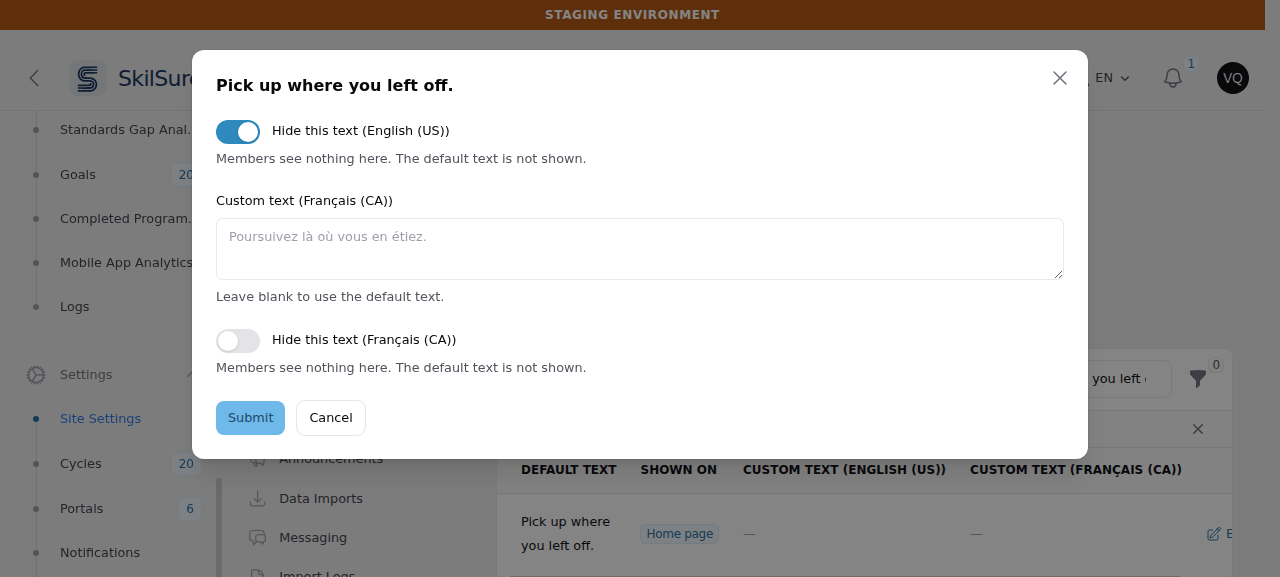 Ticking the toggle replaces that language's box — there is nothing left to type, because nothing will be shown.
Blank and hidden are not the same thing:
| In the dialog | What members see | In the table |
|---|---|---|
| Field left blank | The platform default | A dash |
| Field filled in | Your wording | Your wording |
| Hide this text ticked | Nothing at all | Hidden |
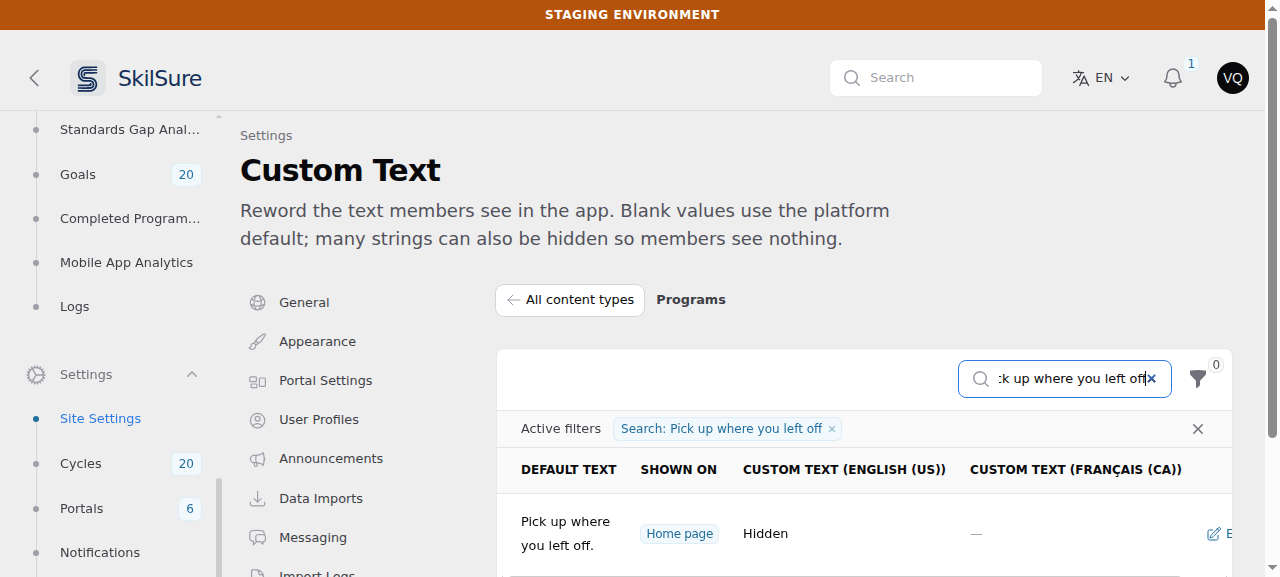 The table tells the two apart: Hidden for a language you have blanked, a dash for one still using the default.
To bring the text back, untick Hide this text and submit. The row returns to a dash and the default reappears.
Not every string can be hidden
Wording that carries a value — a count, a date, a deadline, a name — has no Hide this text toggle, because hiding it would remove the number or date along with the words, and no rewording could bring it back. Reword those instead.
Hiding a button or a heading
Most strings can be hidden, but not all of them are just decoration. If the toggle warns you that the string labels a control, heading or value, read the screen first — hiding a button's label leaves a button with nothing written on it, which members can still click but can no longer identify, and screen readers announce nothing. Hide guidance text freely; be deliberate about anything a member has to act on.
TIP
Languages come from Content Languages on the General Settings page. Enable a language there and it gets its own column here.
What to expect
One string can appear in more than one place. Some wording is shared deliberately so your vocabulary stays consistent — rewording it changes every screen that uses it. The "Shown on" column tells you where to expect the change.
Some strings appear on administrator screens, not just member ones. Most customizable text is what members read, but a few entries are wording you see yourself — the Audit Reviews report, the Report Builder, and the Sign out item in your own user menu. The "Shown on" column names those screens (for example Admin user menu), so check it before rewording: the change will follow you into the admin panel as well as the portal.
Shared words are shared on purpose. Where two areas are meant to be able to differ, SkilSure gives them separate entries. For example, a Learning Portfolio goal status and a quiz attempt status both read Submitted by default, but they are separate rows — so you can rename the Learning Portfolio one to Complete and leave quizzes reading Submitted.
Your wording survives updates. Overrides are attached to the string itself, so a SkilSure release that rewords the English default won't overwrite your version.
Changes are recorded. Custom Text edits appear in the activity log under Reporting → Logs, so you can see who changed a string and when.
WARNING
Custom Text changes wording only — it does not change behaviour. Renaming a button doesn't alter what the button does, so keep replacement wording true to the action, or members will be misled.
Certificate wording
The headings printed on a certificate PDF — including the Completed Step(s) table's column headings and the member-number label — are in the Certificates group, tagged Certificate PDF. See Certificates.