
Appearance
UserManage mobile app devices
If your organization uses the mobile app, Manage Mobile App Devices lists every device that is signed in to the app with your account, and lets you sign any of them out.
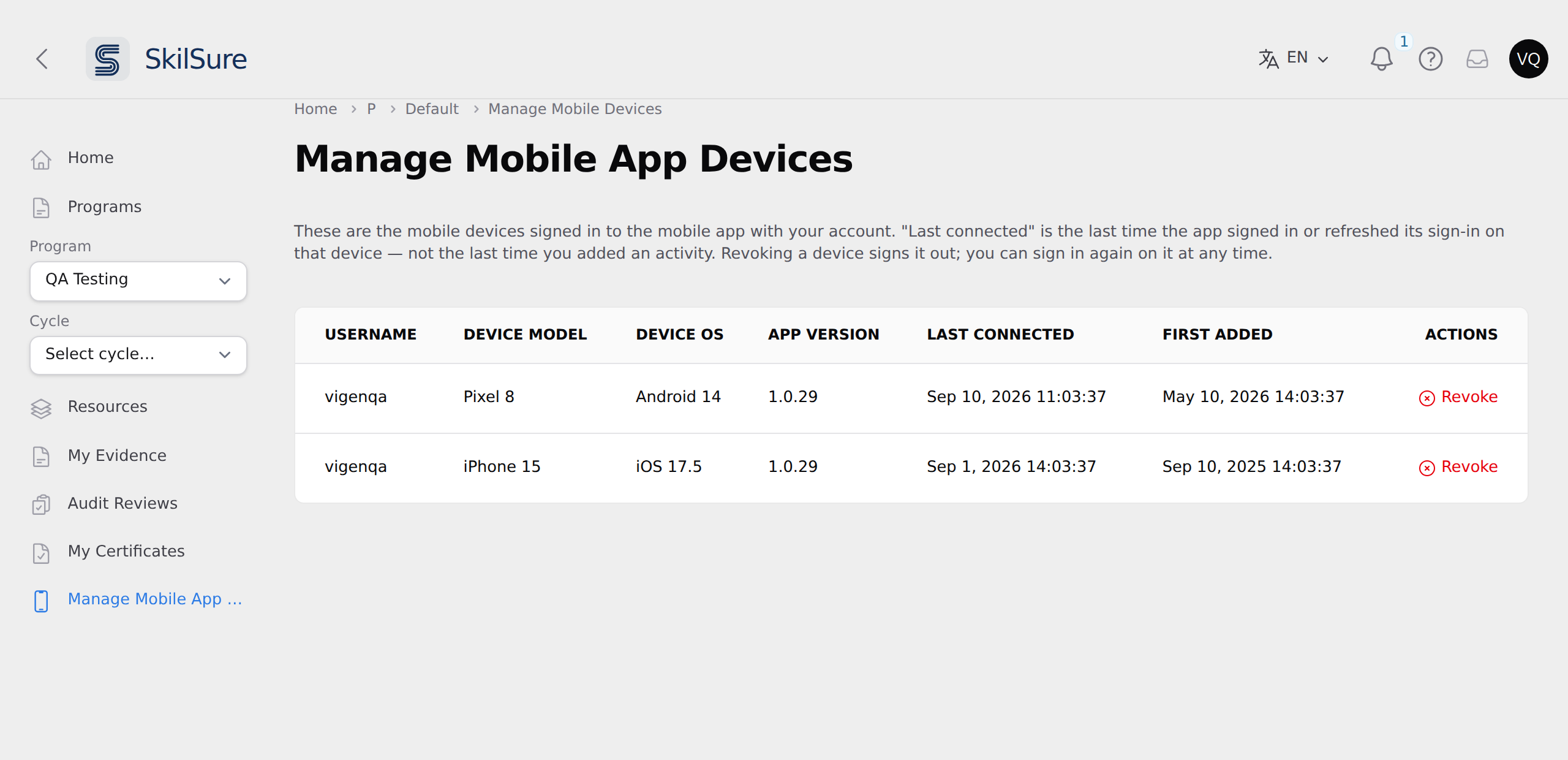 Every device signed in to the mobile app with your account.
Each row is one device:
- Username — the account name the app signed in with.
- Device model and Device OS — what the app reported about the phone or tablet.
- App version — the version of the mobile app installed on it.
- Last connected — the last time the app signed in, or renewed its sign-in, on that device.
- First added — when that device first signed in.
"Last connected" is about signing in, not about your work
It changes when the app signs in or renews its sign-in — not when you last added an activity from the app. A device you use every day can show an older date here.
Sign a device out
Click Revoke on the row, then confirm.
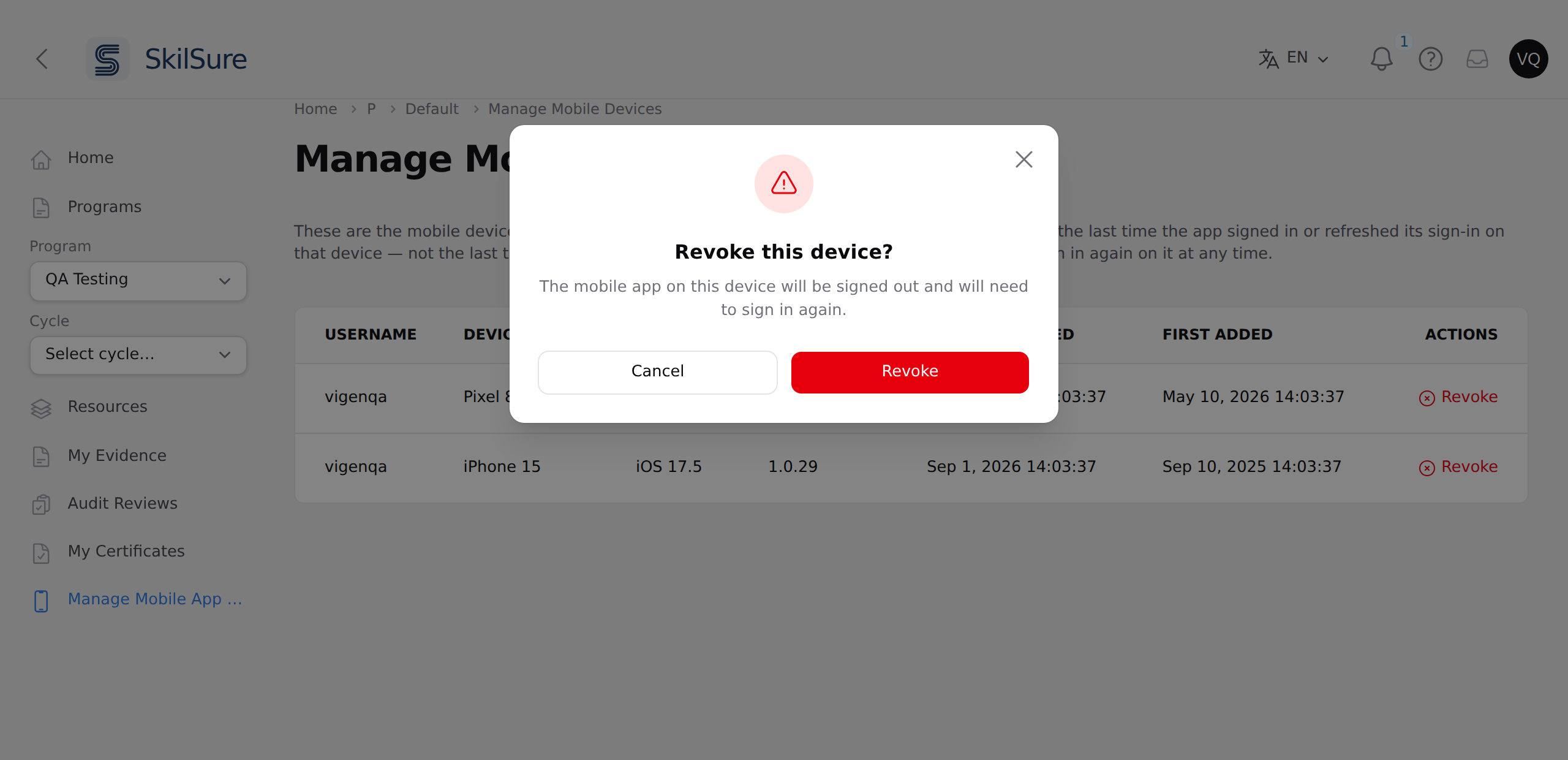 Revoking asks for confirmation first.
The app on that device is signed out and has to sign in again the next time it is opened. Nothing you submitted from it is affected — activities, hours, and files you already sent stay exactly as they are.
Revoking is not permanent: you can sign in again on the same device whenever you like, and it reappears in the list.
Revoke a device when:
- you have replaced or sold the phone,
- you have lost it, or
- you no longer recognize a row in the list.
Don't recognize a device?
Revoke it, then change your password. If rows you don't recognize keep appearing, contact your administrator.
If the list is empty
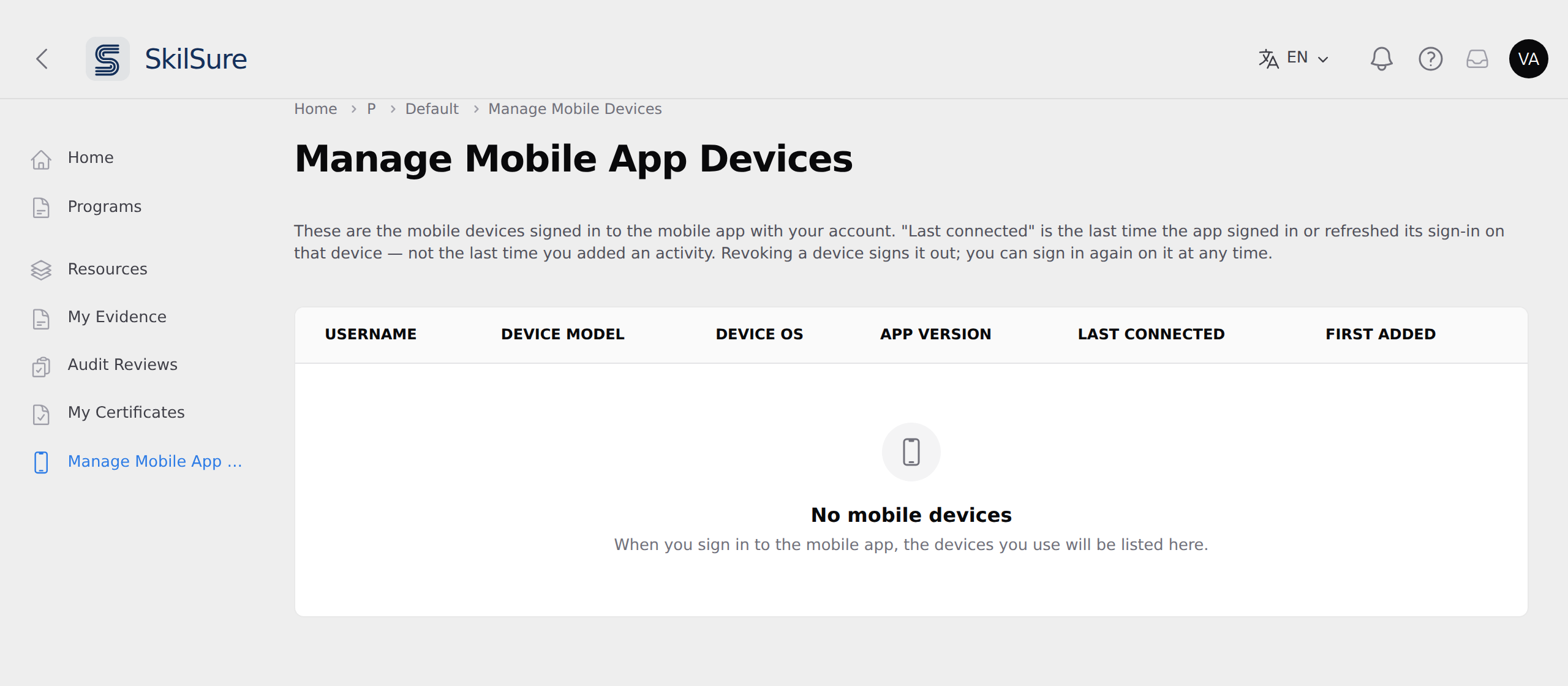 The page before you have ever signed in on the mobile app.
An empty list usually just means you have not signed in to the mobile app yet. Sign in on your phone and the device appears here.
If you have used the app and the list is still empty, your account may be missing the member number the app signs in with. Contact your administrator, who can add it.
If the app refuses to sign you in although your email is right, the name in the sign-in service may not match your account. Contact your administrator: they can check why, and let your next sign-in through after confirming it's you.
Not everyone sees this page
It only appears when your organization has the mobile app switched on and set up. If it isn't in your navigation, your organization doesn't use the app — or hasn't finished configuring it. Administrators: see the Setup Guide on the integration's configuration page.